

Create a course
Create a course from the Trainings menu: with AI or from your presentation, and what Complement sets up for you.
In Create a course
- Understand the structure of a course
- Create a course
- Generate a course with AI
- Import a PDF or images
- Organise chapters
- Edit a slide
- Write the tutor script
- Edit a slide visual with AI
- Add interaction questions and surveys
- Add a video
- Create the end-of-chapter quiz
- Add resources to a course
- Saving and editing with others
- Preview a course
- Publish a course
- Course settings
- Course completion rules
- Trainer rights on a course
- Manage your courses
- Export a course to PDF
You create a course from the Trainings menu. First, you choose how to build it: with AI, from your instructions and documents, or yourself, from your presentation.
Before you start#
- Administrators, Content managers and Trainers can create a course. The Guest role cannot.
- The create button does not appear when your platform is read-only: see Why is your platform read-only?.
Choose your starting point#
- Open Trainings.
- Click Create training, at the top right. The Create training window opens.
- Choose:
- Generate with AI, with the Recommended badge: you describe the course and add your materials, and AI builds the slides, scripts, quizzes and interactions. See Generate a course with AI.
- Start from a blank canvas: you build the course yourself, from your presentation. See below.
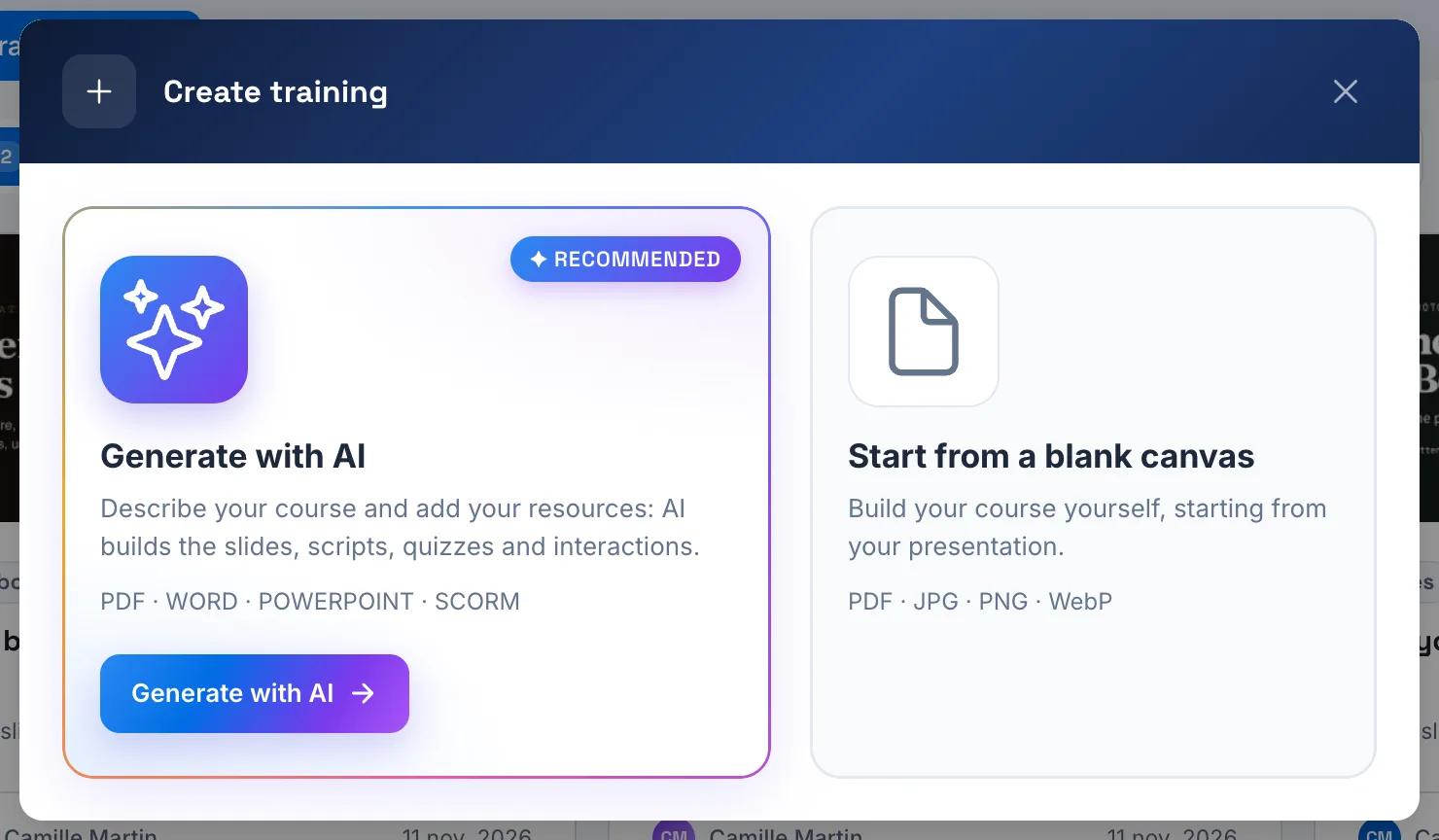
As long as you have no course, the Trainings page shows these two choices directly, under "Create your first course".
Start from your presentation#
- Choose Start from a blank canvas.
- Enter the Training title.
- Under Your starting material, add your PDF presentation or an image: drag the file into the area, or click it to choose the file. Only one file is accepted: a PDF or a JPG, PNG or WebP image.
- Check the file name shown. To choose another file, click Remove.
- Click Create my course. The button stays greyed out until both the title and the file are there.
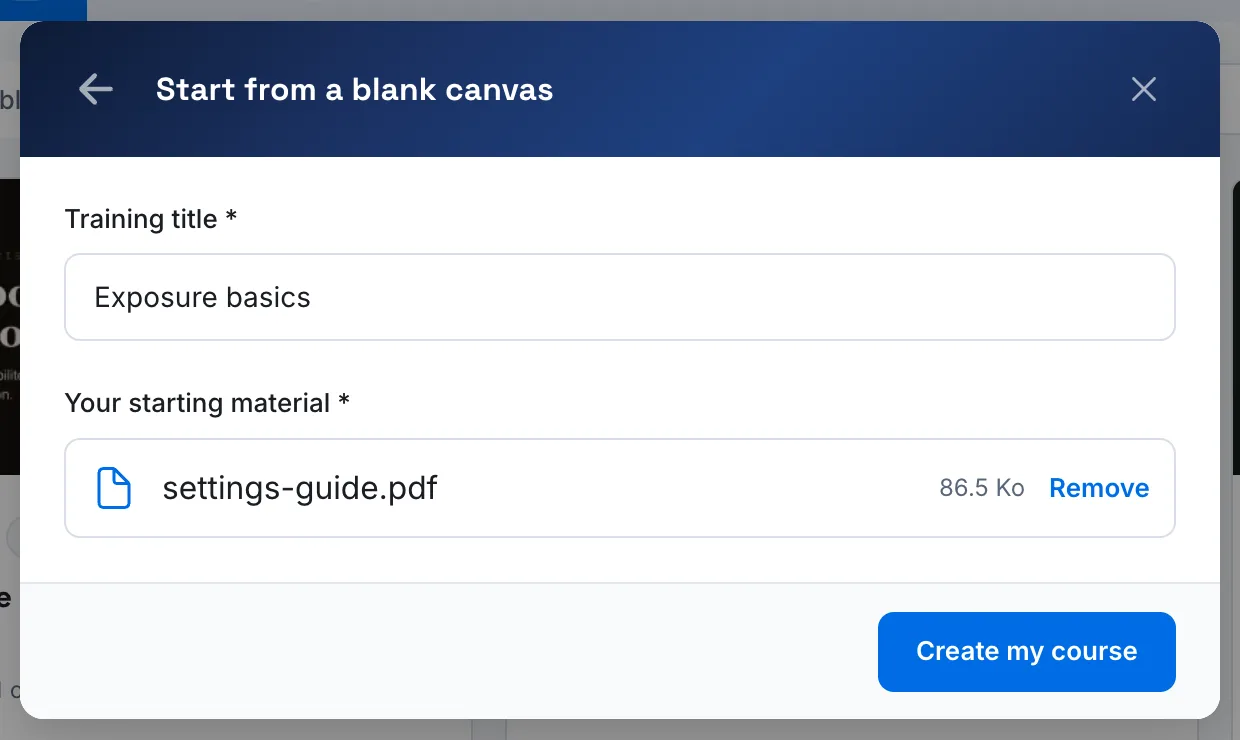
If the file is not suitable, the app tells you why below the drop area.
The editor opens straight away, on the Edit training tab, and imports your file: the image, or each page of the PDF, becomes a slide. See Import a PDF or images. If you created the course from a folder, it is stored in that folder.
If you close the window after you have started filling it in, the app asks "Leave without saving?". Click Keep editing to carry on, or Leave to give up.
The window does not ask for a description. You can write it later in the Settings tab. If it is still empty at the first publication, Complement writes one from the course content; you can edit it afterwards.
What Complement sets up for you#
When the course is created, Complement:
- registers you as the course's author;
- gives Reading rights to all Trainers and Guests on the platform, and turns on the Automatically add read rights option for those who join later;
- gives you Edition rights if you are a Trainer;
- sets up the course's AI tutor, which will answer learners based on the course content.
With Start from a blank canvas, your starting material forms the first chapter, "Chapter 1", with an empty quiz question to complete.
The course is a draft. No learner sees it until you have published it and given it to a team. To set the rights, see Trainers' rights on a course.
Start again from an empty course#
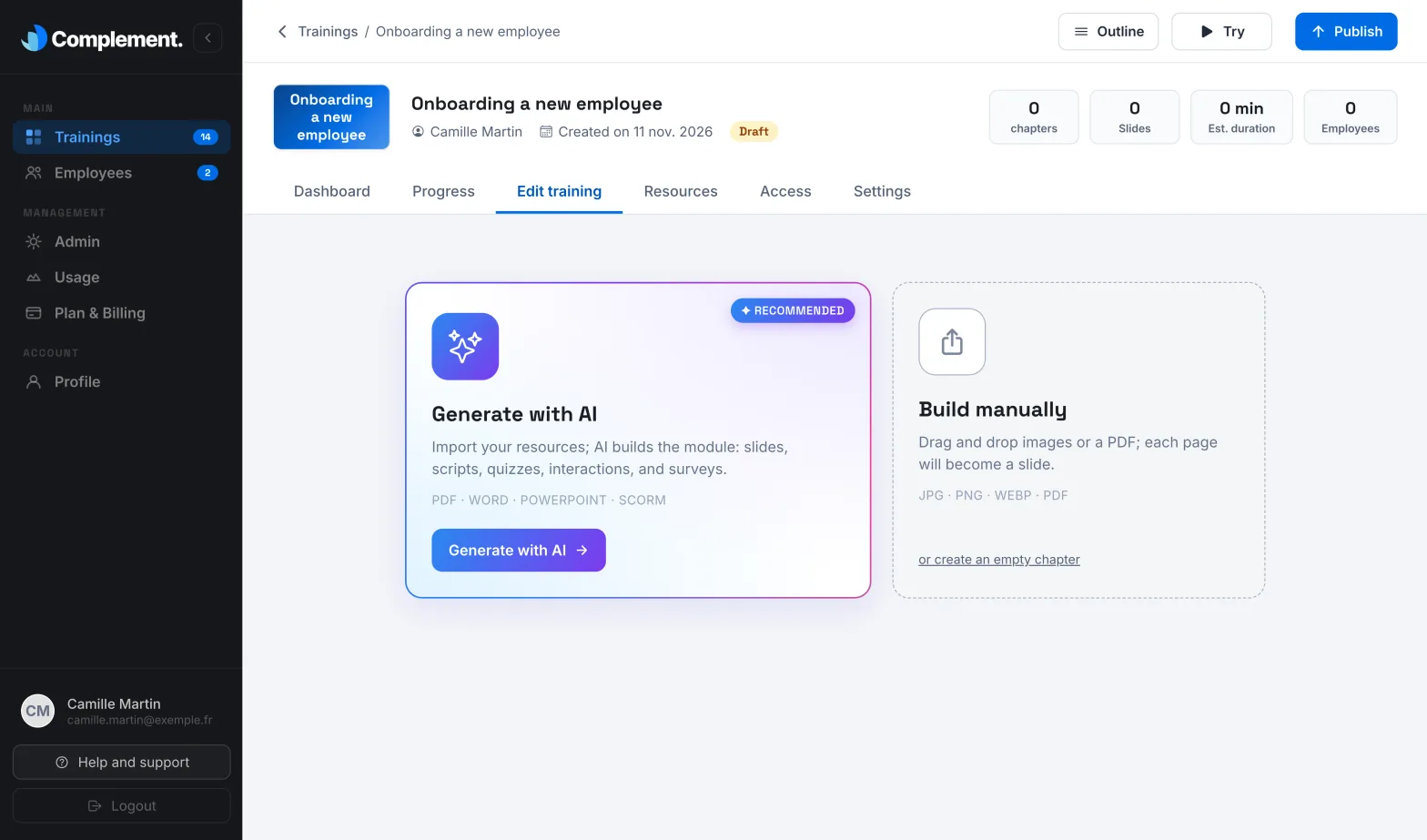
A course that has no content yet offers three starting points:
- Generate with AI: AI builds the course from your instructions and documents;
- Build manually: drag and drop images or a PDF onto this card, or click it to choose them. Each image or page becomes a slide;
- or create an empty chapter: you build the course yourself, one content item at a time. See Understand the structure of a course.
Was this article helpful?
Thank you for your feedback!
Thank you. Tell us what is missing through Help and support in the app, and we will complete the article.