

Export tracking data for a course
Questions to the avatar, answers to quizzes, interactions and surveys, completion table: what the CSV exports contain and how to open them.
In Track results
You can export a course's tracking data to CSV files, to analyse it in a spreadsheet or archive it. There are five exports: four from the dashboard, one from the Progress tab. Complement does not offer SCORM or xAPI export.
Before you start#
- All teaching team roles can export the data of a course they can open.
- Dashboard exports use the data as of its last update, shown by the Data up to date label.
- If there is nothing to export yet, the app shows "Data is not sufficient to make the export".
Export a file#
- Open Trainings › your course.
- For a dashboard export, open the Dashboard tab. In the block you want, click Access details, then Export.
- For the completion table, open the Progress tab and click Export.
The download starts from a new browser tab.
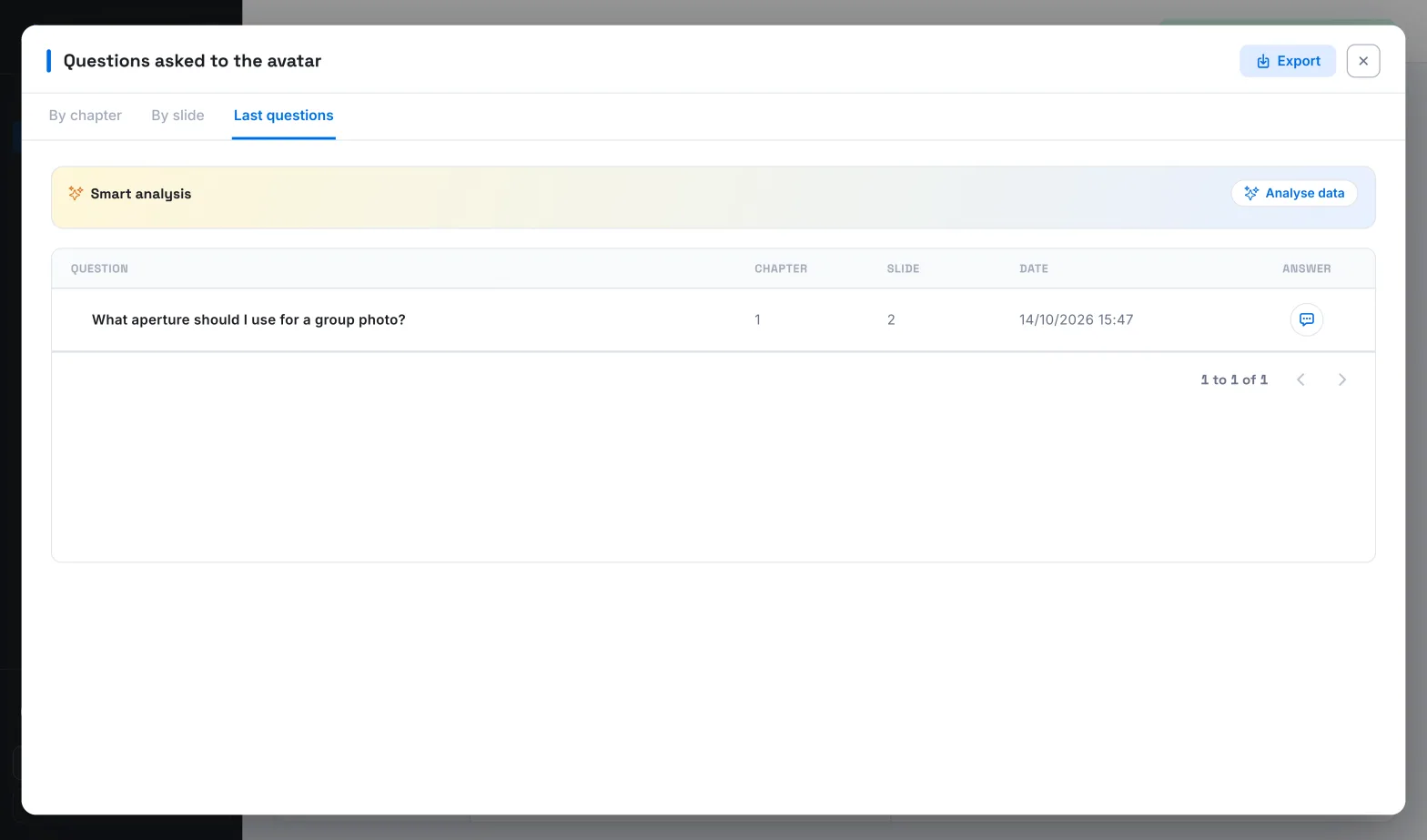
| Downloaded file | Where to find it |
|---|---|
| Questions asked to the avatar | Questions asked to the avatar block |
| Quiz answers | Quiz results block |
| Interaction question answers | Interaction questions block |
| Survey questions answers | Survey questions block |
| Completion table | Progress tab |
Each export covers the whole course, whatever chapter, slide, search or filters are displayed. The quiz export contains all tries, even if First tries is selected.
What the files contain#
The column names below are those of an export in English, which you get when your Language of conversation with the avatar is English. Otherwise, they are in French.
The four dashboard exports#
These files contain no learner names.
| File | Columns |
|---|---|
| Questions asked to the avatar | Date, Question asked to the avatar, Avatar's answer, Chapter, Slide |
| Quiz answers | Date, Chapter, Question, Answer, Avatar's answer, Validated |
| Interaction question answers | Date, Chapter, Slide, Question, Answer |
| Survey questions answers | Date, Chapter, Slide, Question, Answer |
Rows are sorted by chapter, then by slide or by question. In the quiz export, each question is preceded by its number, and the Validated column contains Yes or No. Voice commands are not included in the questions export.
The completion table#
This export includes learners' names. Rows are sorted alphabetically by name.
| Column | Content |
|---|---|
| Student/Employee/Trainee | The learner's name |
| Their email address | |
| Curriculum/Program | Their department |
| Class/Team/Group | Their team |
| Start | The date they first opened the course |
| Time spent | The time spent, for example 1h05 or 05 min |
| Validated quizzes | The share of chapter quizzes passed, as a percentage |
| Score | The percentage of correct answers, filled in once the course is finished |
| Progress | The percentage of slides viewed |
| End | The date they finished the course |
- Only learners who have opened the course at least once are included. Those who have never opened it appear in the Progress tab, but not in the export.
- A learner enrolled in several teams that have access to the course appears once per team.
- A row without a name or email corresponds to a deleted learner: their results still count, without their identity.
Open a file in a spreadsheet#
The files use a comma as the separator and UTF-8 encoding. Depending on your spreadsheet, double-clicking may display accented characters incorrectly or put all the data in a single column. Import the file instead:
- Excel: in a blank workbook, open the Data tab › From Text/CSV. Choose the file, the file origin "65001: Unicode (UTF-8)" and the delimiter "Comma", then click Load.
- Google Sheets: open File › Import, then import the file. Choose the separator type "Comma" and click Import data.
- LibreOffice Calc: when opening the file, choose the character set "Unicode (UTF-8)" and the separator "Comma".
Was this article helpful?
Thank you for your feedback!
Thank you. Tell us what is missing through Help and support in the app, and we will complete the article.