

Track learner progress in a course
The Progress tab lists your learners with their progress, quiz score, time spent and status. Search, filter and export.
In Track results
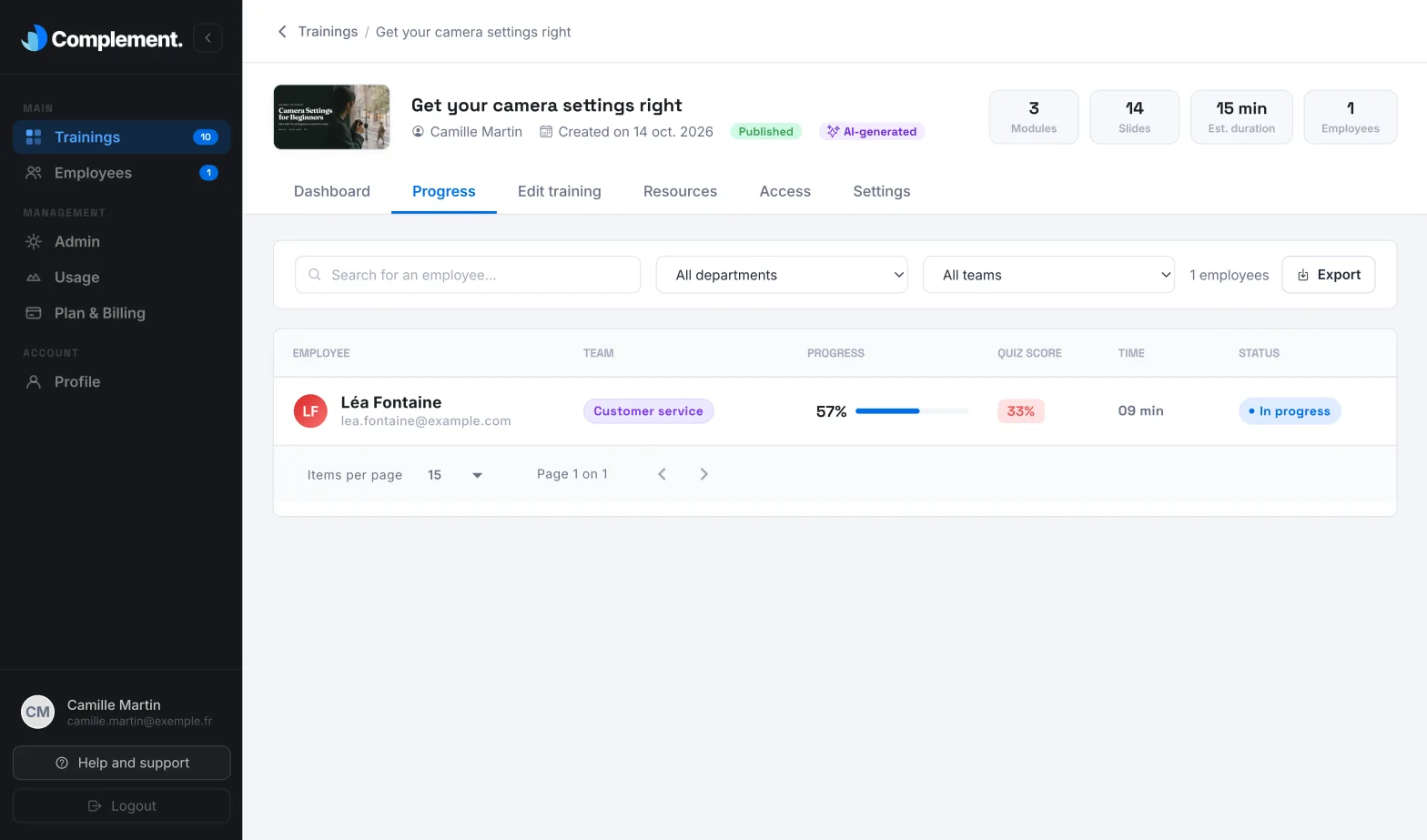
The Progress tab of a course lists your learners one by one, with their progress, their quiz score, their time spent and their status. Unlike the dashboard, it shows each learner's name.
Before you start#
- The course must be assigned to at least one team. Otherwise, the tab shows "Nobody has access to this training". If you can edit the course, the Give access button opens the Access tab. See Give access to a course.
- The list includes all learners in the teams that have access to the course, including those who have not started it yet.
Open the Progress tab#
- Open Trainings › your course.
- Click the Progress tab.
Read the table#
| Column | What it shows |
|---|---|
| Employee | The learner's name and email address. |
| Team | Their team. |
| Progress | The percentage of slides viewed. |
| Quiz score | The percentage of correct answers to the quizzes, over the whole course. Hover over it to see the number of Validated quizzes, for example 2/4. Its colour shows whether it reaches the course's pass mark. |
| Time | The time spent on the course. |
| Status | Where the learner stands (see below). |
The Status column has four possible values:
| Status | Meaning |
|---|---|
| Validated, with the date | The learner has finished the course and their score reaches the pass mark. |
| Completed | The learner has finished the course, but their score is below the current pass mark. |
| In progress | The learner has viewed slides or spent time on the course. |
| Not started | The learner has not started the course yet. |
A course is finished when the learner has passed the quiz of every chapter. The pass mark is explained in Completion rules.
Search, filter and sort#
- Type the beginning of a first name, a last name or an email address in the search field.
- Choose a department in All departments, then a team in All teams. The list of teams is limited to the chosen department.
- Click a column header to sort the table. By default, it is sorted by Progress, from the most advanced to the least advanced.
The number of learners who match your criteria is shown next to the Export button.
Open a learner's tracking page#
Click a learner's row. Their tracking page opens, with all their courses and the details by chapter. See View a learner's individual tracking.
Export the table#
Click Export to download the progress table in CSV format. The export ignores the search and the filters: it covers the whole course.
Was this article helpful?
Thank you for your feedback!
Thank you. Tell us what is missing through Help and support in the app, and we will complete the article.