

The vocabulary for your sector
The app's labels change with your type of organisation: table of equivalents and glossary of Complement terms.
In Getting started
Complement adapts some interface labels to your type of organisation. For example, your learners are called Employees in companies and Students in education. Everything works the same way: only the names change.
The articles in this help centre quote the labels of the company interface. This table gives you their equivalent in your sector.
Your platform's sector#
The Administrator can see it in Admin, Organisation section, Sector field. This field cannot be changed in the app: the sector is set by Complement. To change it, contact your Complement account manager or send a request from Help and support.
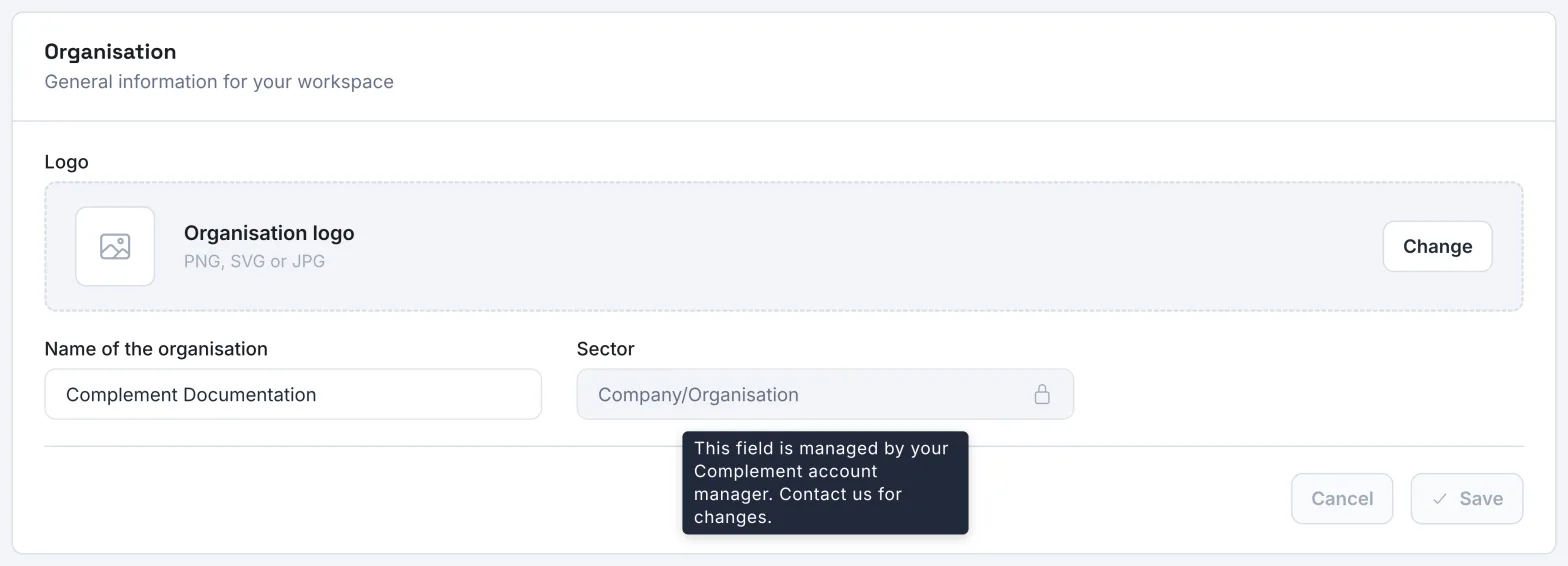
If you created your platform through online signup, its sector comes from the organisation type you chose when signing up. See Create your platform.
The equivalents#
| Where you see it | Company | Education | Training provider | Public sector |
|---|---|---|---|---|
| Sector field | Company/Organisation | School | Formation | Public sector |
| Courses menu | Trainings | Courses | Trainings | Trainings |
| Learner's home page | My trainings | My Courses | My trainings | My trainings |
| Learners menu | Employees | Students | Trainees | Public servants |
| Learner list tab | Learners | Students | Learners | Public servants |
| Teams tab | Teams | Classes | Groups | Departments |
| Departments tab | Departments | Curriculums | Programs | Directorates |
| Button to add a learner | Add an employee | Add a student | Add a learner | Add a public servant |
| A learner's role, on their profile | Employee | Student | Learner | Public servant |
| Content creation role | Trainer | Teacher | Trainer | Trainer |
| Rights on a course, in its settings | Trainer access rights | Teacher access rights | Trainer access rights | Trainer access rights |
| Onboarding setting of a course | Use as onboarding training | Use as onboarding course | Use as onboarding training | Use as onboarding training |
| Section about your organisation, in Admin | Organisation | Establishment | Training center | public-sector platform |
Other messages follow the same logic: for example, Edit training becomes Edit course in education.
Glossary#
| Term | Definition |
|---|---|
| Avatar | The animated character on screen that the learner talks to. Each learner chooses their own. |
| AI tutor | The artificial intelligence that drives the avatar: it presents the slides, answers learners' questions using the course and its resources, and runs the quizzes. |
| Slide | A step in a chapter: a visual and the script the avatar says. A slide can also be a video. |
| Chapter | A series of slides, ending with an end-of-chapter quiz. |
| End-of-chapter quiz | The questions asked at the end of a chapter to check what the learner has remembered: open questions or multiple-choice questions. |
| Multiple-choice question | A question with several options, at least one of which is correct. |
| Interaction question | A question the avatar asks during a slide, to make the learner think. |
| Survey question | A question that gathers learners' opinions. The answers are grouped in the course dashboard. |
| Draft | The version of a course that you edit in the editor. Learners cannot see it. |
| Published version | The version that learners take. It is replaced with each new publication. |
| Creator seat | The licence of an Administrator, a Content manager or a Trainer. A Guest does not use one. |
| Passing threshold | The proportion of correct answers needed to pass an end-of-chapter quiz. It is set for each course. |
| Resources | The files and web pages added to a course. Learners can view the ones that are shared, and the AI tutor can use them to answer. |
Was this article helpful?
Thank you for your feedback!
Thank you. Tell us what is missing through Help and support in the app, and we will complete the article.