

View a learner's individual tracking
A learner's activity, time spent, scores and progress, course by course and chapter by chapter: what their tracking page shows.
In Track results
Each learner has a tracking page. It brings together their activity and results on all the courses they have access to, with details chapter by chapter.
Before you start#
- All teaching team roles can open a learner's tracking page.
- To compare all the learners on the same course, use the Progress tab instead: see Track learner progress.
Open the tracking page#
From the list of learners:
- Open Employees › Learners.
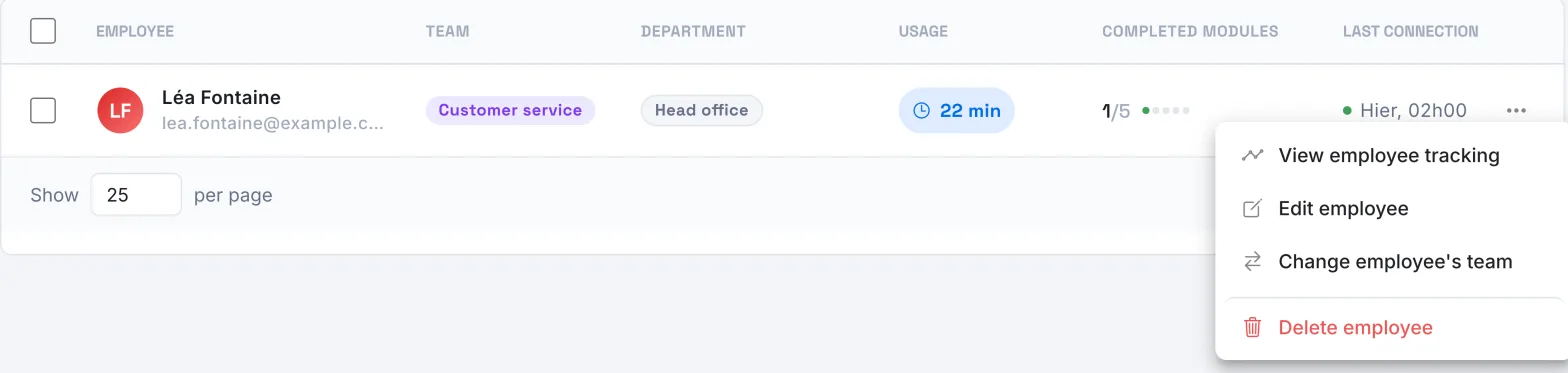
- Click the learner's name. You can also click the three-dot button at the end of their row, then View employee tracking.
From a course:
- Open Trainings › your course › Progress.
- Click the learner's row.
The Back button, at the top of the page, takes you back to the previous screen.
What the page shows#
The profile and the indicators#
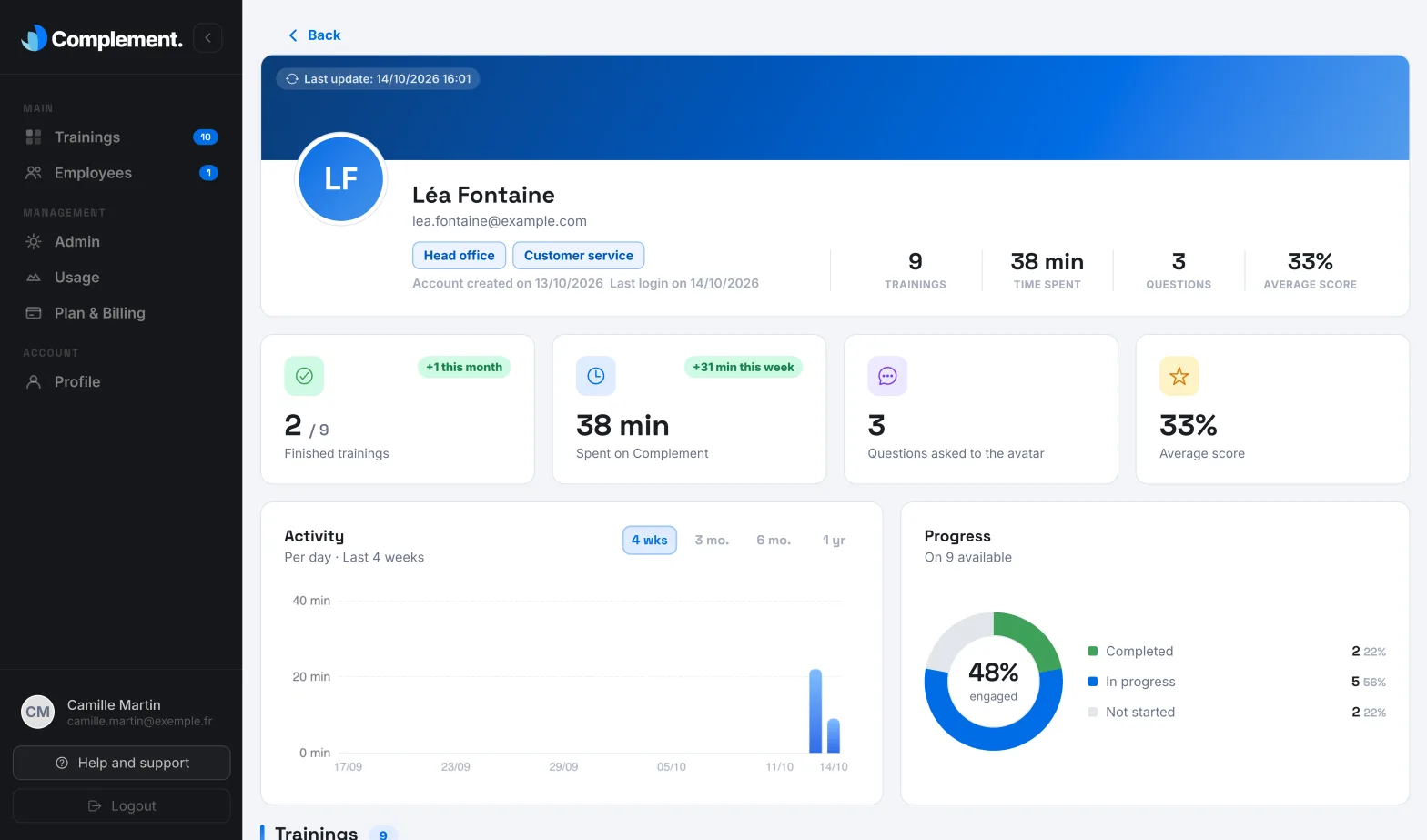
At the top of the page, you find:
- the learner's name, email address, department and team;
- the date their account was created (Account created on) and the date of their last login (Last login on);
- their indicators: courses finished out of the total, time spent on Complement, number of questions asked to the avatar and Average score;
- the date the data was last calculated, after Last update.
Activity and progress#
- Activity: the time the learner has spent over time. Choose the period: 4 wks, 3 mo., 6 mo. or 1 yr.
- Progress: the share of their courses that are Completed, In progress and Not started, with their average progress in the centre.
The courses#
The Trainings table lists the published courses assigned to the learner's teams.
| Column | What it shows |
|---|---|
| Training | The name of the course and its authors. |
| Time spent | The time spent, or Not started. Underneath, the estimated duration of the course. |
| Quizzes | The number of chapter quizzes passed out of the total, for example 2/4. |
| Score | The percentage of correct answers to the quizzes, over the whole course. |
| Progress | The percentage of slides viewed. |
| Status | Completed, In progress or Not started, with the completion date. |
On this page, a course is Completed when the learner has passed the quiz of every chapter.
Details by chapter#
Click a course to expand it. For each chapter, you see:
- its estimated duration;
- the learner's best score in the chapter quiz, with a green tick if it reaches the pass mark and a red cross if not;
- the percentage of slides viewed in the chapter.
What the page does not show#
- The text of the questions the learner asked the avatar: only their number appears. The learner finds their own questions in their dashboard: see My dashboard.
- Their answers to quizzes, interaction questions and surveys, or their conversations with the avatar.
The questions and answers of all learners are visible, without names, in each course's dashboard. See Read learners' questions and answers.
Was this article helpful?
Thank you for your feedback!
Thank you. Tell us what is missing through Help and support in the app, and we will complete the article.