

Read learners' questions and answers
Questions asked to the avatar, answers to quizzes, interaction questions and surveys, and their summary by Smart analysis.
In Track results
A course dashboard brings together your learners' questions to the avatar and their answers to quizzes, interaction questions and surveys. It helps you spot the concepts that are poorly understood and what your learners expect.
What you see, and what you do not see#
- Each question or answer is shown with its date and its place in the course, without the learner's name.
- You cannot find out who wrote a question or an answer, or view a learner's conversation with the avatar.
- Voice navigation commands, for example to go to the next slide, are not counted as questions.
- A dot marks what has arrived since your last visit to the dashboard.
View the questions asked to the avatar#
Open Trainings › your course › Dashboard. The Questions asked to the avatar block shows the total of Questions asked to the avatars, the Questions by chapter list and the Last questions.
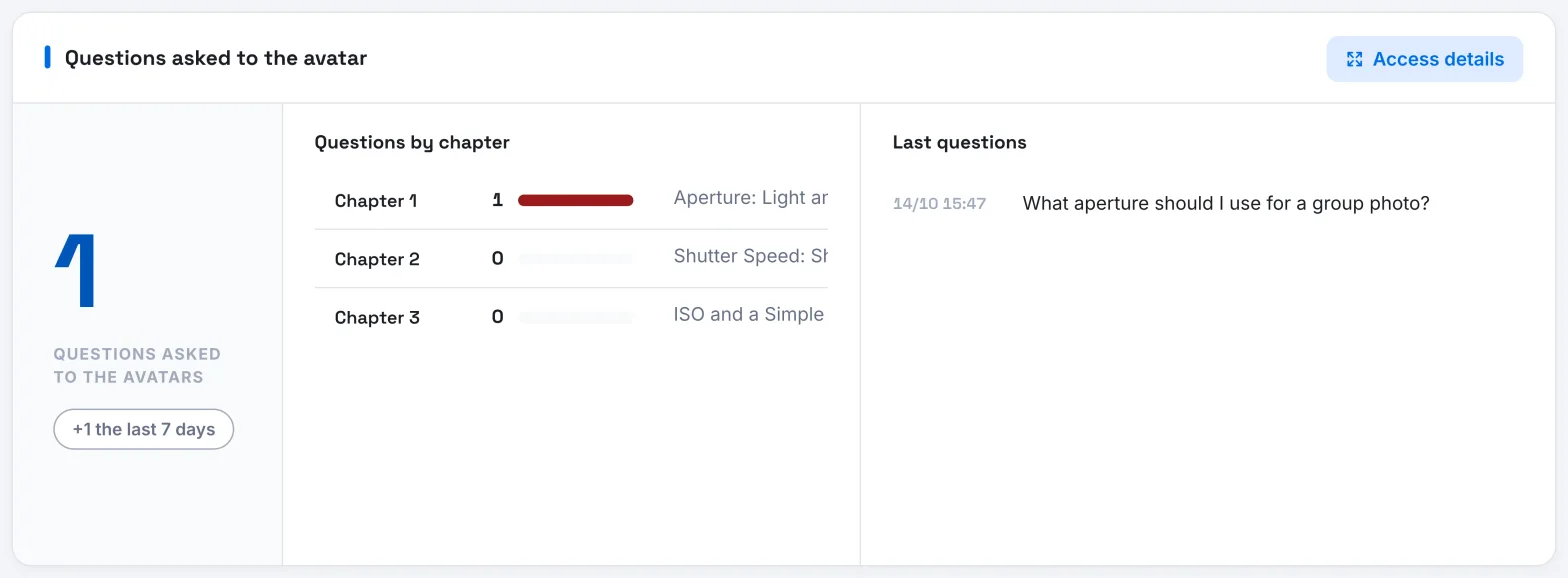
To see all the questions:
- Click Access details, or click a chapter directly.
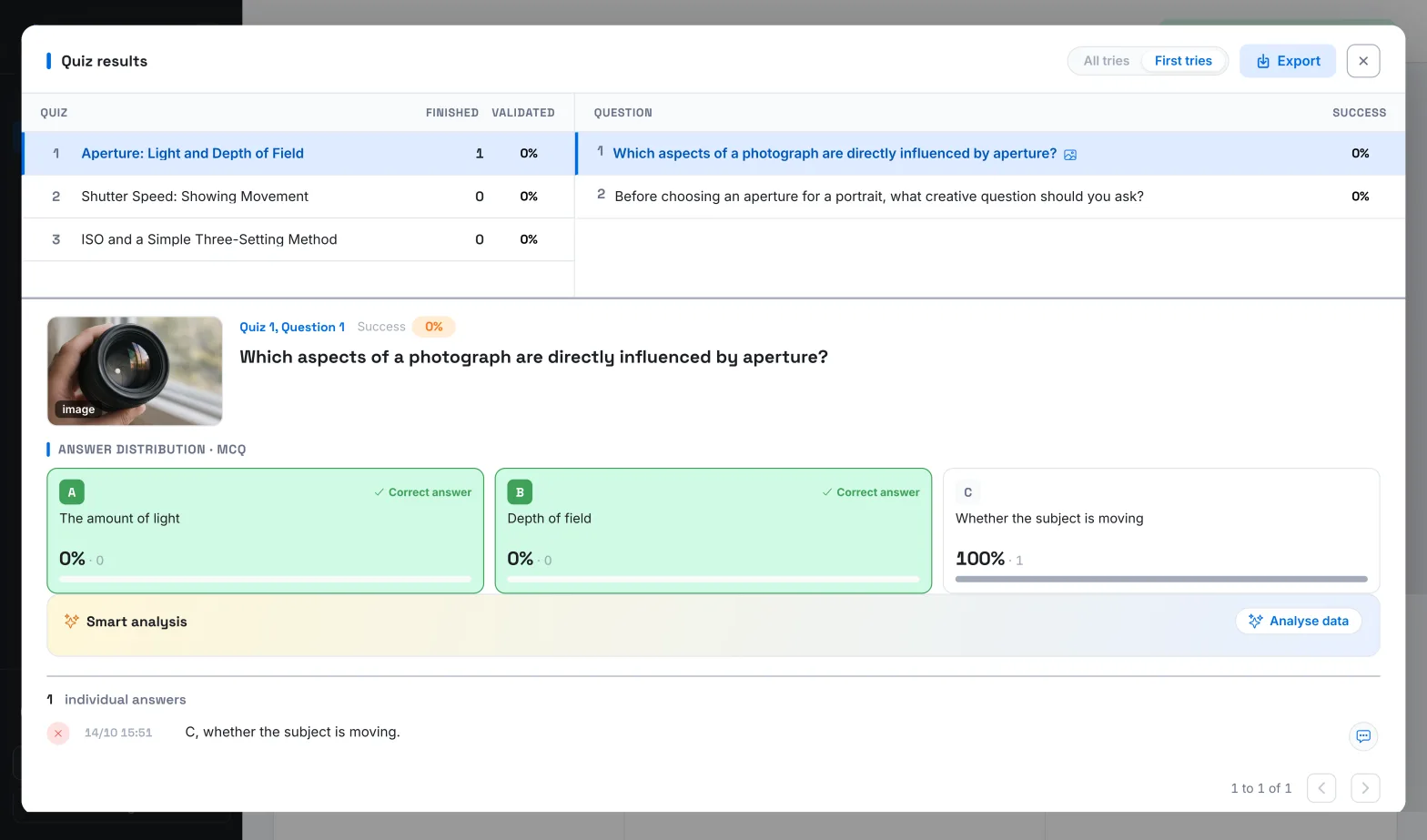
- Choose a tab: By chapter, By slide or Last questions. In the first two, click a thumbnail to show its questions. The arrows scroll through the chapters or slides; Back returns to the thumbnails.
- To read the Answer from the AI avatar, click the icon in the Answer column.
View the quiz results#
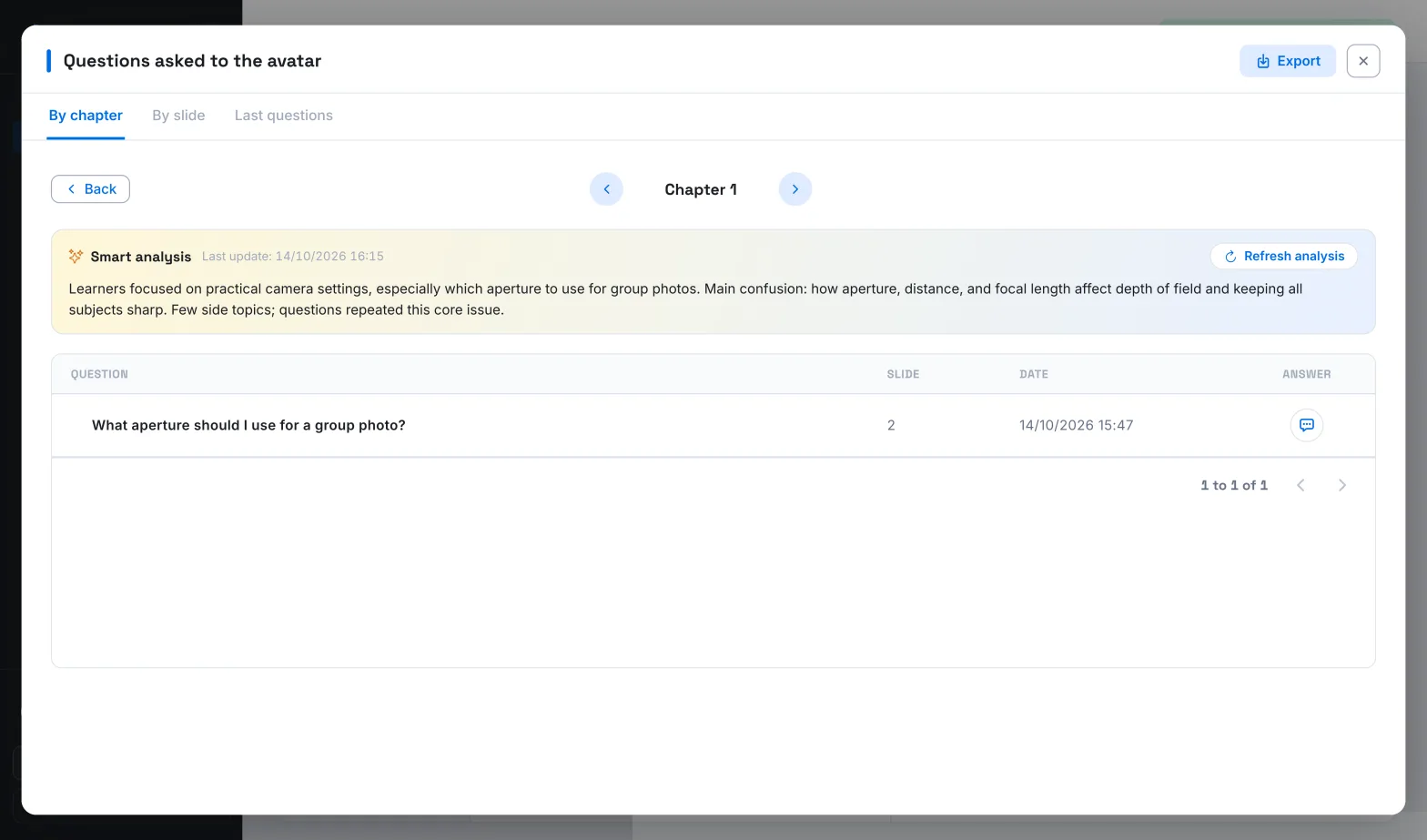
The Quiz results block reads from left to right:
- the Quiz list, one quiz per chapter. Finished gives the number of learners who have taken the quiz, Validated the share of enrolled learners who have passed it;
- the questions of the selected quiz, with their Success;
- the Last answers to the selected question, marked with a tick if they are correct and a cross if not.
At the top of the block, choose All tries to count all answers, or First tries to keep only each learner's first answer to each question. First tries show what was understood before any new attempt.
Click Access details to see, question by question:
- for a multiple-choice question, the Answer distribution · MCQ: the share of each choice, with the Correct answer marked;
- all individual answers, with the Avatar answer to each one.
View the answers to interaction questions and surveys#
The Interaction questions and Survey questions blocks work in the same way:
- on the left, under Questions asked, the slides concerned, numbered by chapter and then by slide. A badge shows the number of answers received in the past week;
- on the right, the last answers to the selected question. An icon shows whether it is a Written answer or an Oral answer.
Click Access details to browse all the answers. For an interaction question, the speech bubble icon shows the Avatar answer; surveys do not have one.
Summarise with Smart analysis#
Smart analysis asks the AI for a short summary of a list of questions or answers. You find it above the lists of questions to the avatar and in the details of quizzes, interaction questions and surveys.
- Click Analyse data. The button stays greyed out as long as the list is empty.
- Read the summary. The date of its Last update is shown above it.
- When new answers have arrived, click Refresh analysis.
| List analysed | What the summary highlights |
|---|---|
| Questions asked to the avatar | The most requested topics, the points that seem unclear, side questions and recurring questions |
| Answers to a quiz question | Overall success, frequent mistakes and recurring ideas |
| Answers to an interaction question | General understanding, prior knowledge and misunderstandings |
| Answers to a survey question | General feeling, common themes, what people like and dislike |
For questions to the avatar, the analysis covers the list shown: the whole course in Last questions, a chapter or a slide in the other tabs. For a quiz, it covers all the answers to the question, whether you chose All tries or First tries.
Export questions and answers#
Each window opened with Access details offers an Export button, which downloads a CSV file: see Export tracking data.
Was this article helpful?
Thank you for your feedback!
Thank you. Tell us what is missing through Help and support in the app, and we will complete the article.