

Add interaction questions and surveys
Get your learners involved: an interaction question the avatar asks on a slide, or a survey question to gather their opinion.
In Create a course
- Understand the structure of a course
- Create a course
- Generate a course with AI
- Import a PDF or images
- Organise chapters
- Edit a slide
- Write the avatar script
- Edit a slide visual with AI
- Add interaction questions and surveys
- Add a video
- Create the end-of-chapter quiz
- Add resources to a course
- Saving and editing with others
- Preview a course
- Publish a course
- Course settings
- Course completion rules
- Trainer rights on a course
- Manage your courses
- Export a course to PDF
Two tools get the learner involved during the course. The interaction question makes them think before the avatar explains a slide. The survey question gathers their opinion. Neither one is graded.
Before you start#
- You must be able to edit the course: see Trainers' rights on a course.
- Everything happens in Trainings › your course › Edit training.
- For graded questions, use the quiz: see Create the end-of-chapter quiz.
Add an interaction question#
- Click the slide's Avatar interaction question button.
- Type the question in the Interaction question field, or dictate it with the microphone.
- Click the eye (Mask the slide during the interaction question) if you want to hide the slide during the question. Click it again to show the slide.
To remove the question, click the interaction question button again. Videos and surveys do not have this button.
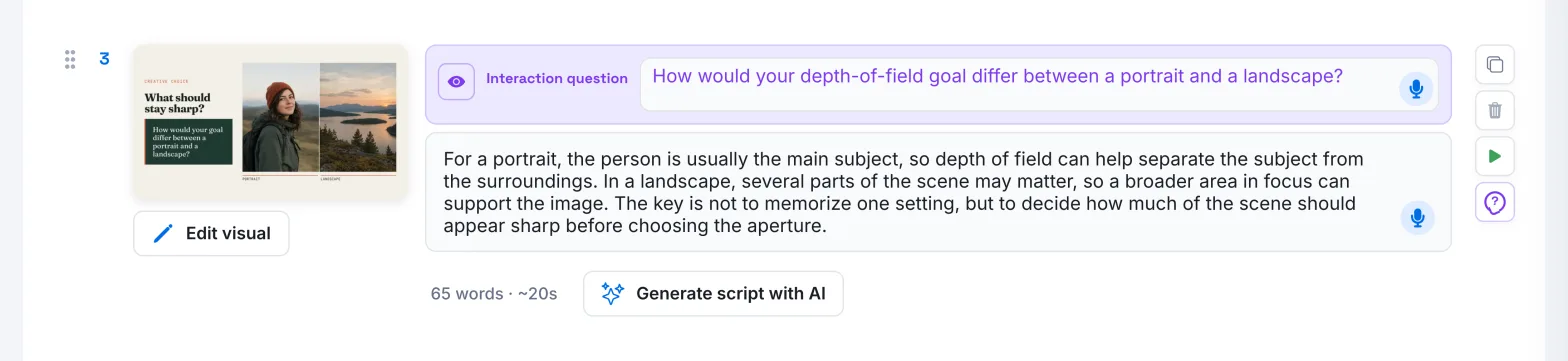
On the learner's side:
- when the learner reaches the slide, the avatar first asks your question, staying as close as possible to your wording;
- the learner answers aloud or in writing;
- the avatar does not grade the answer: it comments on it, then explains the slide, building on what the learner said;
- if you have hidden the slide, it stays blurred during the question, then is revealed.
Add a survey question#
- Click Add content › Survey question, where you want it. An item labelled Survey is inserted.
- Type your question in its text field, or dictate it.
- Add an image if you wish: click the image button (Upload a picture), then choose the image. You can then Replace it or Delete it.
To delete the survey question, click Delete the survey question, then confirm.

On the learner's side:
- the avatar asks the question; the image is displayed if you added one;
- the learner answers freely, aloud or in writing;
- the avatar thanks the learner and reacts briefly, without grading the answer or asking a new question.
To publish, each survey question must be filled in. Otherwise, the app shows "Every slide must have an image and a text".
Read the answers#
Answers to interaction questions and surveys can be read in the course's Dashboard. See Read learners' questions and answers.
Was this article helpful?
Thank you for your feedback!
Thank you. Tell us what is missing through Help and support in the app, and we will complete the article.