

Improve a course with analytics
Spot poorly understood points from questions asked to the avatar, first-try success and surveys, then correct and republish.
In Best practices
A course improves with its first learners. Each course's Dashboard shows you what they ask the avatar, where they fail and what they think. This guide helps you read these signals and turn them into corrections.
Before you start#
- Open Trainings › your course › Dashboard.
- The data is not real-time: the time of the last update appears at the top of the page, next to Data up to date.
- Wait until you have a few learners before drawing conclusions. A single question does not make a trend.
Start from the questions asked to the avatar#
The questions learners ask the avatar are the best sign of a poorly explained point. The Questions asked to the avatar block counts them, chapter by chapter. A chapter with many questions deserves to be reviewed first.
To go further, click Access details. The By chapter, By slide and Last questions tabs present the questions from different angles. In the Answer column, click the icon to read what the avatar answered.
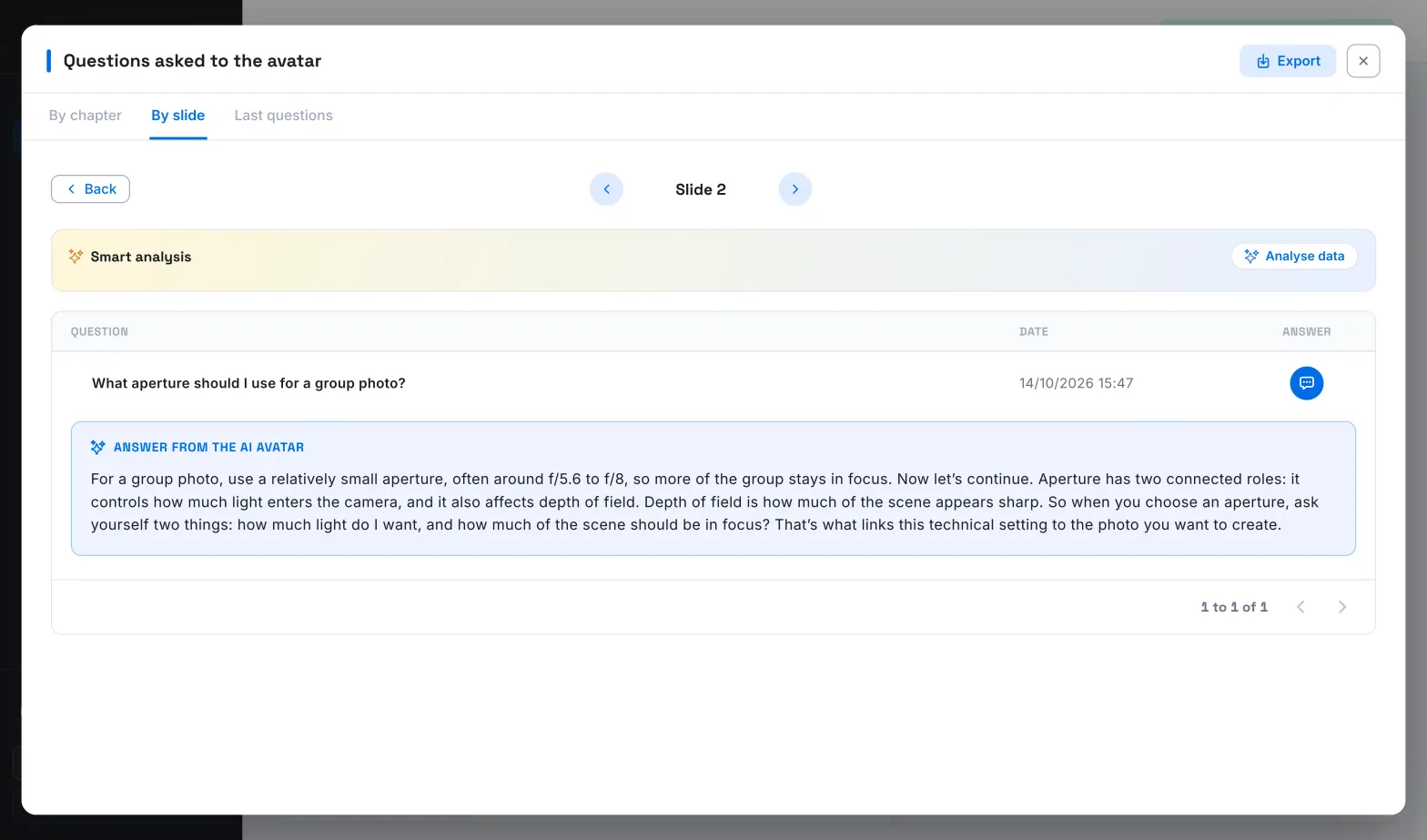
How to interpret what you read:
- Several similar questions on the same slide: the concept is poorly explained. Rephrase the script, add an example or split the slide.
- Questions about a word or an acronym: define it in the script the first time it appears.
- An inaccurate or incomplete answer from the avatar: complete the slide script, or add a reference resource. See Feed the AI tutor.
- Questions that go beyond the subject: this is a sign of interest. They can inspire a slide or a new chapter.
Rows marked Voice command are not questions: the learner asked the avatar, for example, to move forward or go back.
Use Smart analysis#
Smart analysis summarises a large number of answers in a few sentences. Click Analyse data, then Refresh analysis when new data has come in. It is available for questions asked to the avatar and for answers to quizzes, interaction questions and surveys.
For questions asked to the avatar, it brings out the most requested topics and the points that seem unclear. If there are not yet enough answers, the app says so. Use this summary to know where to look, then read the questions themselves before changing your course.
Read first-try success#
The Quiz results block shows, for each chapter, the number of learners who took the quiz and the pass rate. Select a chapter to see the success rate question by question.
Switch to First tries. This mode only counts each learner's first answer: it measures what was understood during the course, before any further attempt. The Quiz success on the first try chart compares the chapters with each other.
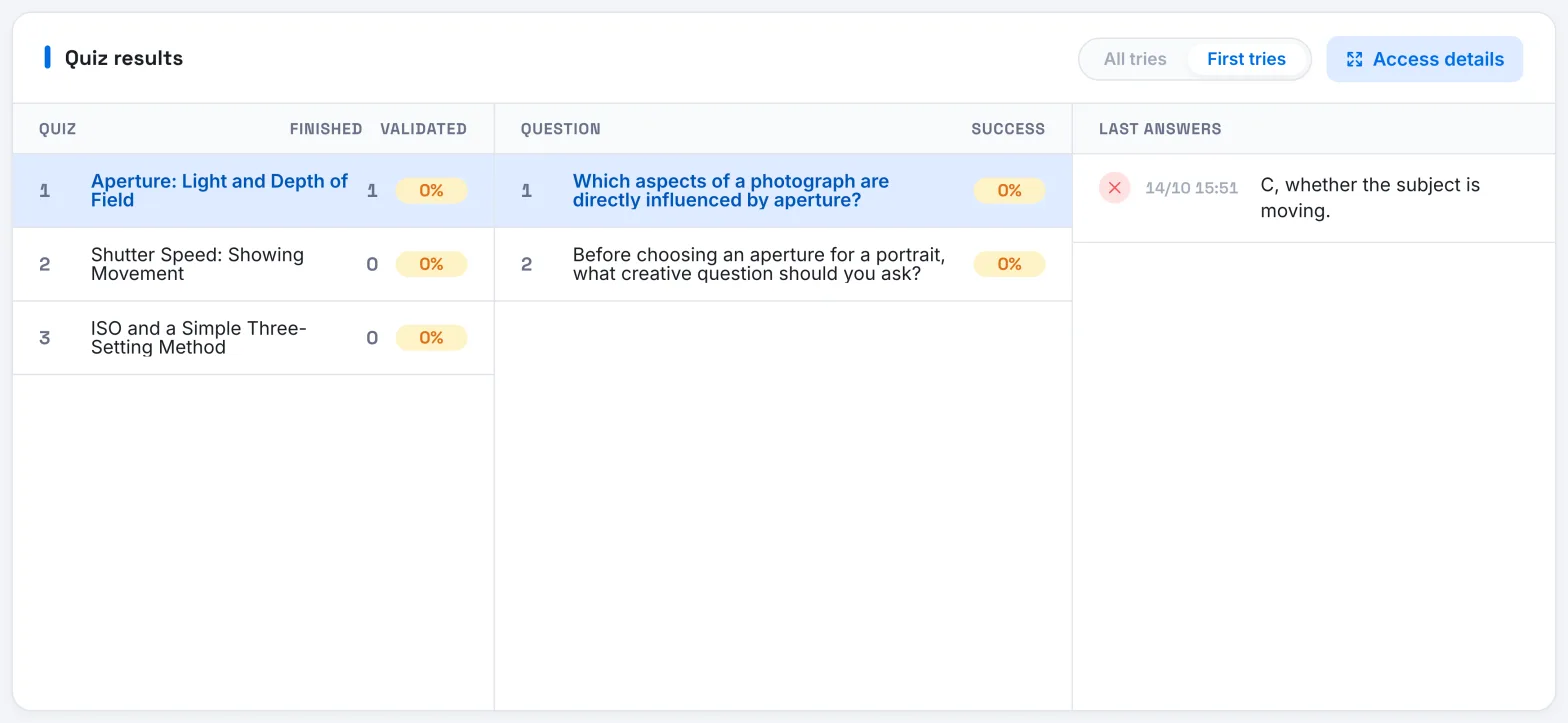
A question with a much lower success rate than the others can hide two problems:
- the content was not explained well enough: rework the related slides;
- the question or the expected answer is ambiguous: read the Last answers and the Avatar answer to understand why answers were rejected.
For a multiple-choice question, Answer distribution · MCQ shows which wrong choice attracts learners. A wrong choice that is ticked very often points to a misconception to address in the course.
Listen to answers to interactions and surveys#
The Interaction questions and Survey questions blocks group learners' answers, slide by slide.
- Answers to interaction questions show what learners already knew and the misconceptions they started with. If a misconception comes up often, address it explicitly in the slide script.
- Answers to surveys give learners' opinions. Courses generated by AI end with two survey questions: their answers are a good starting point.
The Most seen resources block completes the picture: a frequently viewed resource points to a need that the course may not cover enough.
Correct, then republish in one go#
You make your corrections in the draft, in the Edit training tab. Learners keep following the published version until you click Publish.
- Group your corrections and publish them in one go.
- Each time you publish, the AI tutor is updated with the new version.
- Learners who had started the course see the Modified training message the next time they open it.
- Avoid deleting slides, questions or chapters in a course that learners are taking: this can change their progress.
- For a simple correction, choose Don't send when the app offers to notify learners by email.
Then come back to the dashboard a few days later to check the effect of your changes.
Was this article helpful?
Thank you for your feedback!
Thank you. Tell us what is missing through Help and support in the app, and we will complete the article.