

Course completion rules
Passing threshold, time limit, deadline and email reminders, chapter order: set what your learners must do to pass a course.
In Create a course
- Understand the structure of a course
- Create a course
- Generate a course with AI
- Import a PDF or images
- Organise chapters
- Edit a slide
- Write the avatar script
- Edit a slide visual with AI
- Add interaction questions and surveys
- Add a video
- Create the end-of-chapter quiz
- Add resources to a course
- Saving and editing with others
- Preview a course
- Publish a course
- Course settings
- Course completion rules
- Trainer rights on a course
- Manage your courses
- Export a course to PDF
Completion rules set what a learner must achieve to pass a course, and the framework in which they take it: duration, deadline, chapter order.
Before you start#
- Open Trainings › your course › Settings, in the Duration & success and Learning path sections.
- You must be able to edit the course: see Trainer rights.
- Each option is saved as soon as you change it.
The passing threshold#
The Passing threshold (%) is the percentage of correct answers a learner must reach in a chapter's quiz to pass it. The learner passes the course when they have passed the quiz of every chapter.
- If they fail, the "Quiz not passed" screen tells them how many correct answers they needed. They can retake the quiz: their best score is kept.
- The threshold is shown to the learner in the course outline.
For example, with a threshold of 70% and a quiz of four questions, three correct answers are enough. For how the avatar judges each answer, see Create the end-of-chapter quiz.
The time limit#
Turn on Time limit (excluding videos), then enter the allowed Hours and Minutes. Time is counted while the learner takes the course in the player. Time spent on videos is not counted.
When the limit is reached, the learner sees the message "You've reached the time limit for this training" and can no longer continue. In the outline, their chapters are locked.
The deadline and email reminders#
- Turn on Limit completion date, then choose the date in the calendar.
- Turn on Email reminders. Complement suggests two reminders, two weeks and two days before the deadline, when those dates have not already passed.
- To add a reminder, click Choose a date. Each reminder shows how long before the deadline it is sent, for example "14 days before".
- To remove a reminder, click its cross. A reminder that has already been sent is marked with a tick.
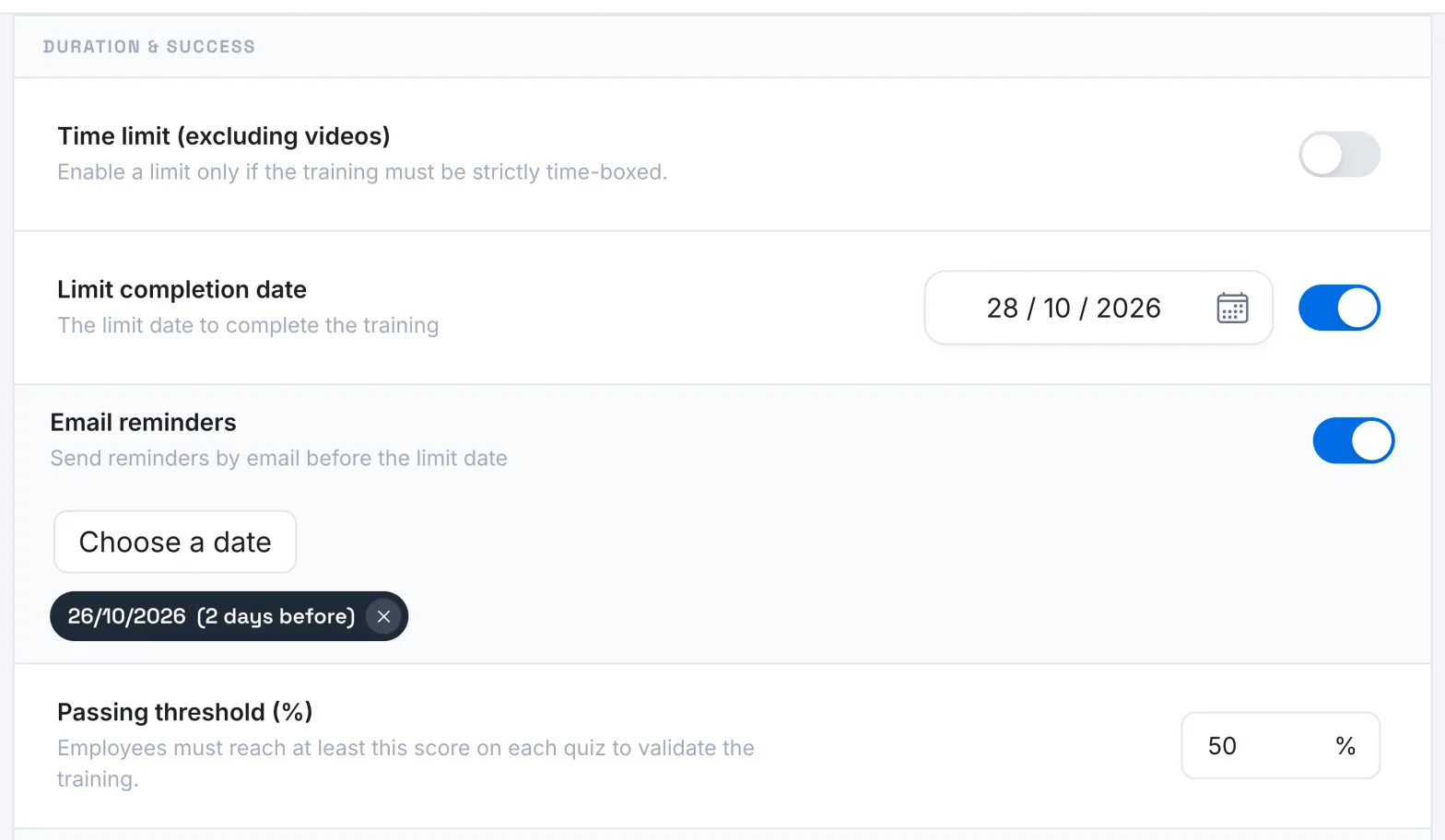
On the chosen day, the reminder is sent to the learners in the teams that have access to the course and who have not gone through all of it, including those who have never started it. The email subject is "The deadline for your course is approaching". It reminds them of the deadline and invites them to resume the course.
The deadline does not block access to the course. The learner sees it on the course card and in its outline, with a countdown as it approaches. See also Inform and remind your learners.
The learning path#
- Require slides before quiz: the learner must view all the slides in a chapter before starting its quiz. Otherwise, they can test themselves straight away and review the slides if they fail.
- Require chapter order: chapters unlock one by one. A chapter opens when the learner has answered all the questions in the previous quiz, whether they passed it or not. The outline shows "Complete the previous chapter to unlock this one" on locked chapters.
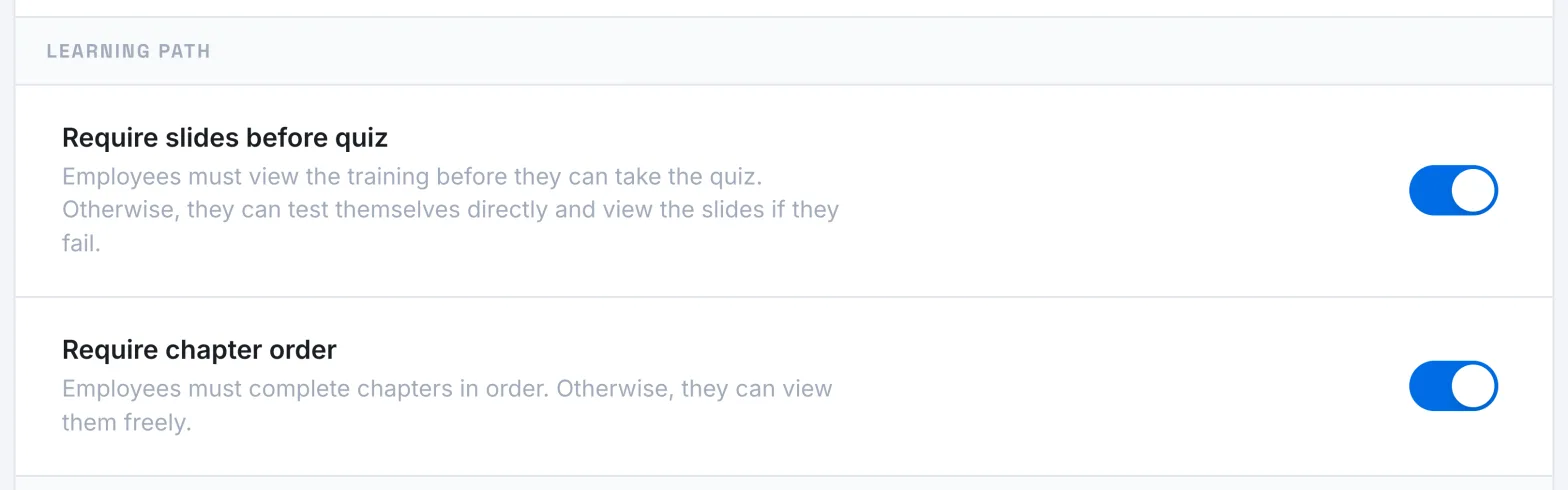
These two rules only apply to learners: they do not block you when you preview the course.
Was this article helpful?
Thank you for your feedback!
Thank you. Tell us what is missing through Help and support in the app, and we will complete the article.