

Give access to a course
Choose the teams that see a course, from the course or from your teams. Only a course that is published and assigned is visible.
In Share your courses
Your learners do not see all your courses: only those you assign to their team. Access is always given by team, never learner by learner.
Before you start#
- Only Administrators and Content managers can change access. A Trainer sees the Access tab, but its boxes are greyed out: on hover, the app shows "You don't have permission to make this change." A Guest can only view the tab.
- Your teams must already exist. See Organise departments and teams.
- You can assign a course before publishing it. It will only appear for your learners once it is published.
From the course: the Access tab#
- Open Trainings › your course.
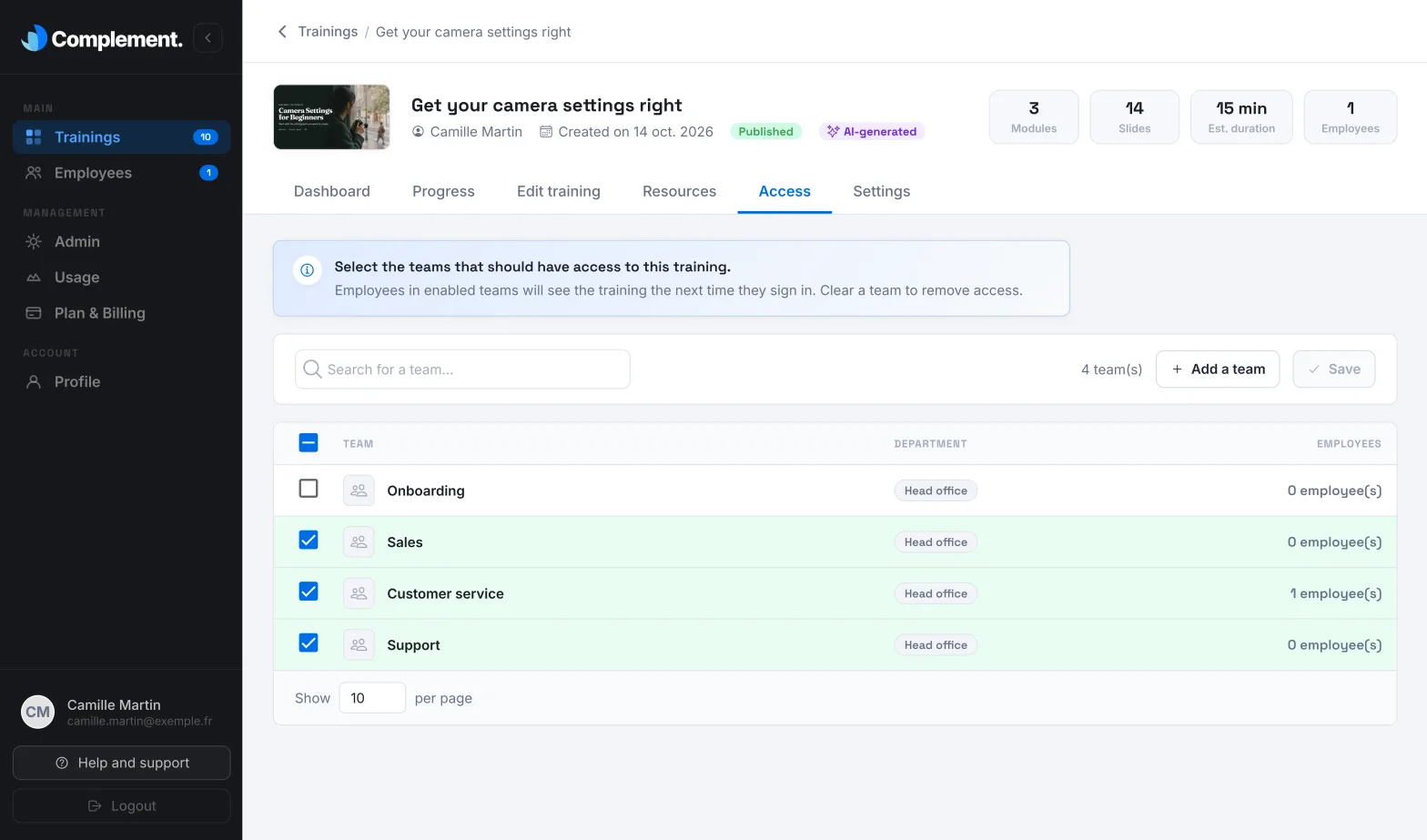
- Go to the Access tab. It lists all your teams, with their department and their number of learners.
- Tick the teams that should see the course. Untick a team to remove its access. The search field helps you find a team.
- Click Save, at the top right.
Until you have saved, the Unsaved changes badge stays visible. Cancel restores the list as it was.
If the course is published and you have just added teams, the Send an email to employees window opens, with the added teams already ticked. See Notify and remind your learners.
From your teams#
Starting from a team is handy for assigning several courses to it at once.
- Open Employees › Teams.
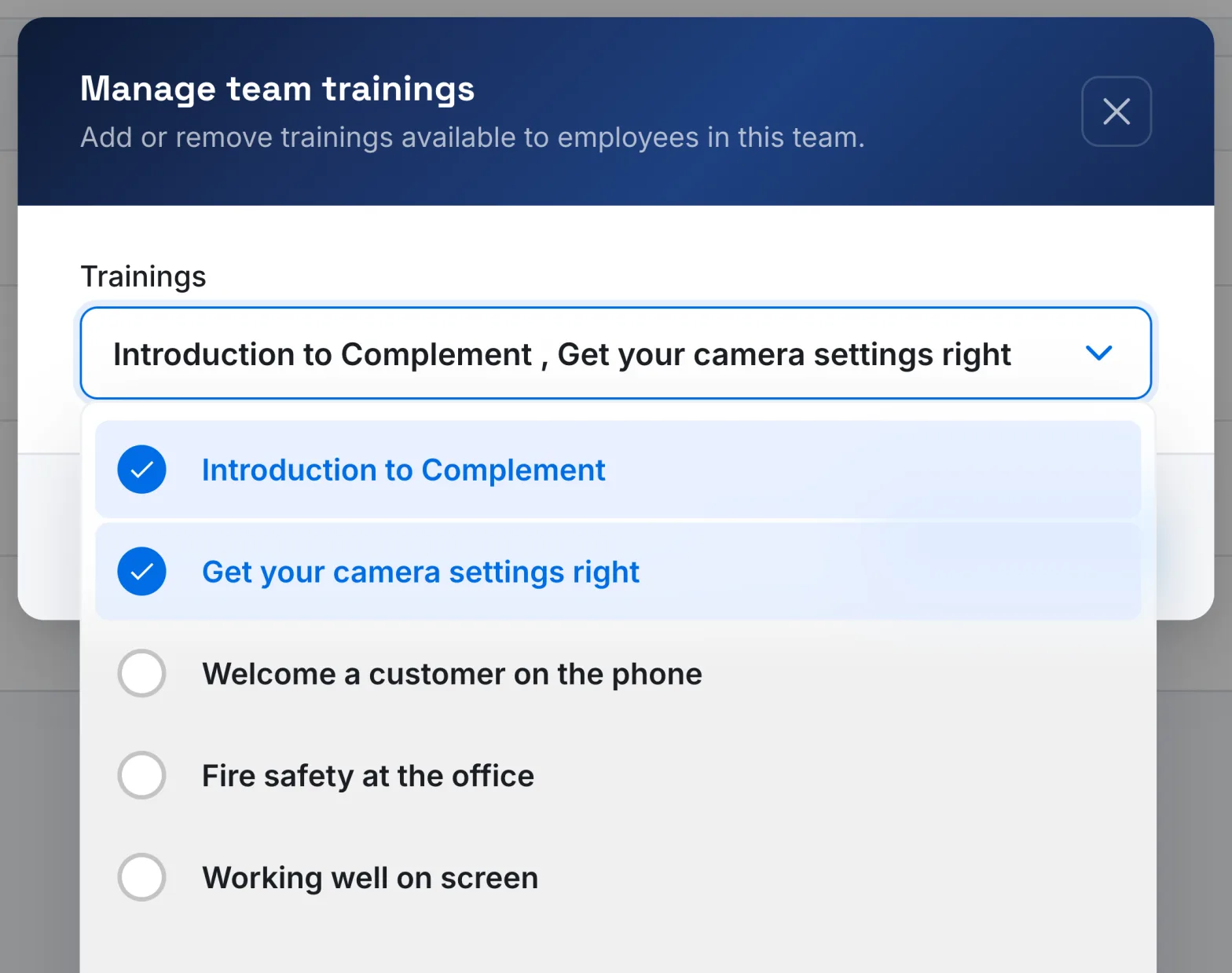
- On the team's row, click the Manage training access icon.
- In Trainings, tick the courses to assign and untick those to remove. Only published courses are offered.
- Click Save trainings.
This method does not offer an announcement email. To let your learners know, give access from the course's Access tab instead.
What your learners see#
A course appears in a learner's My trainings when it is published and assigned to one of their teams.
| Situation | Visible to the learner? |
|---|---|
| Course published, assigned to their team | Yes, in My trainings |
| Course published, assigned to a former team they left with Keep history | Yes, in Past trainings |
| Course assigned, but never published | No |
| Course published, assigned to none of their teams | No |
When you remove a team's access, the course disappears from its learners' space and they can no longer open it, unless another of their teams has access to it.
Was this article helpful?
Thank you for your feedback!
Thank you. Tell us what is missing through Help and support in the app, and we will complete the article.