

View your dashboard
Track your activity, completed courses, time and score, and find all the questions you have asked the AI avatar.
In Take a course
Your dashboard sums up your learning: your activity over time, your progress in each course and all the questions you have asked the avatar.
Open the dashboard#
Click Dashboard in the menu. On a smartphone, this menu is at the bottom of the screen.
Your statistics#
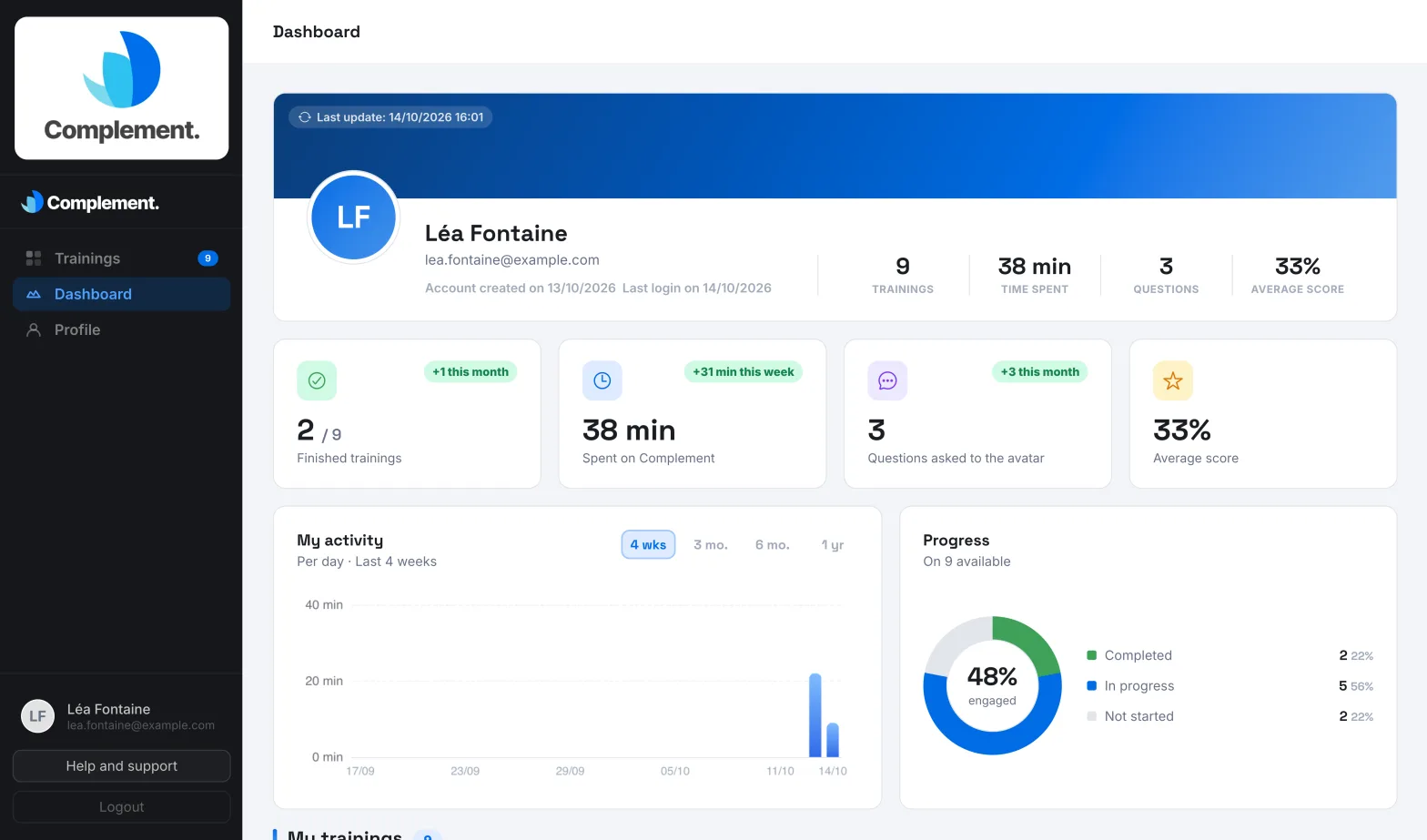
At the top of the page, you see your name, the date your account was created and the date you last signed in. The "Last update" note shows when the data was last refreshed.
Cards then sum up your activity:
- Finished trainings: the courses you have finished out of the number of courses available, and those finished this month;
- the time spent on Complement, and the time spent this week;
- Questions asked to the avatar: the total number, and those asked this month;
- Average score: your average percentage of correct answers in quizzes.
If gamification is turned on for your organisation, the top of the page also shows your level, your points and your badges. See Understand XP, badges and the leaderboard.
Your activity#
The My activity chart shows the time you have spent learning. Choose the period above the chart:
- 4 wks: one bar per day;
- 3 mo. or 6 mo.: one bar per week;
- 1 yr: one bar per month.
Hover over a bar to see the period and the time spent.
Next to it, the Progress ring shows your average progress across your courses, and how they split between Completed, In progress and Not started.
Details of your courses#
The My trainings table lists each course with these columns:
| Column | What it shows |
|---|---|
| Time spent | Your time on the course. |
| Quizzes | The chapter quizzes passed out of the total number. |
| Score | Your percentage of correct answers across the whole course. |
| Progress | The share of slides you have seen. |
| Status | Not started, In progress or Completed, with the date. |
Click a column heading to sort the table. Click a course to show the details of each chapter: its score, its progress and whether you have passed it.
Find your questions to the avatar#
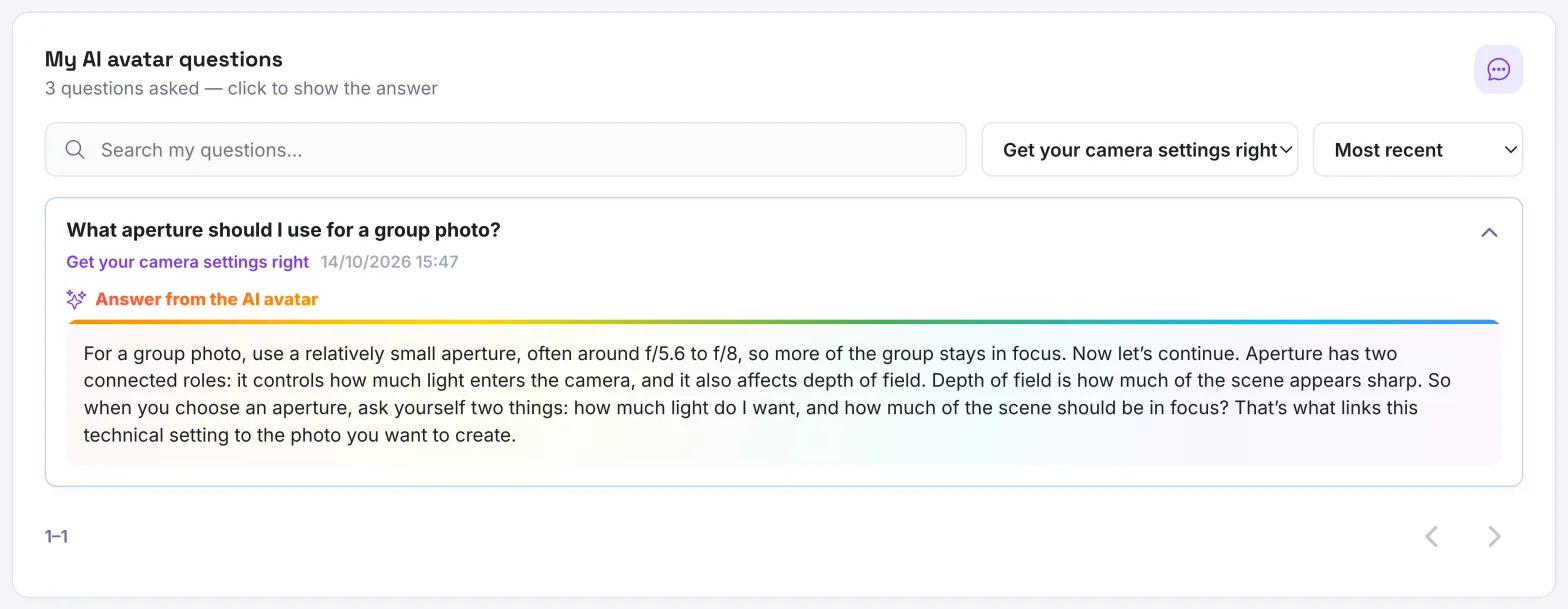
The My AI avatar questions section lists all the questions you have asked, out loud or in writing. Voice commands, such as "go to the next slide", are not included.
- Type a word in the search field. The search covers your questions, the avatar's answers and the course names.
- Choose a course in the All trainings list. This list only appears if your questions relate to several courses.
- Choose the order: Most recent, Oldest or By training (A-Z).
- Click a question to show the Answer from the AI avatar.
The arrows at the bottom of the section take you through the next questions.
Was this article helpful?
Thank you for your feedback!
Thank you. Tell us what is missing through Help and support in the app, and we will complete the article.