

Share a course or chapter link
Copy the link to a course or a chapter to send it to your learners. To open it, they sign in and must have access to the course.
In Share your courses
A share link leads straight to a course, or to the start of a chapter. Add it to an email, a messaging app or your intranet. The link does not give access on its own: the person must sign in with their account and have access to the course.
Before you start#
- For your learners to be able to open the link, the course must be published and assigned to their team. See Give access to a course.
- Anyone on the teaching team who can open the course can copy its links, even without editing rights.
Copy a course link#
- Open Trainings › your course.
- Go to the Settings tab.
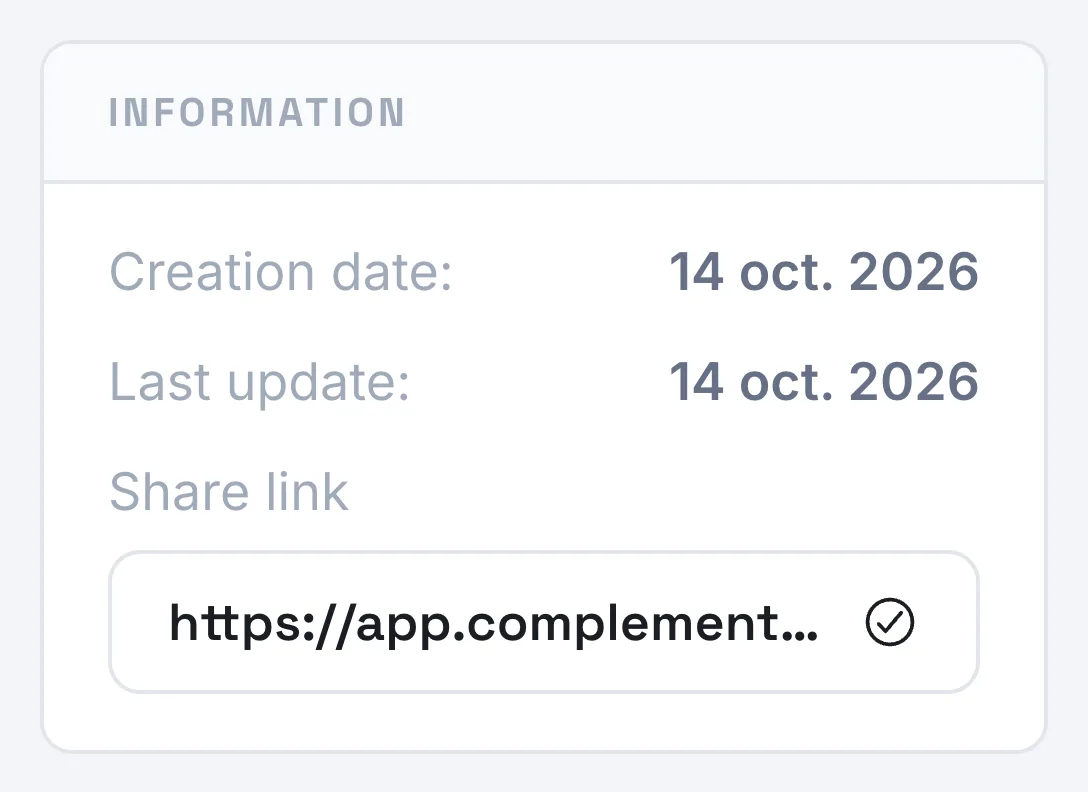
- In the Information card, on the Share link line, click the link address. It is copied: the icon changes to a tick.
- Paste the link wherever you want to share it.
The link opens the course's table of contents. The learner finds its chapters there and starts or resumes the course.
Copy a chapter link#
- Open the Edit training tab.
- On the chapter's row, click the Chapter actions button (the three dots).
- Choose Copy share link. The message "Chapter share link copied" confirms the copy.
The link opens the player directly at the start of this chapter.

What happens when the link is opened#
- If the person is not signed in, the sign-in page appears. Once signed in, they arrive on the course or the chapter.
- If it is their very first login, they first go through the welcome step, then arrive on My trainings or on the onboarding course. They must then open the link again.
- If they do not have access to the course, the course does not open. Check that the course is published and that one of their teams has access to it.
In an LMS#
To place a course in your LMS, do not use the share link. If it is available on your platform, the Integration link in the LTI card, in Settings, is what you need. See LMS: courses, groups and grades.
Was this article helpful?
Thank you for your feedback!
Thank you. Tell us what is missing through Help and support in the app, and we will complete the article.