

Notify and remind your learners
Announce a course by email, schedule reminders before the deadline and find out which emails Complement sends to your learners.
In Share your courses
Complement emails your learners at specific moments: when their account is created, when a course is announced and when a deadline approaches. Announcements and reminders are set up from the course.
Announce a course#
The announcement email is offered to you at two moments:
- just after publishing a course that is already assigned to at least one team. See Publish a course;
- when you add teams in the Access tab of a published course. The added teams are then already ticked.
In the Send an email to employees window, tick the teams to notify, then click Send. The message "Your email request has been accepted. Emails will be processed in the background." confirms the request. Nothing is sent if you click Don't send.
The email goes to the learners who currently belong to the ticked teams. It presents the course (title, author, duration, number of chapters), reminds them of its deadline if there is one and offers a button to start it.
Send reminders before the deadline#
Reminders are emails sent on the dates of your choice, before the course deadline. Anyone who can edit the course can set them up.
- Open Trainings › your course › Settings.
- In Duration & success, turn on Limit completion date and choose the date.
- Turn on Email reminders. Complement suggests two reminders: two weeks and two days before the deadline, if these dates have not already passed.
- Add other dates with Choose a date. Remove a reminder with its cross.
Your choices are saved automatically. A tick appears next to each reminder that has been sent, which can then no longer be removed.
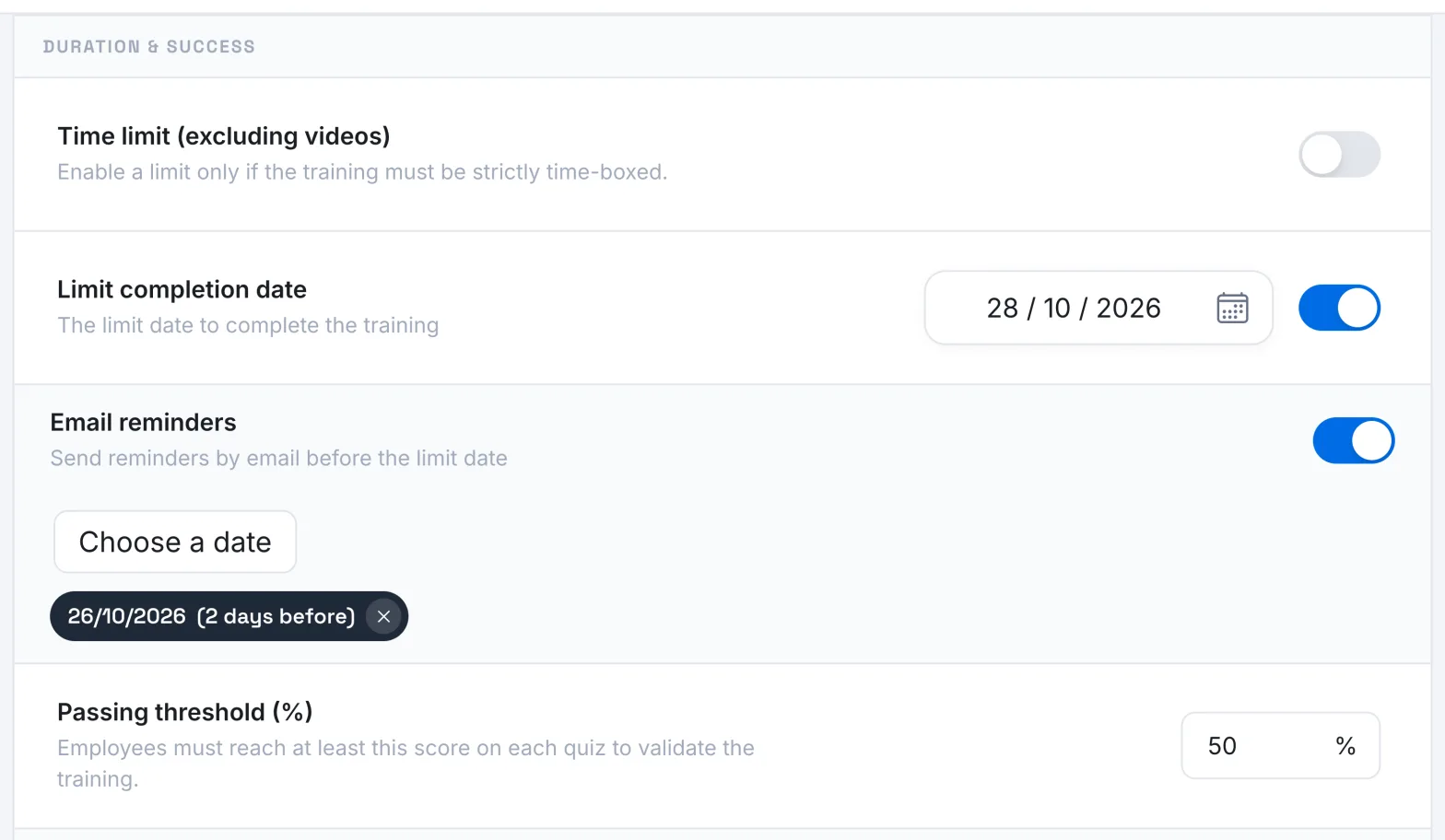
On each reminder date, the email goes to the learners in the teams that have access to the course and who have not yet gone through all of it, whether they have started it or not.
The emails your learners receive#
| When | Content | |
|---|---|---|
| "Your [your organisation's name] account is ready" | When the account is created, unless you chose its password | A link to choose their password, or the invitation to sign in with your organisation's SSO |
| "Reset your password" | When they request it with Forgotten password, or when you send them a reset link | A link to choose a new password |
| "A new course is waiting for you on", followed by the platform name | When you click Send in the announcement window | The course presentation and a button to start it |
| "The deadline for your course is approaching" | On each reminder date | The course, its deadline and a button to resume it |
| "You are invited to test a course" | During the free trial, in the case described below | A link to choose their password and open the course |
During the free trial, the "Your course is live" email, sent when a course is first published, offers to invite testers. If you add a learner from that button with the Email invitation option, they receive the invitation to test the course instead of the account creation email. See Add a learner.
Was this article helpful?
Thank you for your feedback!
Thank you. Tell us what is missing through Help and support in the app, and we will complete the article.