

Course settings
Title, authors, description, background behind the avatar, links, duplication and deletion: what you set in a course's Settings tab.
In Create a course
- Understand the structure of a course
- Create a course
- Generate a course with AI
- Import a PDF or images
- Organise chapters
- Edit a slide
- Write the avatar script
- Edit a slide visual with AI
- Add interaction questions and surveys
- Add a video
- Create the end-of-chapter quiz
- Add resources to a course
- Saving and editing with others
- Preview a course
- Publish a course
- Course settings
- Course completion rules
- Trainer rights on a course
- Manage your courses
- Export a course to PDF
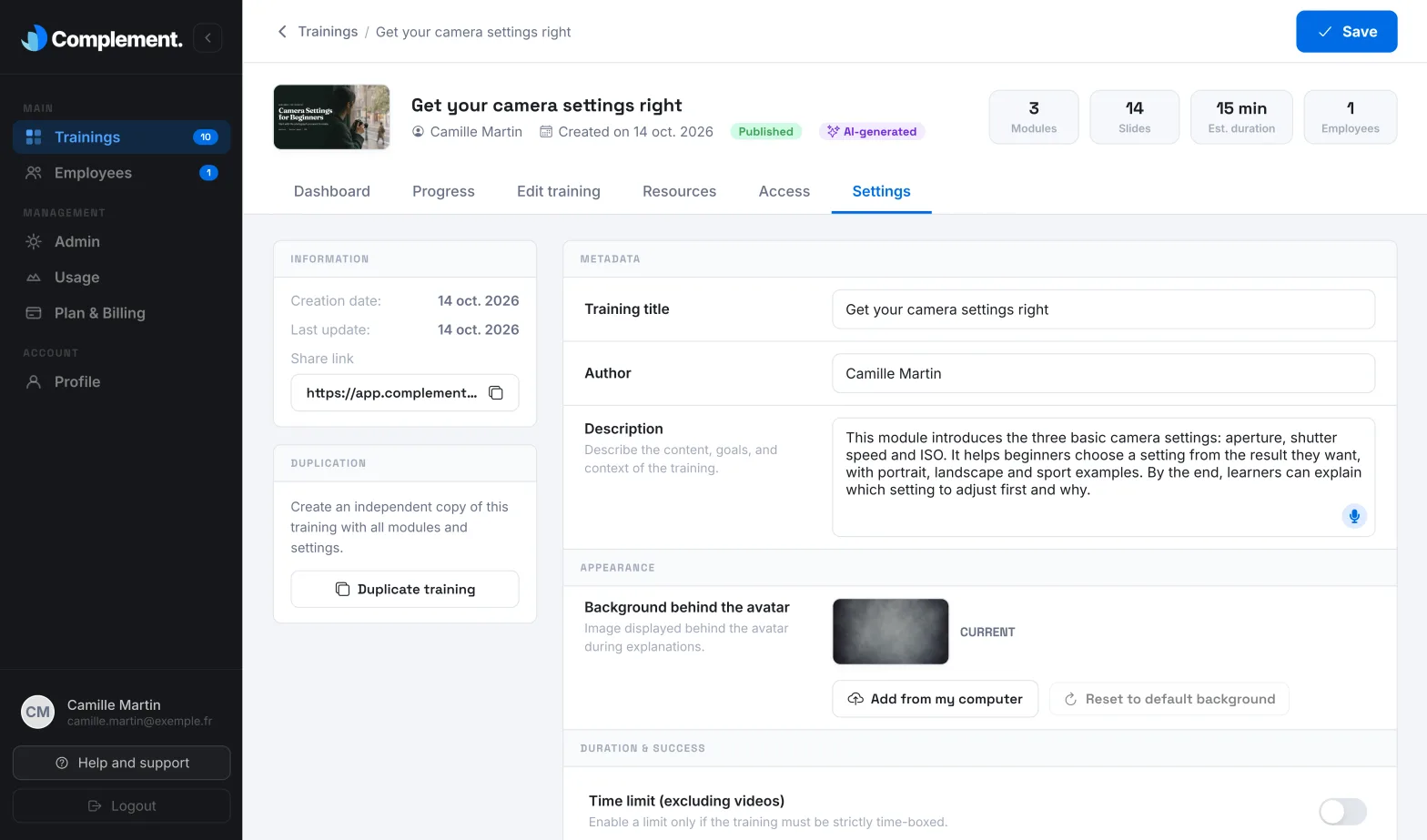
The Settings tab brings together a course's information and options: title, authors, description, appearance, links, duplication and deletion.
Before you start#
- Open Trainings › your course › Settings.
- Administrators and Content managers can change everything. A Trainer needs edit rights on the course. Otherwise, the tab is shown in read-only mode. See Trainer rights.
- The title, authors and description are saved with the Save button, which appears at the top right as soon as you change them. The other options are saved automatically. See Saving and editing with others.
Metadata#
- Training title: the name that your team and your learners see.
- Author: search for a person in your teaching team in Search by name or email, then click their name to add them. The cross next to an author removes them. Authors appear on the course card and in its outline. Being an author does not give the right to edit the course.
- Description: describe the content, objectives and context. It appears in the course outline, on the learner side. The AI also uses it when it writes the script of a slide or generates a new chapter. When the AI generates the course or a chapter, it rewrites the description: review it afterwards.
Appearance#
The Background behind the avatar is the image shown behind the avatar while it explains.
- Click Add from my computer to choose an image.
- Click Reset to default background to go back to the original background.
The change is saved immediately. The Current preview shows the background in use.
The other sections#
- Duration & success and Learning path: see Completion rules.
- Onboarding, visible to Administrators and Content managers: see Onboarding course.
- Trainer access rights: see Trainer rights.
Information and links#
The left-hand column shows the creation date and the date of the last update.
- Share link: click it to copy it. It opens the course outline, and the person must sign in. See Share a link.
- Integration link, in the LTI card: a direct link to the course, which you can place in a course in your LMS, for example. This is not the LTI 1.3 integration: the learner must sign in to Complement, and no grade is sent back to the LMS. The card only appears if this option is enabled for your platform. For the full integration, see LMS: courses, groups and grades.
Duplicate the course#
- In the Duplication card, click Duplicate training.
- Wait: the message "Your training was successfully duplicated" appears, with an Open training button.
The copy is called "course title (copy)". It includes the draft, the published version, the resources, the settings and the folders. It does not include the completion deadline, the reminders or the onboarding option. It is not assigned to any team, and you become its author.
Delete the course#
- In the Danger zone, click Delete the training.
- Check the title and the number of learners currently enrolled.
- Click Delete permanently.
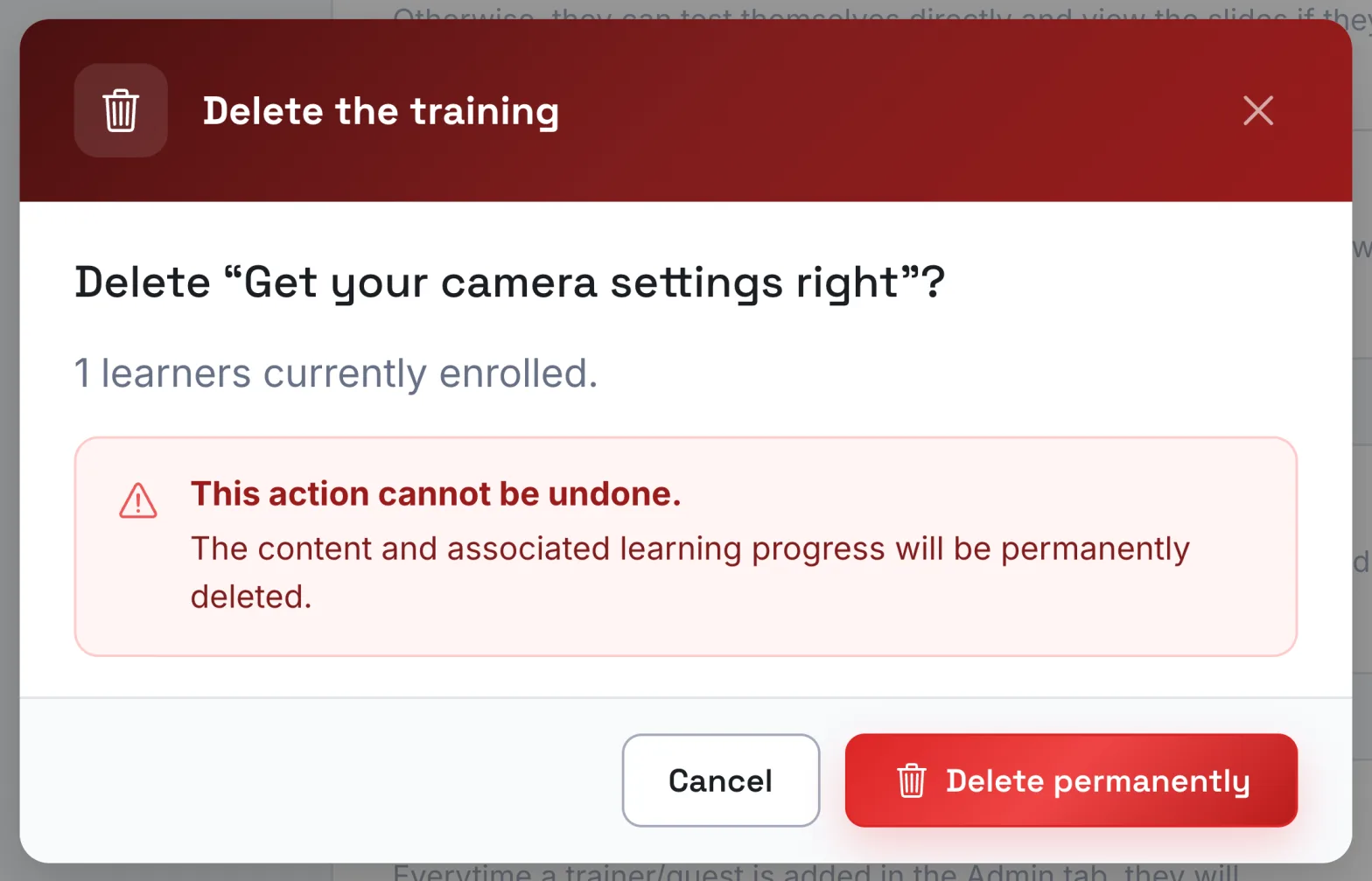
Once the deletion is complete, you return to the course list.
Was this article helpful?
Thank you for your feedback!
Thank you. Tell us what is missing through Help and support in the app, and we will complete the article.