

Create your platform
Sign up in three steps, activate your workspace from the email you receive and find out what the free trial includes.
In Getting started
Create your Complement platform yourself, with no credit card. You become its Administrator and get a free trial to create your first courses and test them with a few learners.
Before you start#
- Use an email address that does not have a Complement account yet. Otherwise, the app shows "An account already exists for this email. Sign in or reset your password."
- Does your organisation already have a platform? Ask its Administrator to add you instead.
Sign up in three steps#
- Open the signup page: app.complementlearning.ai/signup.
- Workspace step: enter the Workspace name, then choose what best describes your organisation: Higher education, K-12 / School, Small or medium business, Large enterprise, Training provider, Public sector or Other. Click Start for free.
- Needs step: select one or more types of training you are planning, then the number of learners you expect. Click Continue.
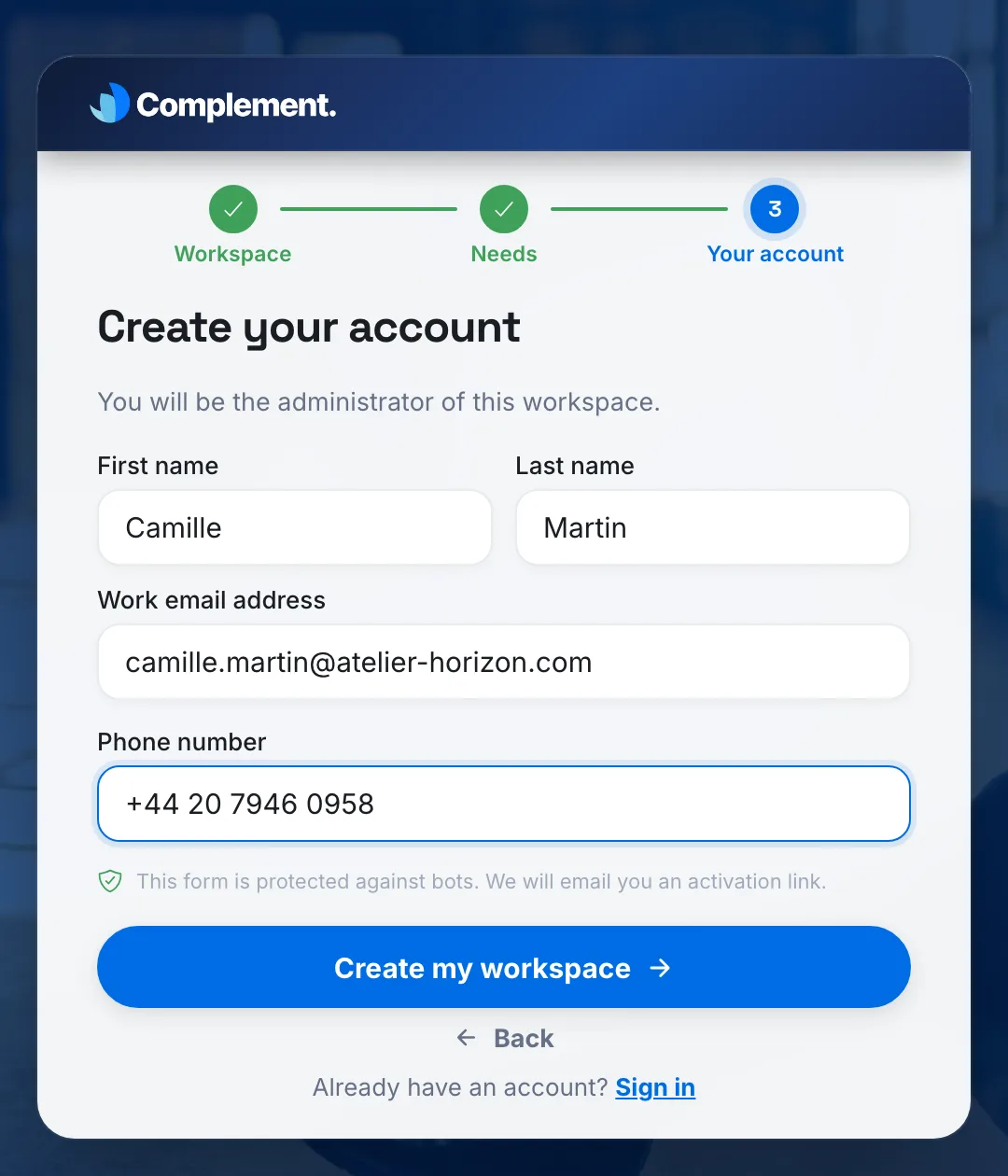
- Your account step: enter your First name, your Last name, your Work email address and your Phone number.
- Tick the box to accept the Terms of Sale and the Terms of Use. It is required: without it, the app shows "You must accept the Terms of Sale and the Terms of Use."
- Click Create my workspace.
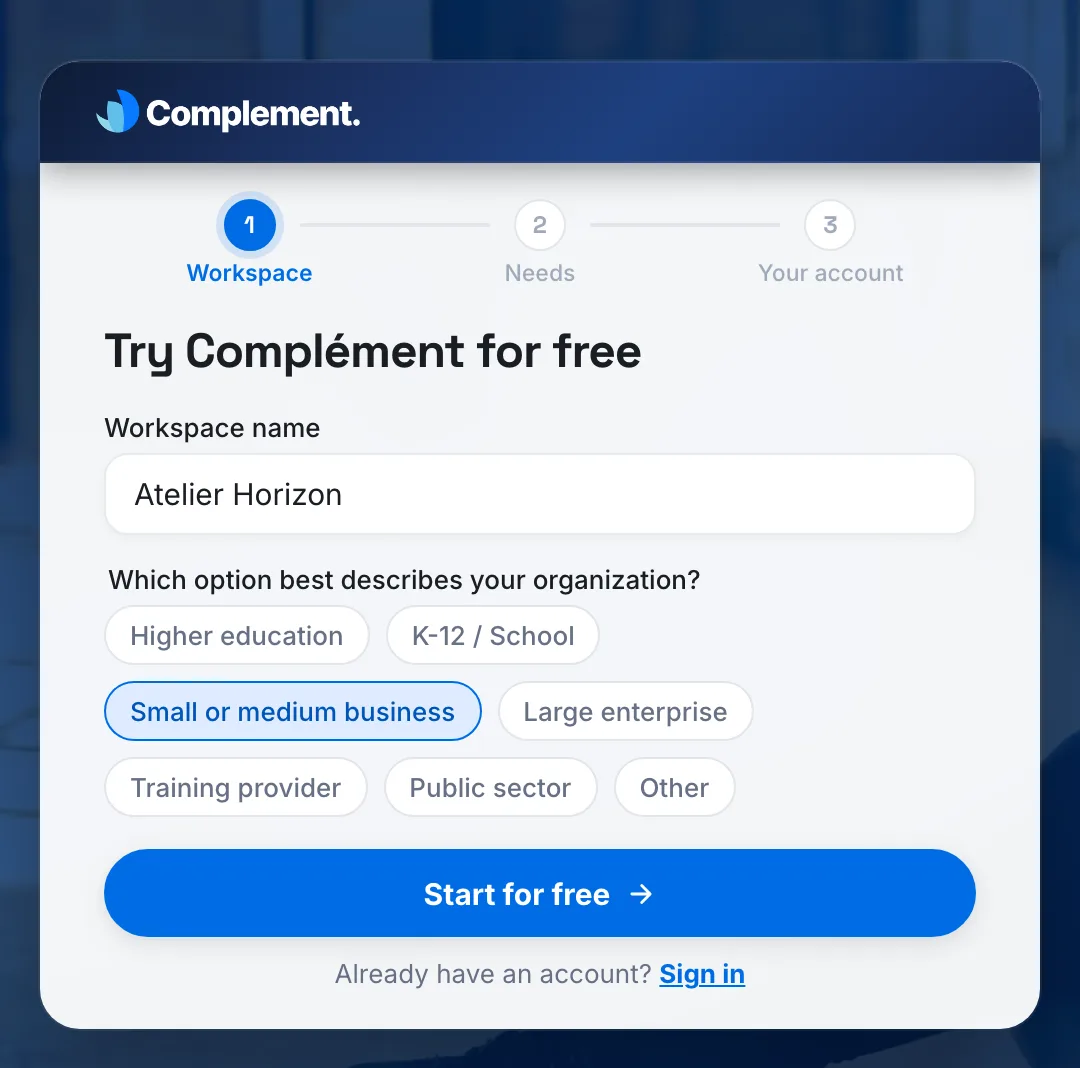
Back takes you to the previous step without erasing your answers.
Activate your workspace#
Once you submit the form, the message Check your inbox appears and Complement sends you an email titled "Activate your Complement Learning account". The link it contains is valid for one hour.
- Open the email, checking your spam folder if needed, and click the activation button.
- The Activate your workspace page shows your platform name and the address of your administrator account.
- Choose a Password, then enter it again in Confirm password.
- Click Activate and continue.
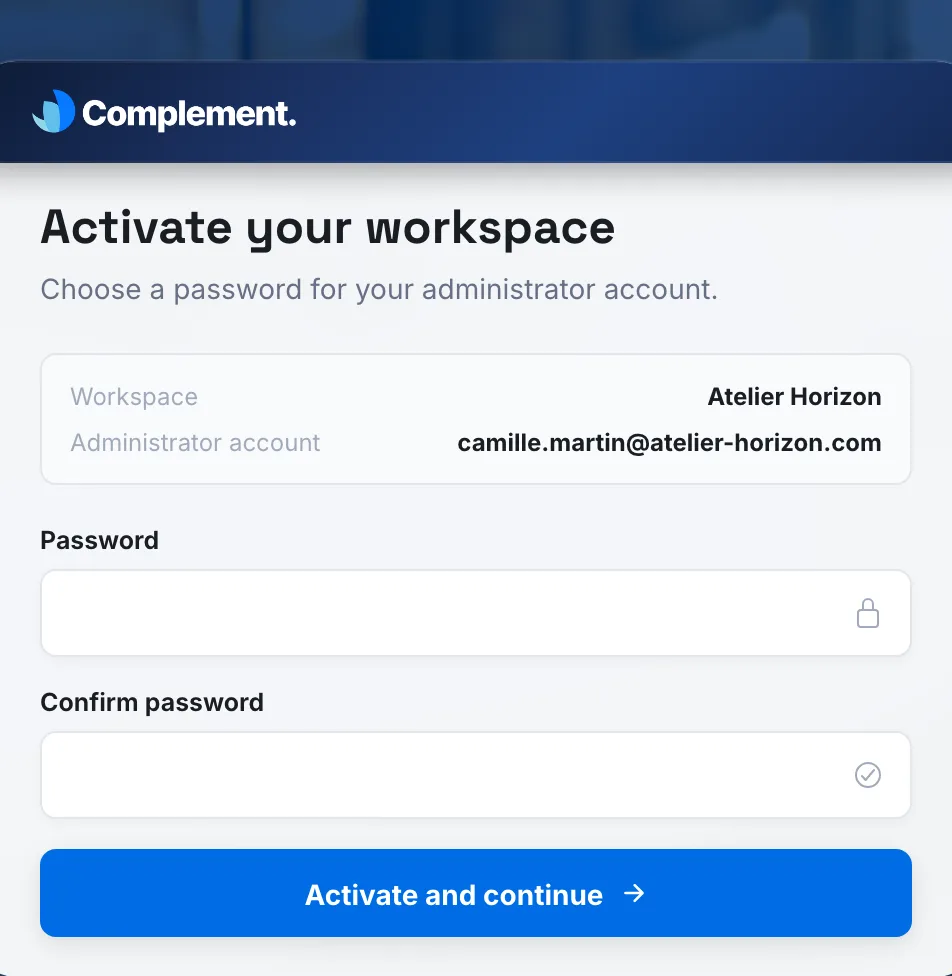
Complement signs you in straight away. Choose your language, then create your first team: enter its name in Team's name and click Finish. You then land on the Trainings page, where the Getting started checklist guides you.
If the activation link does not work#
| Page shown | What to do |
|---|---|
| Expired link | The link is more than one hour old. Click Start signup again to receive a new one. |
| Invalid link | The link cannot be used, for example because it was copied incorrectly. Click Start signup again. |
| Account already activated | The link has already been used. Click Sign in, or Reset password if you have forgotten your password. |
| Activation in progress | Your workspace is being created. Click Try again in a few moments. |
What the free trial includes#
The trial gives you access to Complement within four limits:
- 7 days;
- 1 creator seat, taken by your Administrator account;
- 5 learners;
- 5 hours of usage.
During the trial, the bottom of the menu shows Free trial and the number of days remaining. The Plan & Billing page details What your trial includes.
At the end of the trial#
The trial ends after 7 days, or earlier if the 5 hours of usage are used up. Before it ends, a banner warns you at the bottom of the screen and you receive reminder emails.
At the end of the trial:
- your platform becomes read-only, with the message "Your trial has ended. The platform is read only.", or "Your trial usage is exhausted. The platform is read only." if the 5 hours are used up;
- your learners no longer have access to their courses;
- you receive the email "Your free trial has ended".
To continue, activate your platform: click Activate my platform in the banner, or Free trial at the bottom of the menu. The details are in Activate your platform. The plans are presented on the Pricing page.
Was this article helpful?
Thank you for your feedback!
Thank you. Tell us what is missing through Help and support in the app, and we will complete the article.