

The Getting started checklist
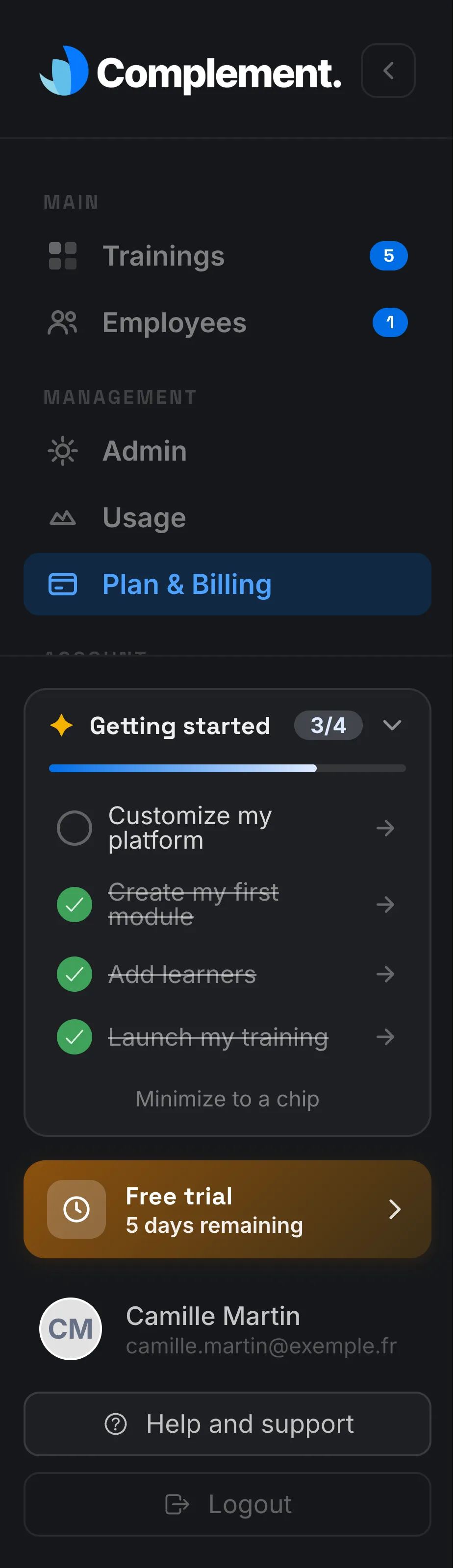
The four steps of the Getting started checklist, what ticks off each one and the article that guides you step by step.
In Getting started
The Getting started checklist guides you through your first steps: customise your platform, create a course, add learners and launch your course. Each step ticks itself off when the action is done.
Who sees it#
The checklist appears at the bottom of the left-hand menu, for the Administrator of a platform created through online signup. The other members of the teaching team do not see it, and platforms that Complement sets up for a key account do not show it.
It shows your progress, for example 2/4. Click a step to open the screen where you complete it.
The four steps#
Customize my platform#
Clicking it opens Admin. The step is ticked as soon as you replace the default logo with your organisation's logo.
See Customise your organisation.
Create my first module#
Clicking it opens Trainings and the Create training window. The step is ticked as soon as your platform has at least one course. An onboarding course does not count.
See Create a course.
Add learners#
Clicking it opens Employees and the New employee window. The step is ticked as soon as your platform has at least one learner.
See Add a learner.
Launch my training#
Clicking it opens Trainings. The step is ticked as soon as one of your courses is published. Here again, an onboarding course does not count.
For your learners to see the course, it must also be assigned to their team. This assignment does not affect the tick, but without it nobody can access the course.
See Publish a course and Give access to a course.
Collapse, minimise or reopen the checklist#
- Click the Getting started header to collapse or expand the list of steps.
- Click Minimize to a chip to tuck it into a chip at the bottom of the menu. Click the chip to reopen it.
Your browser remembers this choice.
When the checklist disappears#
Once all four steps are ticked, its title becomes Platform ready. It stays visible for a few days, then disappears on its own.
Was this article helpful?
Thank you for your feedback!
Thank you. Tell us what is missing through Help and support in the app, and we will complete the article.