

Your profile and languages
Change your name, photo and password, and choose the interface language and the language you use with the AI tutor.
In Getting started
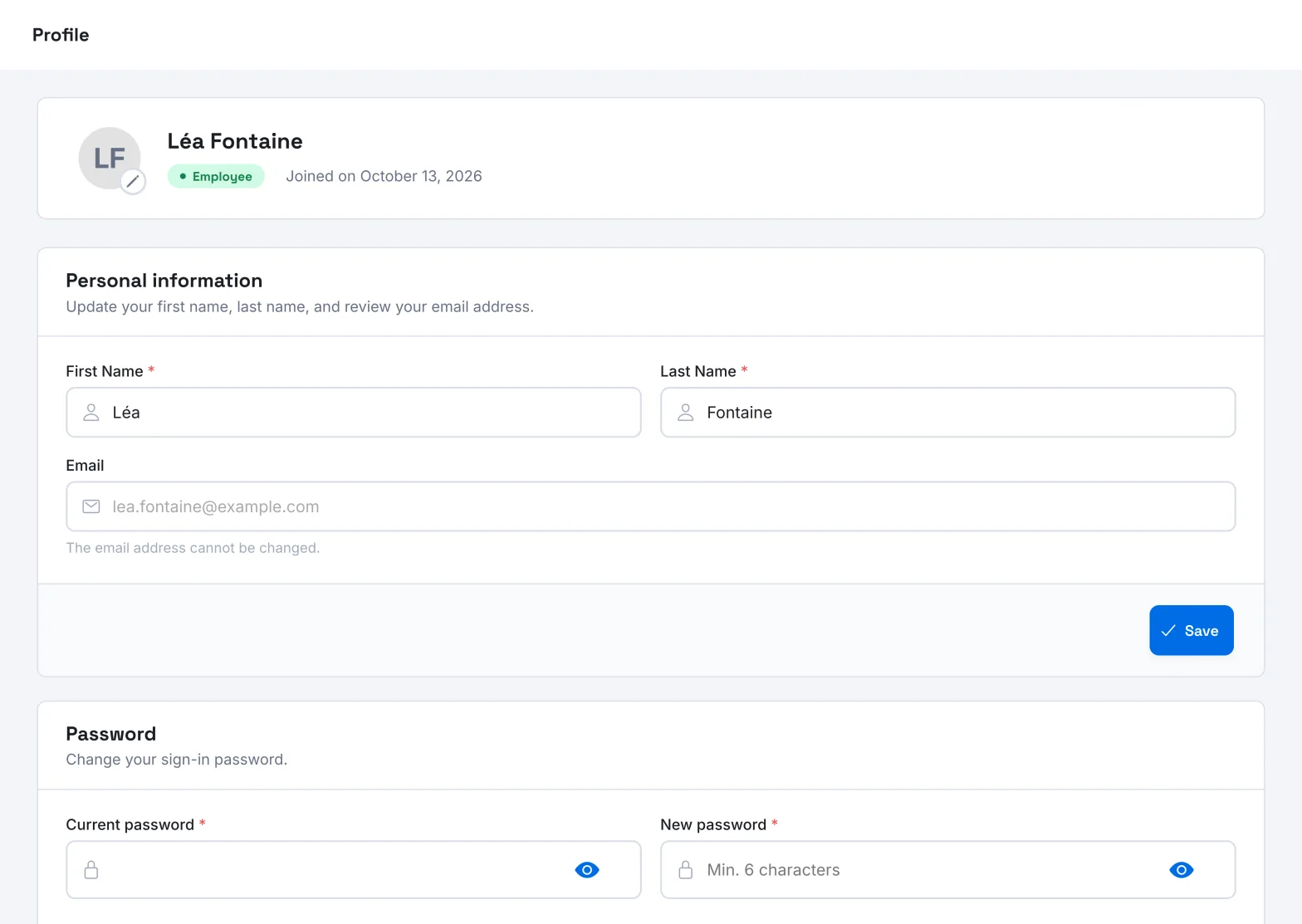
The Profile page brings together your personal information, your password and your languages. Open it from the Profile menu, or by clicking your name at the bottom of the menu.
The page header shows your role and the date you joined (Joined on).
Change your name#
- In Personal information, change your First Name and your Last Name.
- Click Save.
The Email field shows your address, but you cannot change it: "The email address cannot be changed."
Change your photo#
- Click your photo or the pencil next to it.
- In the Profile picture window, click Change photo and choose a PNG or JPEG image.
- Frame your photo inside the circle. The slider sets the zoom, and Choose another image lets you start again.
- Click Save.
Change your password#
- In Password, enter your Current password.
- Enter your New password. A gauge shows its strength: Weak, Correct or Strong.
- Click Save.
If the current password is wrong, the app shows "The current password is incorrect". Have you forgotten it? See Sign in to Complement.
If your organisation uses Google or Microsoft sign-in#
The Password section is replaced by Connection, with the message "Your account is managed by your organisation. To change your password, use your SSO portal." You then change your password with your organisation, not in Complement.
Choose your languages#
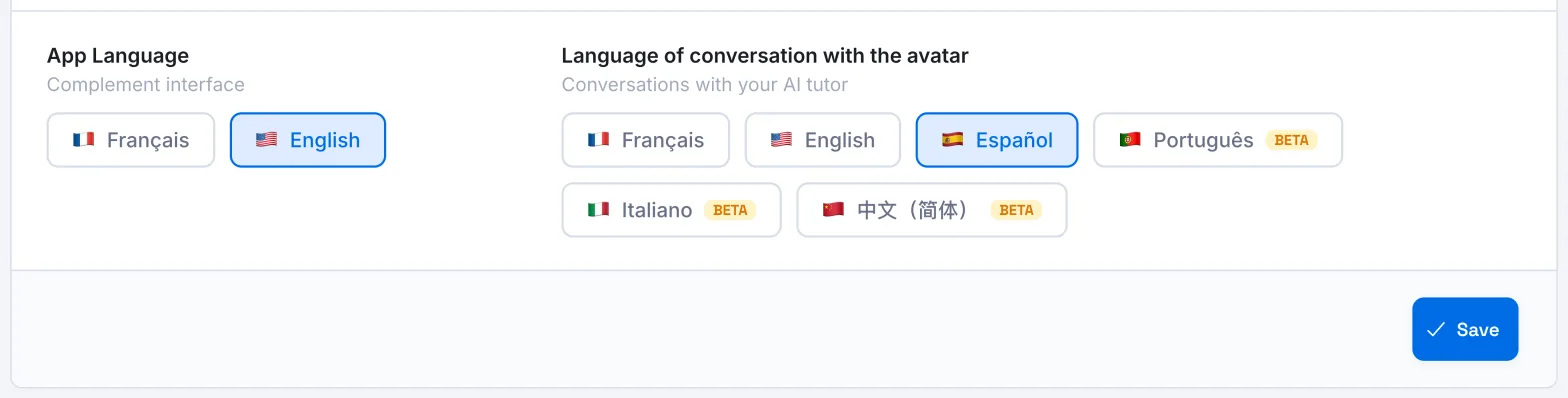
The Languages section offers two independent settings:
| Setting | What it changes | Languages offered |
|---|---|---|
| App Language, "Complement interface" | The app's menus, buttons and messages. | French, English |
| Language of conversation with the avatar, "Conversations with your AI tutor" | The language in which the AI tutor speaks to you and answers you during courses. | French, English, Spanish, Portuguese, Italian, Simplified Chinese |
Portuguese, Italian and Simplified Chinese are marked Beta.
- Choose a language in each column.
- Click Save, below the two columns.
The interface switches language as soon as you save.
During a course, the learner can also set their avatar, voice and language from the player. See Personalise your tutor.
Level and XP#
If gamification is enabled on your platform, a learner's Profile page shows their level and a progress bar: the XP earned and the XP still needed to reach the next level. The level and XP also appear under their name, at the bottom of the menu.
Gamification is a setting managed by Complement: it is enabled by default, and the Administrator can ask their Complement account manager to disable it. See Leaderboard, XP and badges.
Was this article helpful?
Thank you for your feedback!
Thank you. Tell us what is missing through Help and support in the app, and we will complete the article.