

Find your way around the interface
The menus of the management area and the learner area, and what each role sees there.
In Getting started
Complement has two areas: the management area, for the teaching team, and the learner area. After signing in, each person lands in their own area: on Trainings for the teaching team, on My trainings for learners.
The management area#
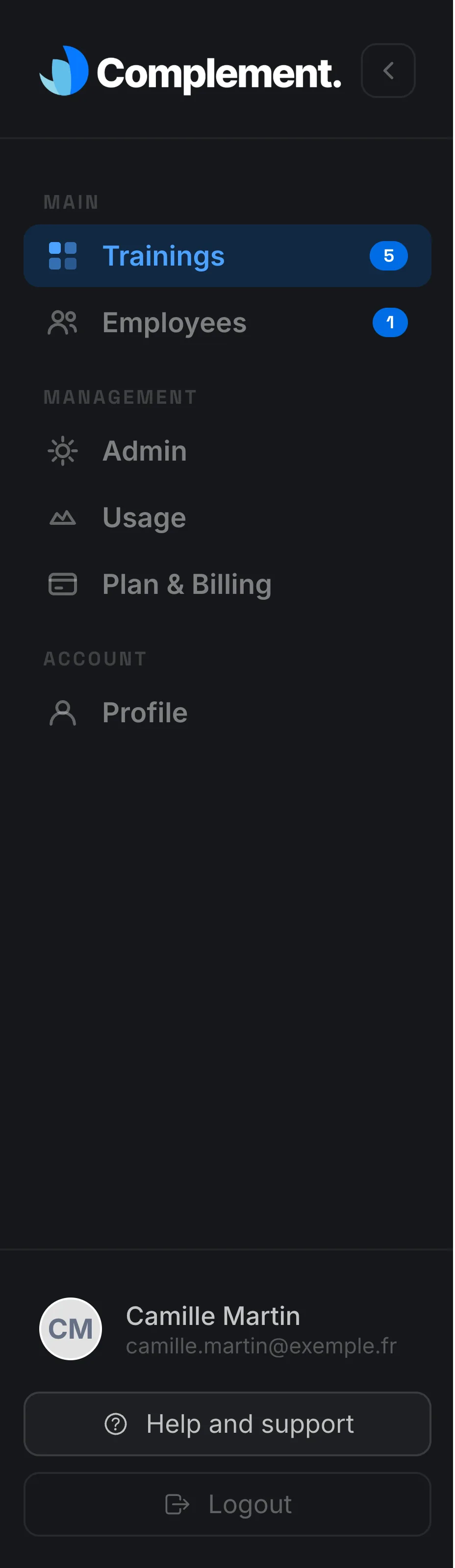
The left-hand menu is organised into three sections: Main, Management and Account. The menus shown depend on your role.
| Section | Menu | What it is for | Who sees it |
|---|---|---|---|
| Main | Trainings | Create, edit, publish and track your courses. | All members of the teaching team |
| Main | Employees | Organise departments and teams, manage learner accounts. | All members of the teaching team |
| Management | Admin | Platform name and logo, how learners are organised, members of the teaching team. | Administrator |
| Management | Usage | Learning time and platform usage. | Administrator |
| Management | Plan & Billing | Your plan, your trial or subscription, your payments. | Administrator |
| Management | LMS Config | Connecting Complement to your organisation's LMS. | Administrator, if the platform is configured for an LMS |
| Account | Profile | Your details, your password and your languages. | Everyone |
The members of the teaching team are the Administrator, the Content manager, the Trainer and the Guest. What each of them can do in these menus is detailed in Roles and permissions.
In Employees, the Departments, Teams and Learners tabs give access to each level. The Departments tab only appears in Advanced journey mode, a setting the Administrator chooses in Admin.
At the top and bottom of the menu#
- Click the logo to return to Trainings.
- The arrow next to the logo collapses the menu to its icons (Collapse menu). Click it again to expand the menu.
- During the free trial, the bottom of the menu shows Free trial and the number of days remaining. The Administrator can click it to activate the platform.
- The Administrator of a platform created online also finds the Getting started checklist there.
- Your name and email address open your Profile.
- Help and support opens the contact form. See Get help.
- Logout ends your session.
On tablets and smartphones, the menus move to a bar at the bottom of the screen, with Support to open the help form.
The learner area#
The learner's menu offers:
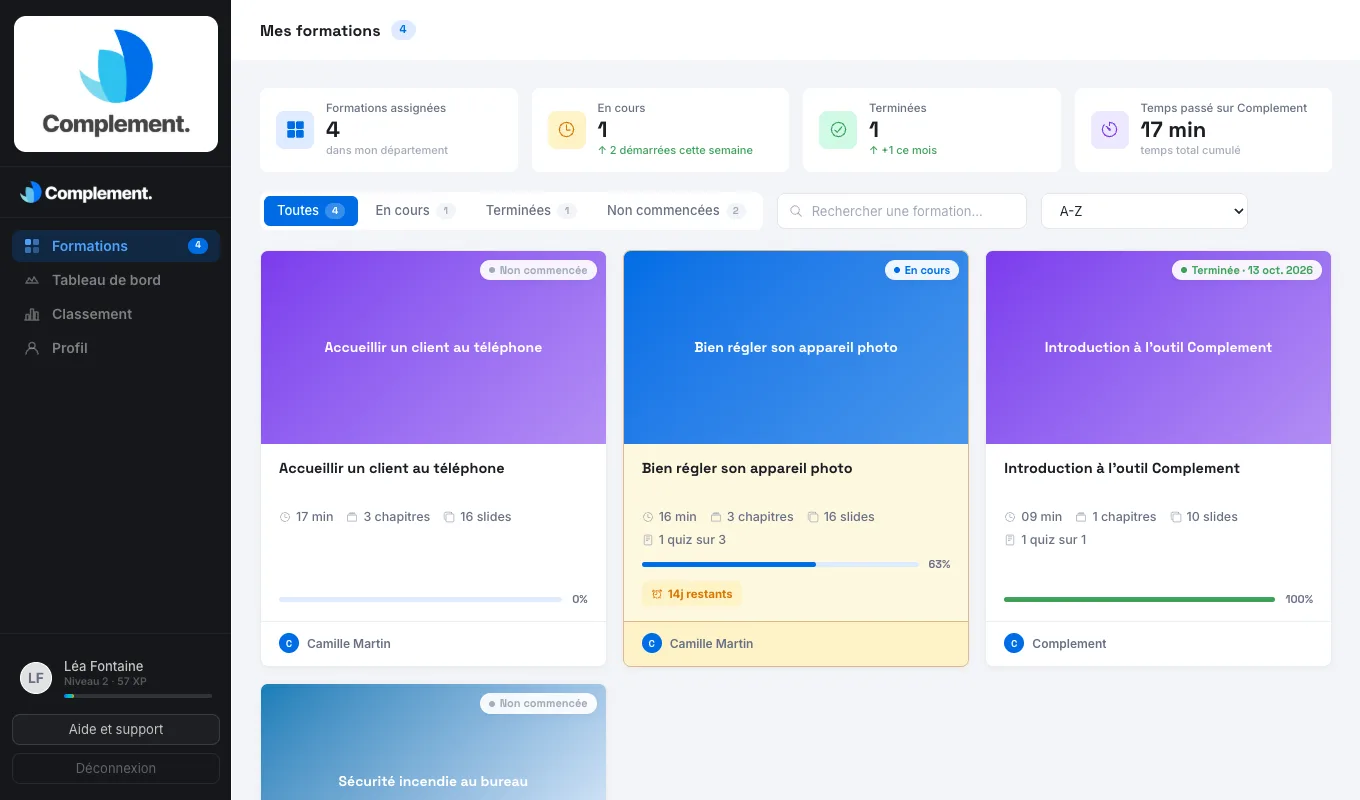
- Trainings: the courses assigned to them, with their number. The page is titled My trainings;
- Dashboard: their activity, their statistics and the questions they have asked the avatar;
- Leaderboard: only if gamification is enabled on the platform;
- Profile: their details, their password and their languages.
At the bottom of the menu are their name, Help and support and Logout. If gamification is enabled, their level and XP appear under their name, instead of their email address.
When the learner opens a course, the top bar offers Trainings to return to the list, Resources to view the course documents, and Continue to pick up where they left off.
On smartphones, the menu moves to a bar at the bottom of the screen, with Support to open the help form.
Was this article helpful?
Thank you for your feedback!
Thank you. Tell us what is missing through Help and support in the app, and we will complete the article.