

Activate your platform
Move from the free trial to a paid plan: creator seats, learner seats or hour credit, then secure payment with Stripe.
In Administer your platform
- Customise your organisation
- Manage the teaching team
- Track usage
- Activate your platform
- Manage your subscription
- View your enterprise contract
- Why is your platform read-only?
- Understand your administrator alerts and emails
- Enable SSO sign-in with Google or Microsoft
- White-label your platform
- Which options should you ask your Complement account manager for?
- Connect your LMS with LTI 1.3
- LMS: add courses, manage groups and grades
- Data security and privacy
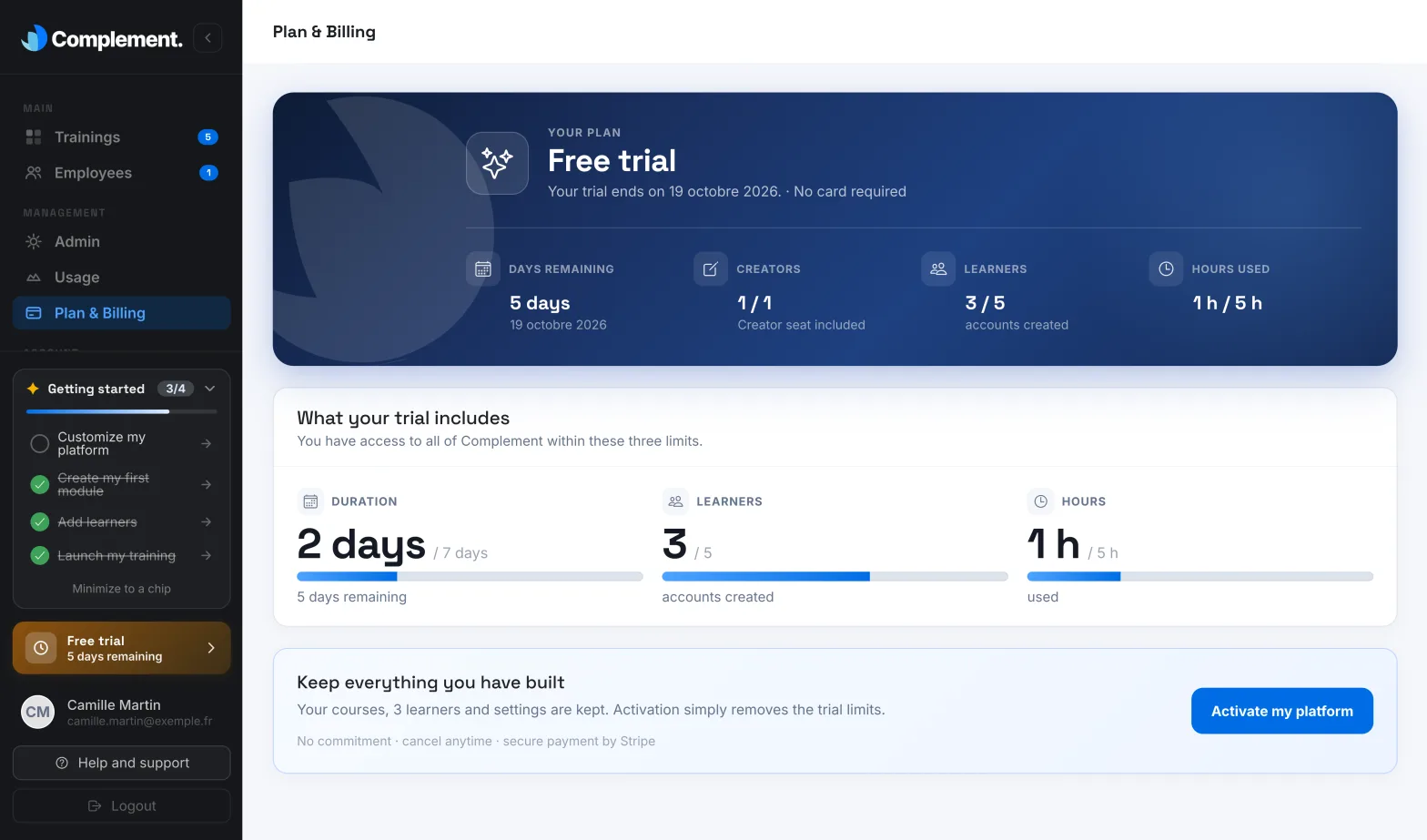
During the free trial, your platform is limited to 7 days, 1 creator seat, 5 learners and 5 hours of use. Activation removes these limits. Your courses, your learners and your settings are kept.
Before you start#
- Only an Administrator can activate the platform. The other team members cannot access Plan & Billing.
- The plans are presented on the Pricing page. The app shows the amounts at each step.
Open the activation#
Click Activate my platform. This button is found:
- in Plan & Billing, below your trial summary;
- in the banner shown at the bottom of the screen when the trial is nearing its end or has ended;
- on the Usage page, when your trial hours are running out;
- in the window for adding a learner, when the trial's 5 learners have been reached.
You can also click Free trial, at the bottom of the menu.
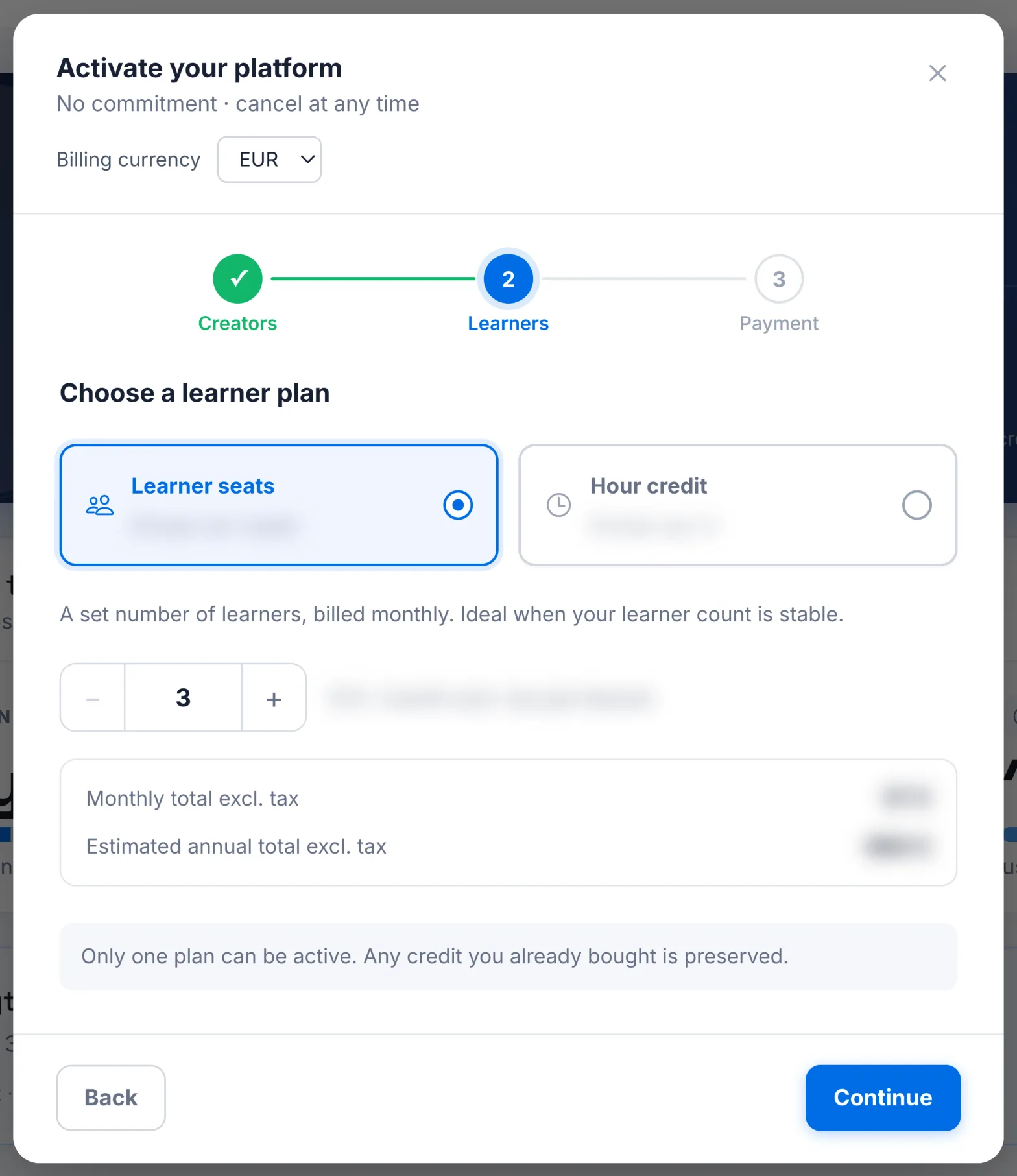
The Activate your platform window opens. It has three steps: Creators, Learners and Payment. Move from one to the next with Continue and Back.
Step 1: creators#
Enter the number of creator seats: "Each person who creates or publishes courses needs a creator seat." This number cannot be lower than the number of course creators already active on your platform. See Manage the teaching team.
Step 2: learners#
Choose a learner plan. Only one plan can be active at a time.
| Learner seats | Hour credit | |
|---|---|---|
| Learners | A set number, which you choose | Unlimited |
| What you pay | Each seat, every month | The hours used, from a credit bought in advance |
| Ideal if | Your learner numbers are stable | Your usage varies |
| When it runs out | You can no longer add learners | The platform becomes read-only until you top up |
- With Learner seats, enter the number of seats: at least your current number of learners. The app shows the Monthly total excl. tax and an Estimated annual total excl. tax.
- With Hour credit, choose a credit pack, paid once. Each hour of learning is then deducted from it, and you top up your credit when needed.
In both cases, creator seats are billed every month. The subscription has no commitment: you can cancel it at any time, and it then stops at the end of the current month. See Manage your subscription.
Step 3: payment#
- Check the summary: what is charged every month and what is paid once. "Taxes and the final total are calculated by Stripe from your billing address."
- Tick the box to accept the terms and conditions of sale.
- Click Pay and activate. You are redirected to Stripe's secure payment page.
- Complete the payment on Stripe.
The currency#
The currency offered, EUR or USD, depends on your browser's language and region settings. Check it before paying: you can change it in the Billing currency menu, at the top of the window. Once the platform is activated, the currency can no longer be changed.
After payment#
Back in Plan & Billing, a message confirms that the payment has been sent to Stripe. Your new plan appears as soon as Stripe has confirmed the payment. The person who created the platform then receives the email "Your platform is active".
If you abandon the payment on Stripe, the app tells you: "Payment was cancelled. Your plan has not changed."
Was this article helpful?
Thank you for your feedback!
Thank you. Tell us what is missing through Help and support in the app, and we will complete the article.