

Sign in to Complement
Sign in with your email and password, or with Microsoft or Google, and reset a forgotten password.
In Getting started
Sign in with the method your organisation uses: your email and password, or your Microsoft or Google account. Once signed in, you land on Trainings if you are part of the teaching team, and on My trainings if you are a learner.
Before you start#
- You need an account. Your organisation creates it and sends you an email for your first access. See First sign-in.
- To create a new platform, see Create your platform.
With your email and password#
- Open the sign-in page: app.complementlearning.ai, or your organisation's own address.
- Enter your Email and your Password.
- Click Sign in.
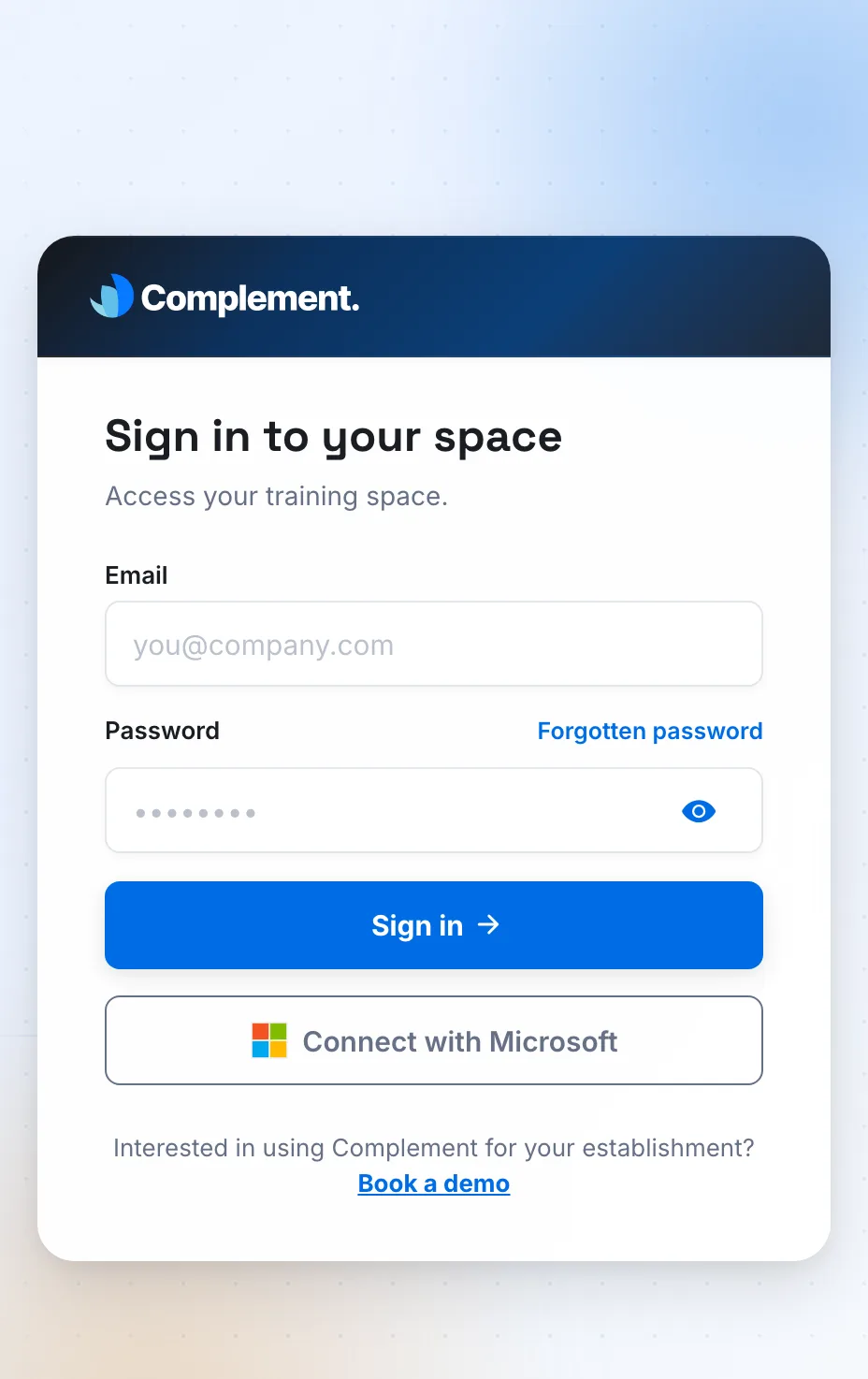
If the app shows "The email and password don't match", check what you entered or reset your password.
With Microsoft or Google#
- The Connect with Microsoft button is on the sign-in page. It opens the Microsoft sign-in window: use your organisation's account.
- The Google button only appears on your platform's own sign-in link or address, when your organisation uses Google sign-in.
These buttons do not create an account: they sign you in to an existing Complement account. If no active account matches, the app shows "No active Complement account matches this sign-in. Contact your organization."
Setting up Google or Microsoft sign-in for a whole organisation is described in SSO sign-in.
Your platform's own sign-in link#
Your organisation can have its own sign-in link when your platform uses Google or Microsoft sign-in, or white label. The email that creates your account leads to this link; your administrator can also send it to you. This link opens a tailored page:
- if your organisation uses Google or Microsoft sign-in, the page offers the matching button instead of the email and password;
- if your organisation has white label, the page shows its logo and the message "… invites you to login", preceded by your platform's name.
If the page shows Platform unavailable, the link or address does not match any active platform. Contact your platform's administrator.
Forgotten password#
- On the sign-in page, click Forgotten password.
- Enter your account's email address, then click Continue.
- Open the email "Reset your password" and click the link.
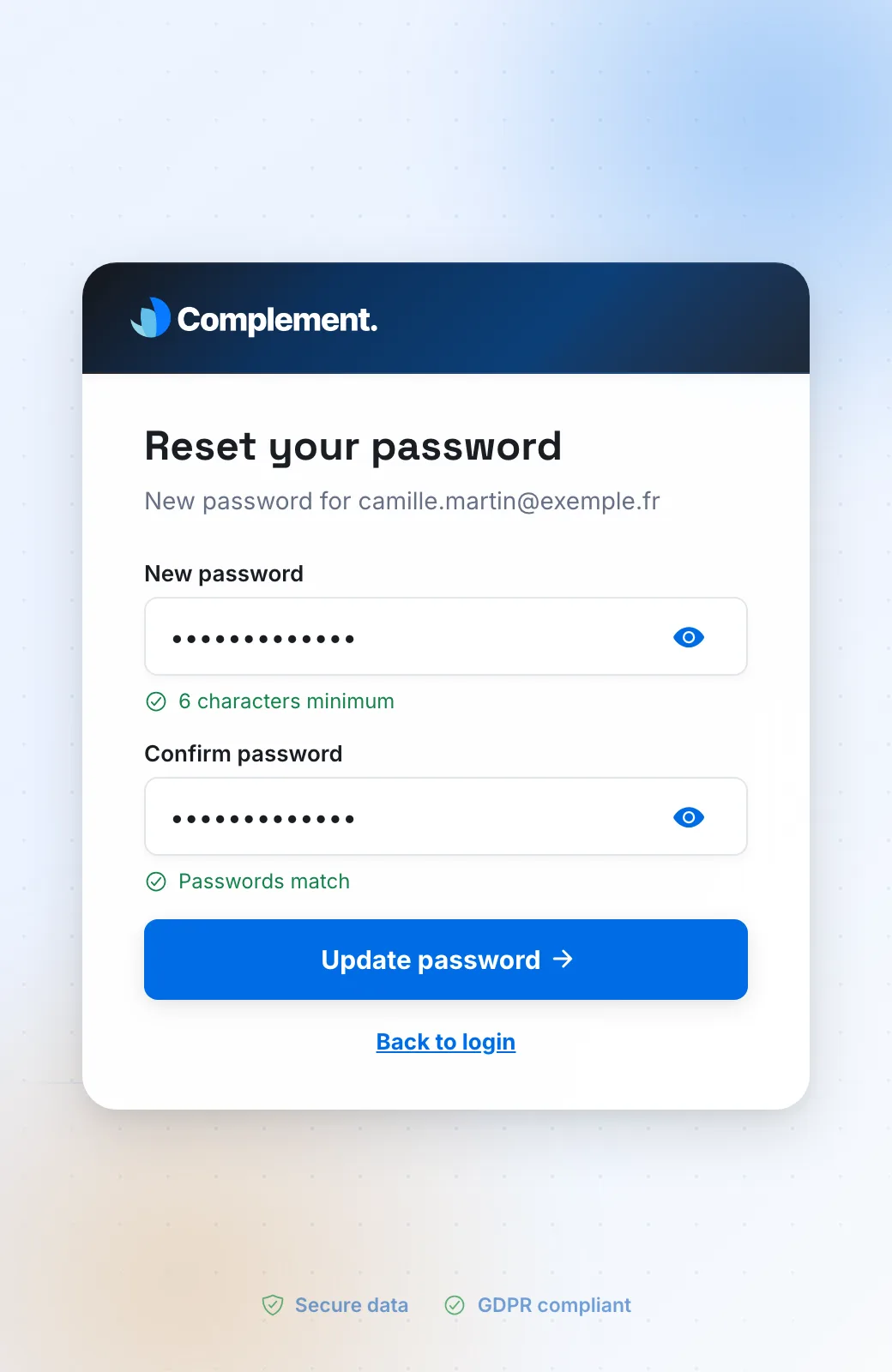
- On the Reset your password page, enter your New password, then confirm it in Confirm password. Two indicators turn green when the password is long enough and when both entries match.
- Click Update password.
You return to the sign-in page with the message "Password updated successfully. Sign in with your new password."
If you sign in with Microsoft or Google, your password is managed by your organisation: the Forgotten password link is not offered on your platform's sign-in page.
If the reset link no longer works#
| Page shown | Message |
|---|---|
| Expired link | "This link has expired. Request a new link from the sign-in page." |
| Invalid link | "This reset link is no longer valid. Request a new link from the sign-in page." |
In both cases, click Request a new link: the sign-in page opens directly on the request for a new link.
Was this article helpful?
Thank you for your feedback!
Thank you. Tell us what is missing through Help and support in the app, and we will complete the article.