

Roles and permissions
What the Administrator, Content manager, Trainer, Guest and learner can do, and who uses a creator seat.
In Getting started
Every member of your platform has a role. The role determines which menus they see and what they can do. The Administrator assigns teaching team roles from Admin. Learners have a separate role.
The roles at a glance#
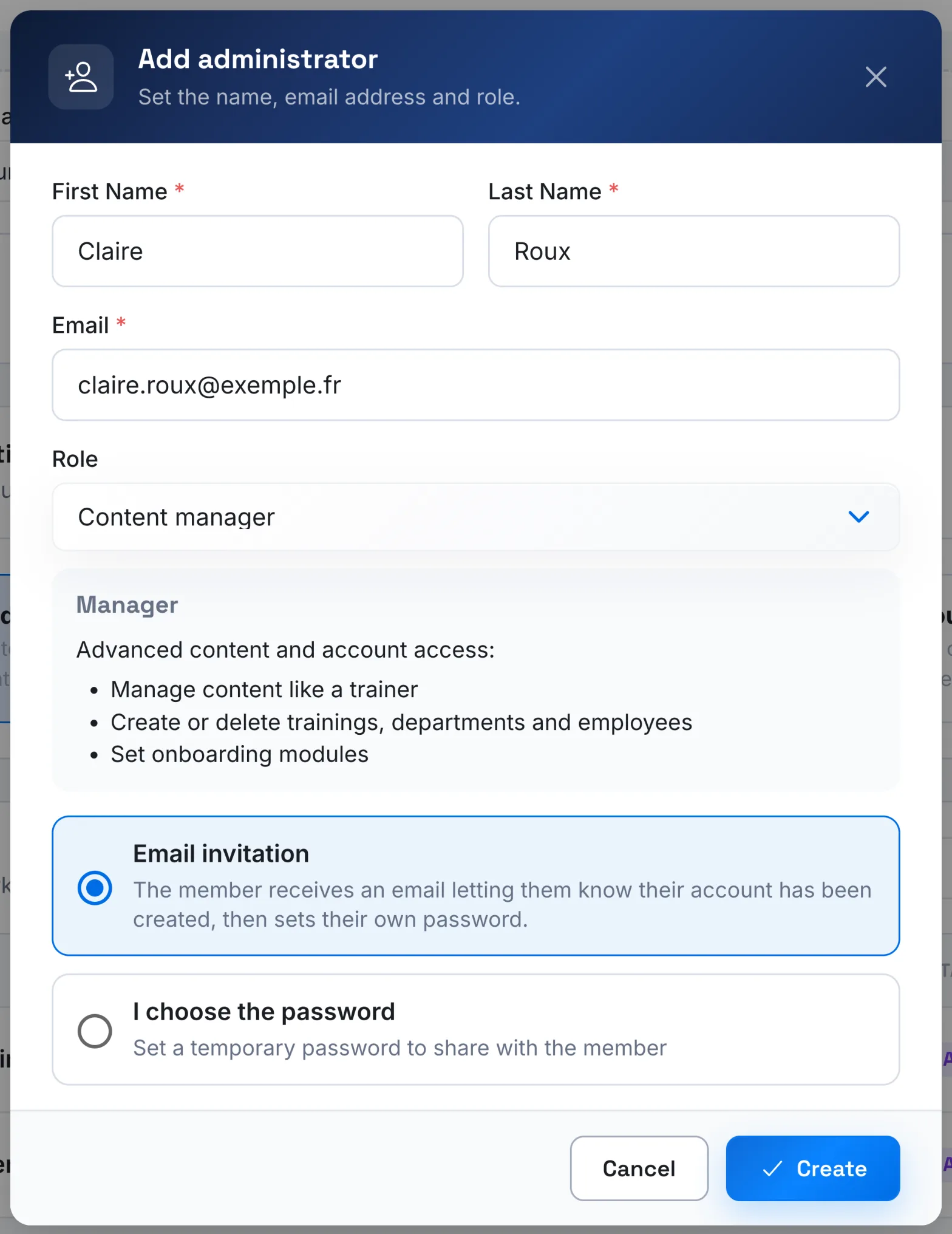
The descriptions below are the ones the app shows when you choose a Role for a member.
| Role | What they can do | Menus |
|---|---|---|
| Administrator | Full access: manage content, teams and members, review credit usage and alerts, edit platform settings. | Trainings, Employees, Admin, Usage, Plan & Billing, LMS Config if the platform is configured for an LMS, Profile |
| Content manager | Manage content like a trainer, create or delete teams, departments and learners, set onboarding modules. | Trainings, Employees, Profile |
| Trainer | Create and edit their own content, edit authorised content, rename or move a learner. | Trainings, Employees, Profile |
| Guest | View authorised content, with no creation or editing. | Trainings, Employees, Profile |
| Employee (learner) | Take the courses assigned to their team, view their dashboard and profile. | Trainings, Dashboard, Leaderboard if gamification is enabled, Profile |
What the Trainer and the Guest see#
In Trainings, the Trainer and the Guest only see the courses they author or on which they have read or edit rights. A Trainer who creates a course automatically gets the right to edit it. The Administrator and the Content manager see all the courses on the platform.
To grant or remove rights course by course, see Trainer rights.
The creator seat#
A creator seat is the licence of a member of the teaching team:
- the Administrator, the Content manager and the Trainer each use a creator seat;
- the Guest does not use one: "Does not consume a creator licence.";
- learners are counted separately.
With the Learner seats plan, Admin shows the number of Conceptor seats used and available, and an icon marks each member who uses one. If all seats are in use, adding a member or switching to a role that uses a seat is refused. To add seats, see Manage your subscription.
During the free trial, the platform has a single creator seat, taken by the Administrator who created it.
Financial actions#
Only the Administrator can access Usage and Plan & Billing. Only the Administrator can activate the platform, manage the subscription, add seats or credit and view payments.
When the platform becomes read-only, the other members see the message "The platform is read only. Contact the account owner." They need to contact the Administrator.
Change a member's role#
The Administrator adds members of the teaching team and changes their role in Admin. See Manage the teaching team.
Was this article helpful?
Thank you for your feedback!
Thank you. Tell us what is missing through Help and support in the app, and we will complete the article.