

Send a password reset link
Has a learner forgotten their password? Send them a link to choose a new one. SSO accounts, however, have no Complement password.
In Manage your learners
Once the account is created, you cannot see a learner's password and you cannot change it for them. You can, however, send them a link so that they choose a new one.
Before you start#
- Administrators, Content managers and Trainers can send this link.
- The learner can also request it themselves with Forgotten password, on the sign-in page. See Sign in.
Send the link#
- Open Employees › Learners.
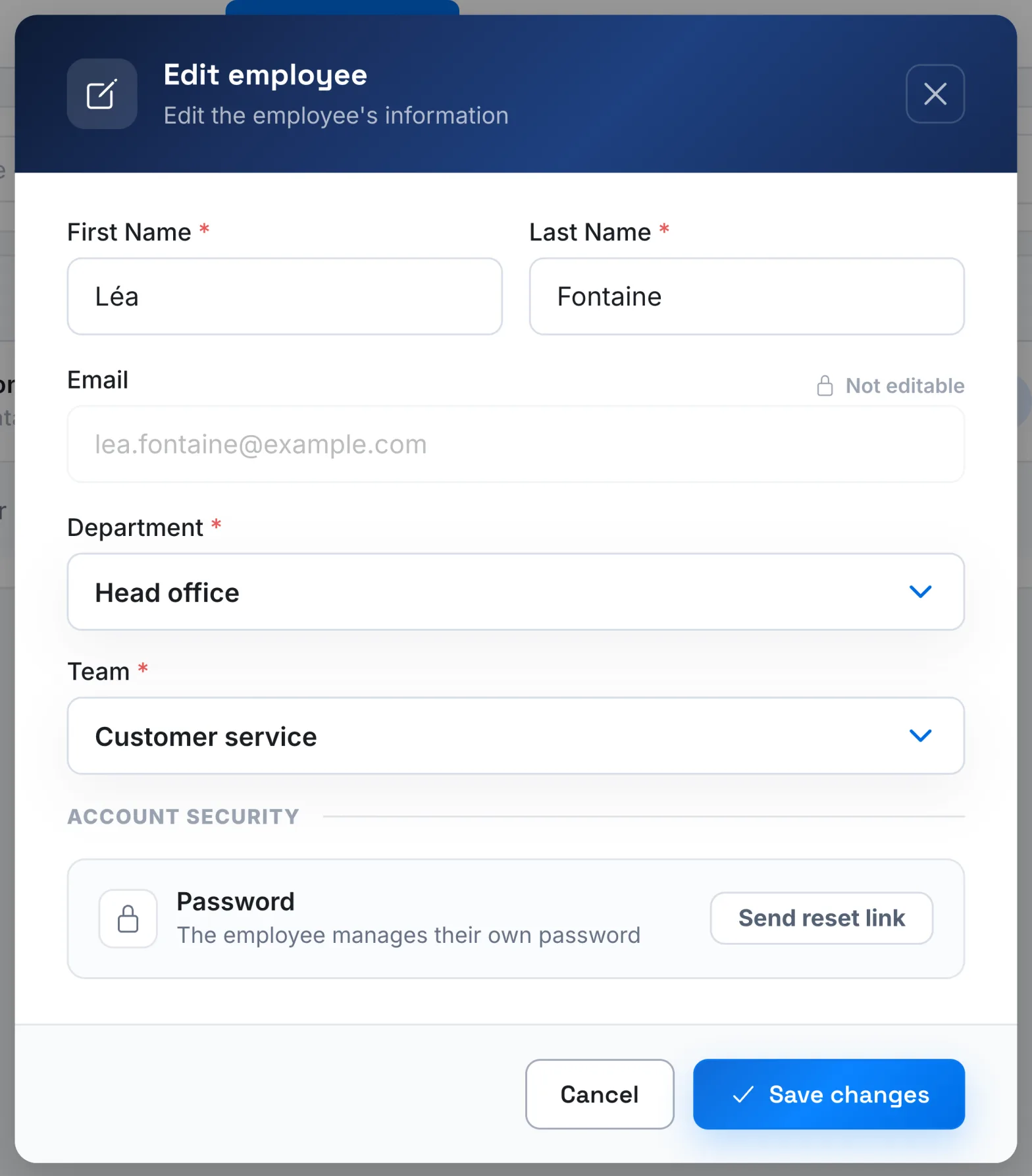
- Open the actions menu at the end of the learner's row, then choose Edit employee.
- In Account security, click Send reset link.
The message "Reset link sent" confirms that it has been sent. There is nothing to save: close the window with Cancel.
The button is not available for an account without an email address.
What the learner receives#
- They receive the email "Reset your password". The message tells them that they requested this reset: let them know so that they are not surprised.
- The link opens the Reset your password page. They enter their New password, confirm it, then click Update password.
- They then sign in with this new password.
The link is only valid for a limited time. If it has expired, the page shows Expired link and offers Request a new link. You can also send them another one.
SSO accounts#
If your platform uses Google or Microsoft SSO sign-in, your learners sign in with their organisation's account. The sign-in page does not offer them a Complement password, so a reset link is of no use to them.
Their Profile says so: "Your account is managed by your organisation. To change your password, use your SSO portal." If they forget it, the learner uses your organisation's tools. See SSO sign-in.
Was this article helpful?
Thank you for your feedback!
Thank you. Tell us what is missing through Help and support in the app, and we will complete the article.