

Add a learner
Create a learner account by email invitation, through your organisation's SSO or with a password you choose, within the limit of your seats.
In Manage your learners
Adding a learner opens an account for them and places them in a team. They then see the published courses of that team. To create many accounts at once, use the CSV or Excel import instead.
Before you start#
- Only Administrators and Content managers can add learners.
- You need at least one team: without a team, the Add an employee button is greyed out. See Organise departments and teams.
- If your plan limits the number of learners, you need a free seat. See below.
Add a learner#
- Open Employees. To place the learner directly in a team, first open that team's list from the Teams tab.
- Click Add an employee.
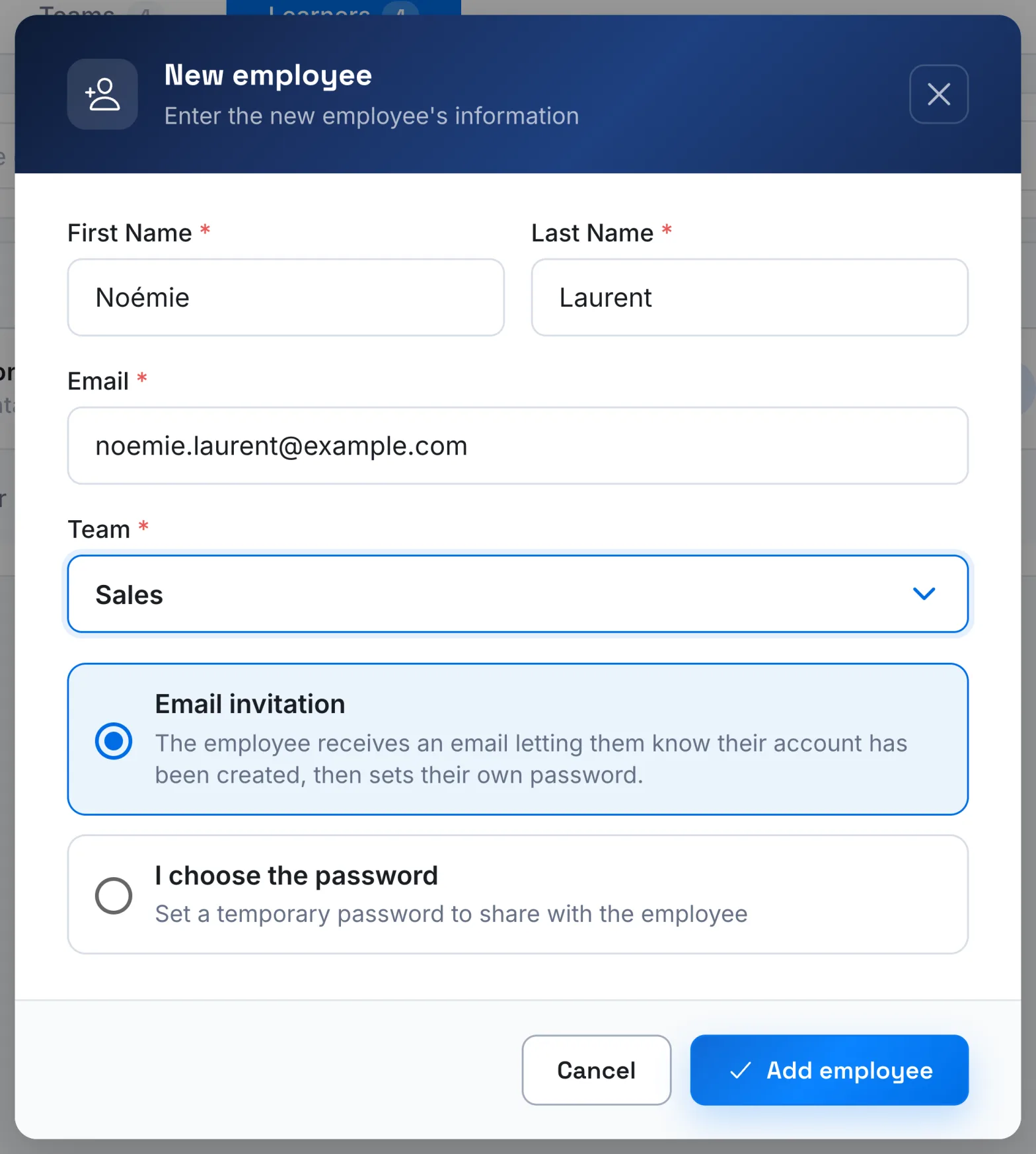
- Fill in First Name, Last Name and Email. The email address cannot be changed afterwards.
- Choose their Team, after their Department in the advanced journey. These fields do not appear if you started from a team's list.
- Choose how the learner will access their account: see the table below.
- Click Add employee.
The message "The user was successfully created" confirms the creation. If the address is already used on Complement, the app shows "A user with this email address already exists".
Account access options#
The window offers two options. The first one depends on how your learners sign in.
| Option | When it is offered | What the learner receives |
|---|---|---|
| Email invitation | Your platform does not use SSO | The email "Your [your organisation's name] account is ready", with a link to choose their own password |
| SSO account · notification only | Your platform uses Google or Microsoft SSO | The same email, which invites them to sign in with their organisation's account. No password to create |
| I choose the password | In all cases | No email. Give them their email address and password yourself |
- With the email invitation, if the link has expired, the email tells the learner to use Forgotten password on the sign-in page. You can also send them a new link: see Send a password reset link.
- With a password you choose, the app tells you if it is too short. The learner can change it from their Profile: see Profile and languages.
- SSO sign-in is set up by Complement: see SSO sign-in.
Learner seats#
If your plan limits the number of learners, a counter appears at the top of the page: the number of employee seats used and the seats remaining. It turns orange when few seats remain, then red when none are left.
When all seats are taken, the add window shows "Employee capacity reached" and "No new employee can be added right now." If you manage the subscription, the Activate my platform button takes you to activating or managing your subscription. See Manage your subscription.
Deleting a learner frees up their seat: see Delete learners.
Was this article helpful?
Thank you for your feedback!
Thank you. Tell us what is missing through Help and support in the app, and we will complete the article.