

Organise departments and teams
Choose the simplified or advanced journey, then create, rename and delete your teams and departments.
In Manage your learners
Your learners are grouped into teams, and you give access to courses team by team. In the advanced journey, the teams are themselves grouped into departments.
Before you start#
- Administrators and Content managers create, rename and delete teams and departments. Trainers and Guests can view them but cannot change them.
- Only an Administrator chooses between the simplified journey and the advanced journey.
- Nothing can be changed while the platform is read-only. See Read-only platform.
Choose the simplified or advanced journey#
| Simplified journey | Advanced journey | |
|---|---|---|
| Organisation | Teams, without departments | Departments that contain teams |
| Tabs in the Employees menu | Teams, Learners | Departments, Teams, Learners |
- Open Admin.
- In Learner organization, click Simplified journey or Advanced journey.
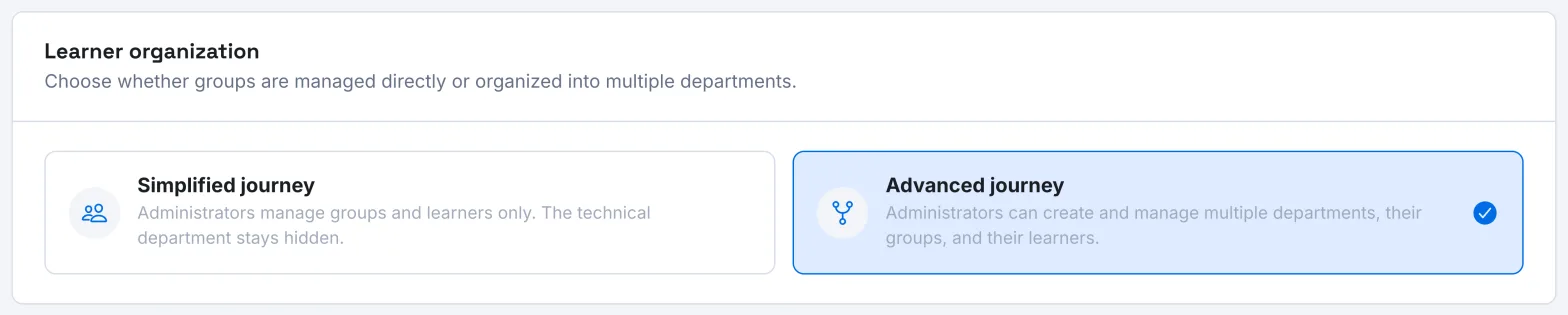
The simplified journey accepts only one department. If you have several, the app blocks the change and states that "no data will be merged or deleted automatically". First attach all your teams to the same department, then delete the empty departments.
Create a team#
- Open Employees.
- Click Add a team.
- Enter its name in Team. In the advanced journey, also choose its Department.
- In Trainings, choose the published courses the team will have access to. If you have an onboarding course, it is already selected.
- Click Create team.
Create a department#
In the advanced journey:
- In Employees, click Add a department.
- Fill in the Department name. The Description and the Badge color are optional.
- Click Create department.
Rename#
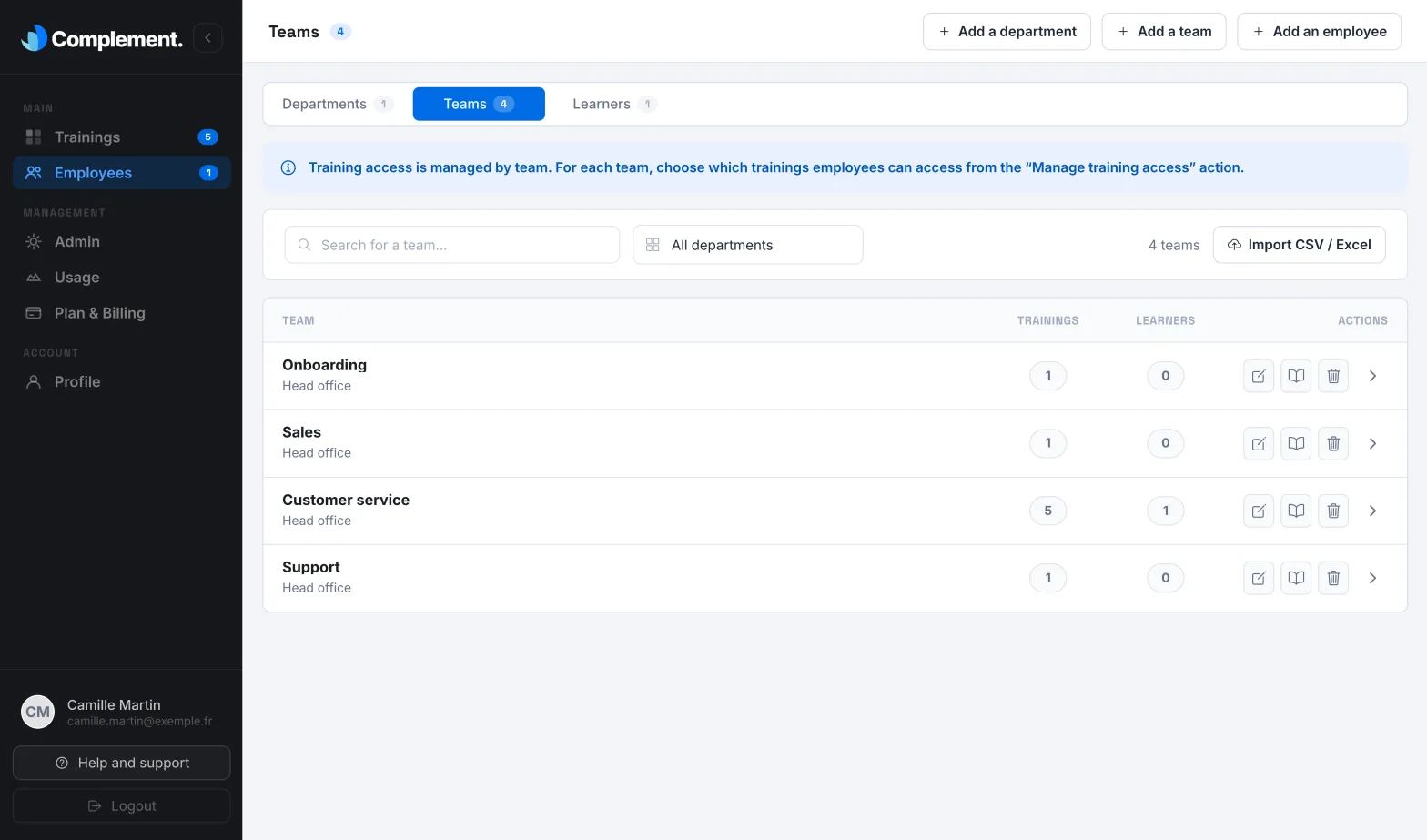
- For a team: in the Teams tab, click Rename on its row, change the name, then click Rename. In the advanced journey, the same window lets you attach the team to another department.
- For a department: in the Departments tab, click Edit on its card. Change its name, description or colour, then click Save changes.
Delete#
To delete a department, click Delete on its card in the Departments tab, then confirm. Only a department without teams can be deleted. Otherwise, the app shows "This department contains teams. Please delete those teams before deleting the department".
To delete a team, click Delete on its row in the Teams tab, then confirm.
The deletion continues in the background. The message "The team was successfully deleted" appears when it is finished. The results of its learners still count in the course statistics.
Was this article helpful?
Thank you for your feedback!
Thank you. Tell us what is missing through Help and support in the app, and we will complete the article.