

Enable SSO sign-in with Google or Microsoft
Google or Microsoft sign-in set up by Complement: effects on the sign-in page, account creation and passwords.
In Administer your platform
- Customise your organisation
- Manage the teaching team
- Track usage
- Activate your platform
- Manage your subscription
- View your enterprise contract
- Why is your platform read-only?
- Understand your administrator alerts and emails
- Enable SSO sign-in with Google or Microsoft
- White-label your platform
- Which options should you ask your Complement account manager for?
- Connect your LMS with LTI 1.3
- LMS: add courses, manage groups and grades
- Data security and privacy
With SSO sign-in, your users sign in to Complement with your organisation's Google or Microsoft account, instead of an email and password specific to Complement.
Before you start#
- SSO sign-in is set up by Complement. There is no settings screen in the app: ask your Complement account manager for it.
- A platform uses a single provider: Google or Microsoft.
- SSO does not create any accounts. Each user must already have an active Complement account, with the same email address as their Google or Microsoft account.
What changes on the sign-in page#
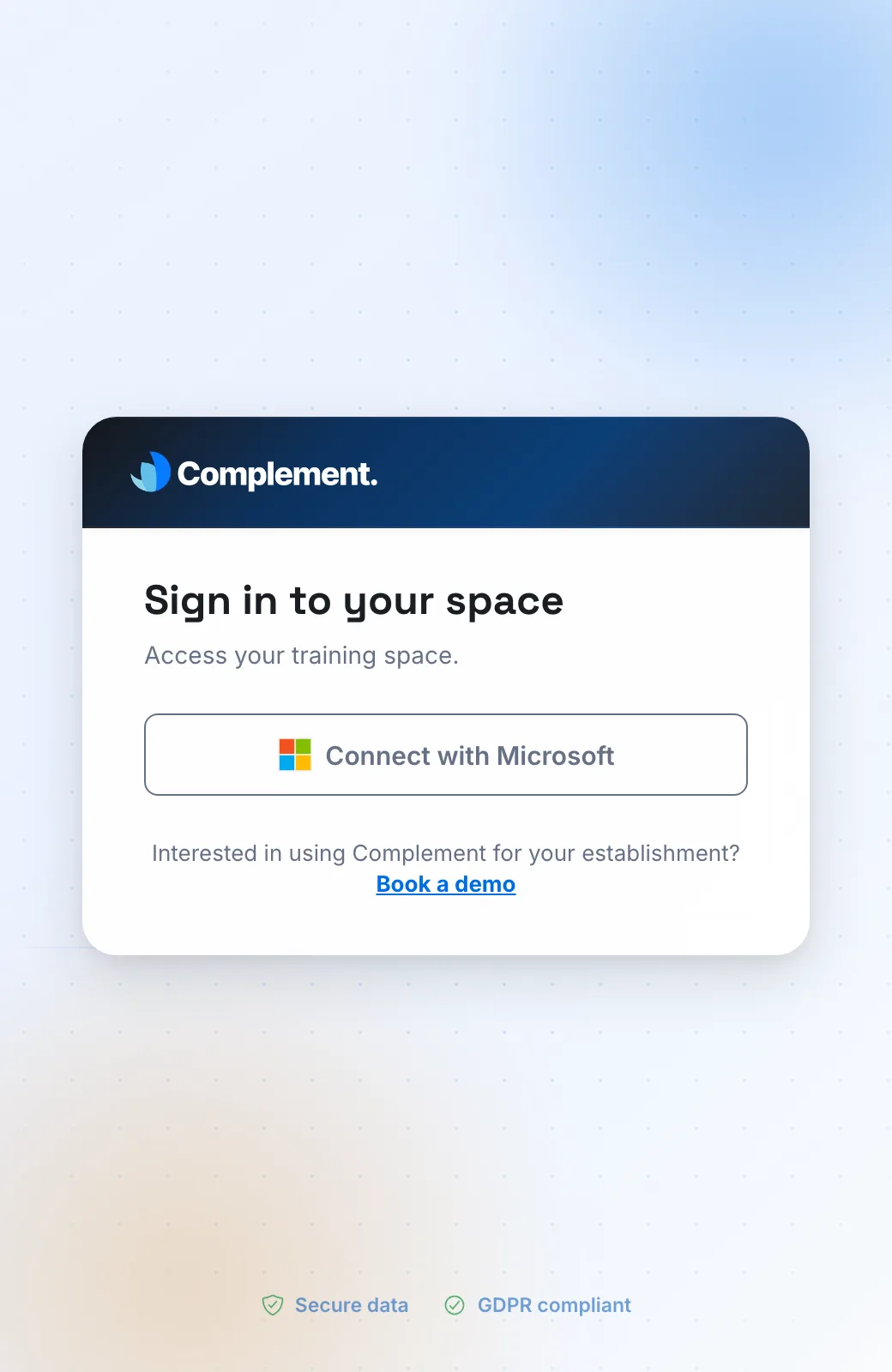
Your platform's sign-in page adapts to the chosen provider:
| Page element | Without SSO | Google SSO | Microsoft SSO |
|---|---|---|---|
| Email and Password fields | Shown | Hidden | Hidden |
| Google button | Not shown | Shown | Not shown |
| Connect with Microsoft button | Shown | Shown | Shown |
Your platform's sign-in link#
These rules apply to your platform's own sign-in page: its dedicated sign-in link, or its white-label address. Complement's general sign-in page always shows the Email and Password fields, and never the Google button.
Ask your Complement account manager for your platform's sign-in link, then share it with your users. After they sign out, Complement brings them back to this page.
If no account matches#
The Connect with Microsoft button only works for an existing, active Complement account. Otherwise, sign-in is refused with one of these messages:
- "Microsoft sign-in failed. Use an active Complement account and try again. If the problem persists, contact your organization."
- "No active Complement account matches this sign-in. Contact your organization."
The second message also appears with the Google button when no account matches.
Create your users' accounts#
On a platform using SSO, the window for adding a learner offers the SSO account · notification only option instead of Email invitation.
- Open Employees, then click Add an employee.
- Fill in the first name, last name, email address and team. Enter the address of the person's Google or Microsoft account.
- Choose SSO account · notification only.
- Click Add employee.
The learner receives an email telling them their account is ready. This email does not contain a password: they sign in with your provider's button.
The same option appears when you add a member of the teaching team from Admin.
Passwords#
On a platform using SSO, the Profile page does not offer a password change, either to learners or to the teaching team. Instead, it shows the Connection card, with the SSO authentication block: "Your account is managed by your organisation. To change your password, use your SSO portal."
Was this article helpful?
Thank you for your feedback!
Thank you. Tell us what is missing through Help and support in the app, and we will complete the article.