

Publish a course
Make your course visible to your learners: pre-publication checks, announcement email and updates to a published course.
In Create a course
- Understand the structure of a course
- Create a course
- Generate a course with AI
- Import a PDF or images
- Organise chapters
- Edit a slide
- Write the avatar script
- Edit a slide visual with AI
- Add interaction questions and surveys
- Add a video
- Create the end-of-chapter quiz
- Add resources to a course
- Saving and editing with others
- Preview a course
- Publish a course
- Course settings
- Course completion rules
- Trainer rights on a course
- Manage your courses
- Export a course to PDF
Until a course is published, you are working on a draft that your learners cannot see. Publishing makes your changes visible to all the learners who have access to the course.
Before you start#
- You must be able to edit the course. Administrators and Content managers always can; a Trainer must have edit rights on this course (see Trainer rights).
- Test your course before publishing it: see Preview a course.
- For learners to see the course, it must also be assigned to their team: see Give access to a course. You can do this before or after publishing.
Publish#
- Open Trainings › your course.
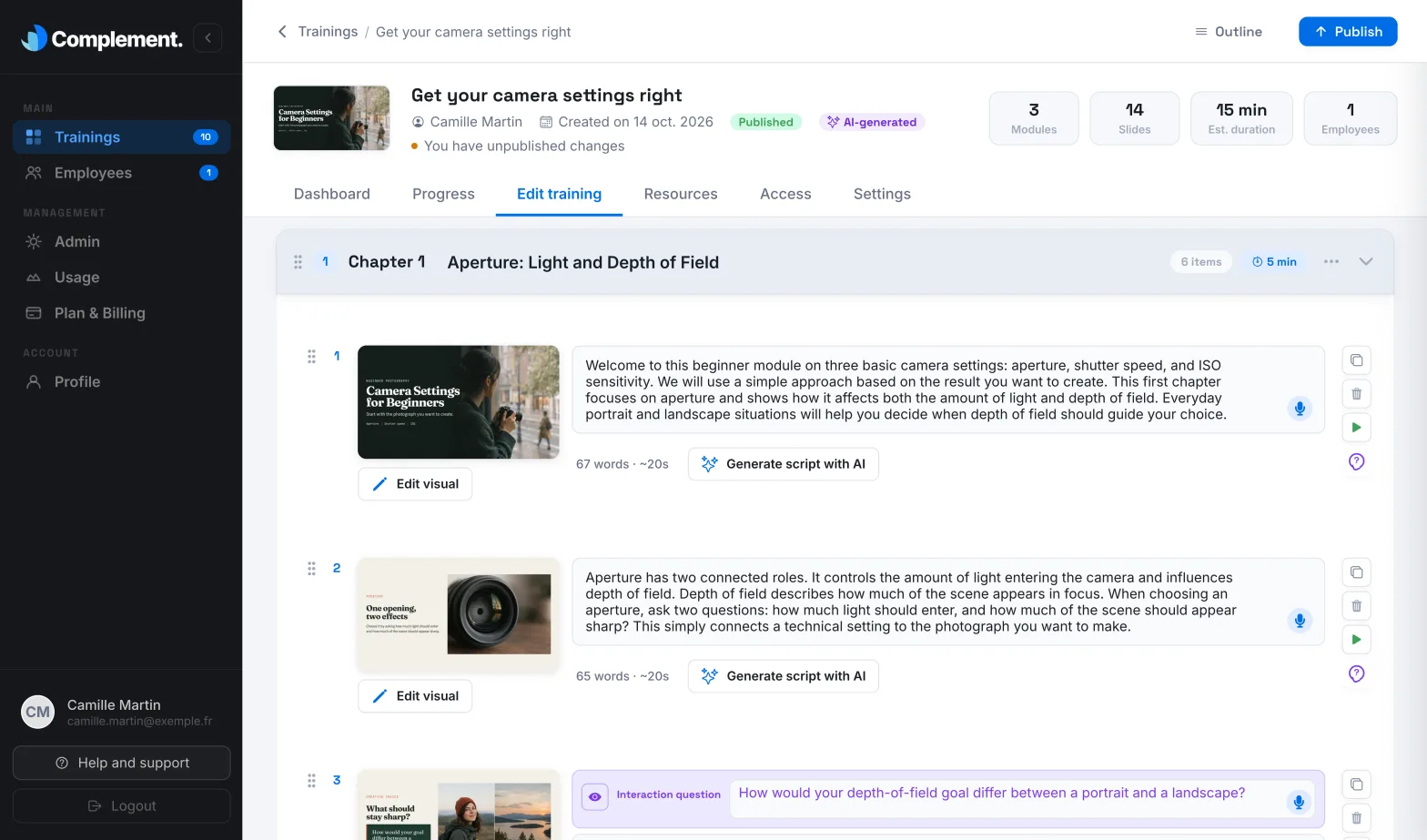
- Go to the Edit training tab. The Publish button only appears in this tab.
- Wait until the save indicator shows Saved.
- Click Publish, at the top right.
A Publishing the training window appears during the operation. Complement saves your draft, analyses your slides and quizzes, then updates the AI tutor's knowledge so that it answers learners based on the new version.
Once the course is published, its status changes from Draft to Published.
Pre-publication checks#
Complement checks that the course is complete before publishing it. If something is missing, publishing stops and a message tells you what to fix:
| Message | What to fix |
|---|---|
| "A chapter must contain at least one slide" | Add at least one slide to the empty chapter, or delete it. |
| "Every chapter must have a quiz" | Add at least one question to the end-of-chapter quiz of each chapter. |
| "Every slide must have an image and a text" | Each slide needs a visual and a script. Video slides are not affected. |
| "Every quiz question must have a question and an answer" | Fill in the question and the expected answer of each question. |
| "A MCQ cannot have only one choice" | Add at least a second choice. |
| "MCQ choices cannot be empty" | Fill in or delete the empty choices. |
| "A MCQ must have at least one correct choice" | Tick at least one choice as correct. |
Each case is explained in detail in Publishing is refused.
Notify your learners by email#
If the course is already assigned to at least one team, the Send an email to employees window opens just after publishing.
- Tick the teams to notify. Select all and Deselect all apply to the whole list; the search field helps you find a team.
- Click Send, or Don't send if you do not want an announcement.
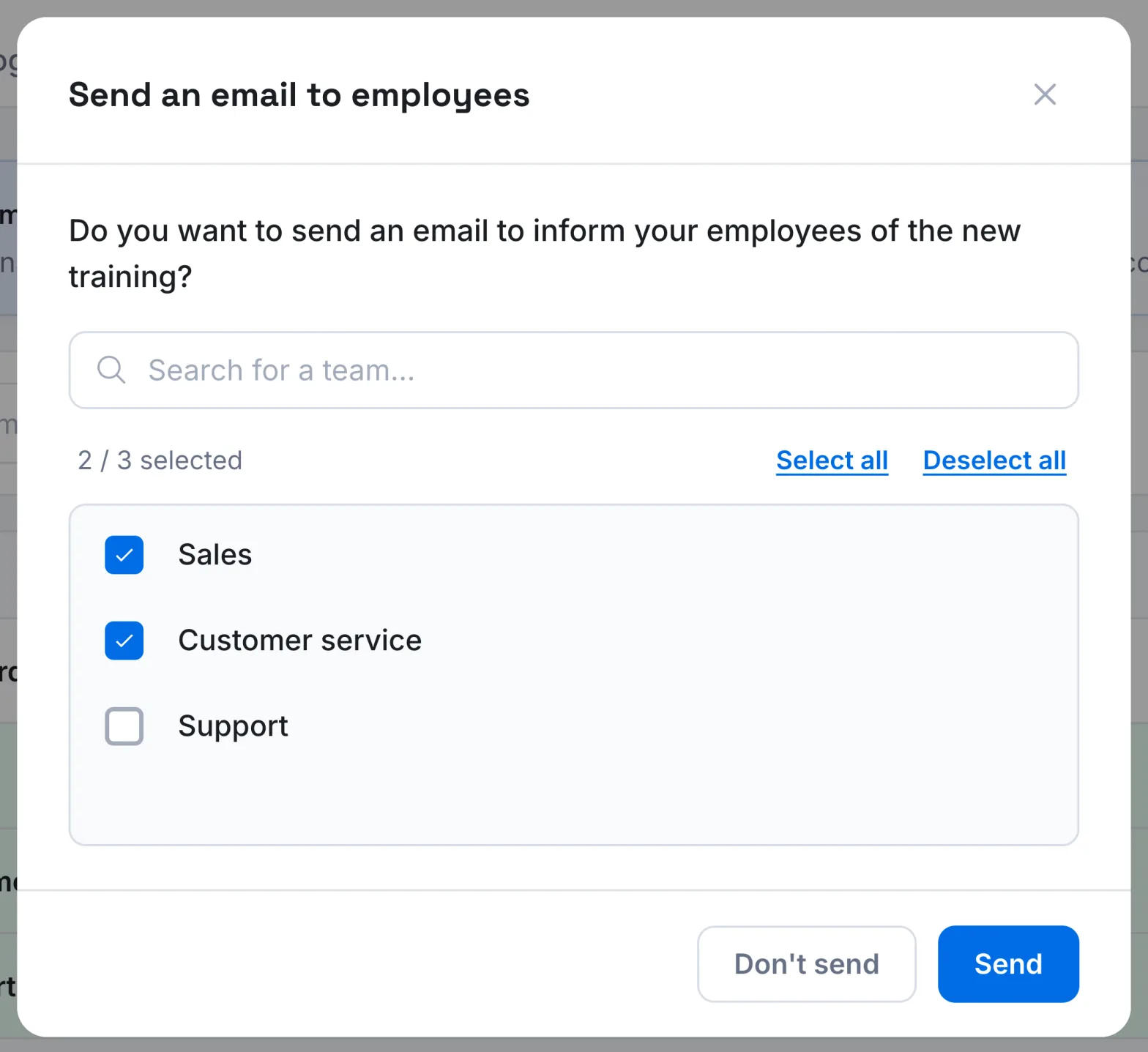
Learners in the ticked teams receive an email with the subject "A new course is waiting for you on" followed by the name of your platform.
Update a published course#
You can keep editing a published course. Your changes stay in the draft, and the editor shows "You have unpublished changes" below the course title. Learners keep following the published version until you click Publish again.
After a new publication, learners who had already started the course see the Modified training message the next time they open it. It warns them that their progress and their results may be affected.
Was this article helpful?
Thank you for your feedback!
Thank you. Tell us what is missing through Help and support in the app, and we will complete the article.