

Launch a course successfully
Announce the course, prepare your learners to talk with the avatar, set a deadline with reminders and monitor the first week.
In Best practices
A well-designed course can go unnoticed if its launch is neglected. Your learners need to know it exists, understand that they will talk with an avatar and have their equipment ready. This guide brings together the steps of a successful launch.
Before the launch#
- Test the whole course as a learner, then fix what needs fixing.
- Give access to the relevant teams: in the Access tab, tick the teams, then click Save. This step is reserved for Administrators and Content managers.
- Set the deadline and the reminders, described below.
- Publish the course.
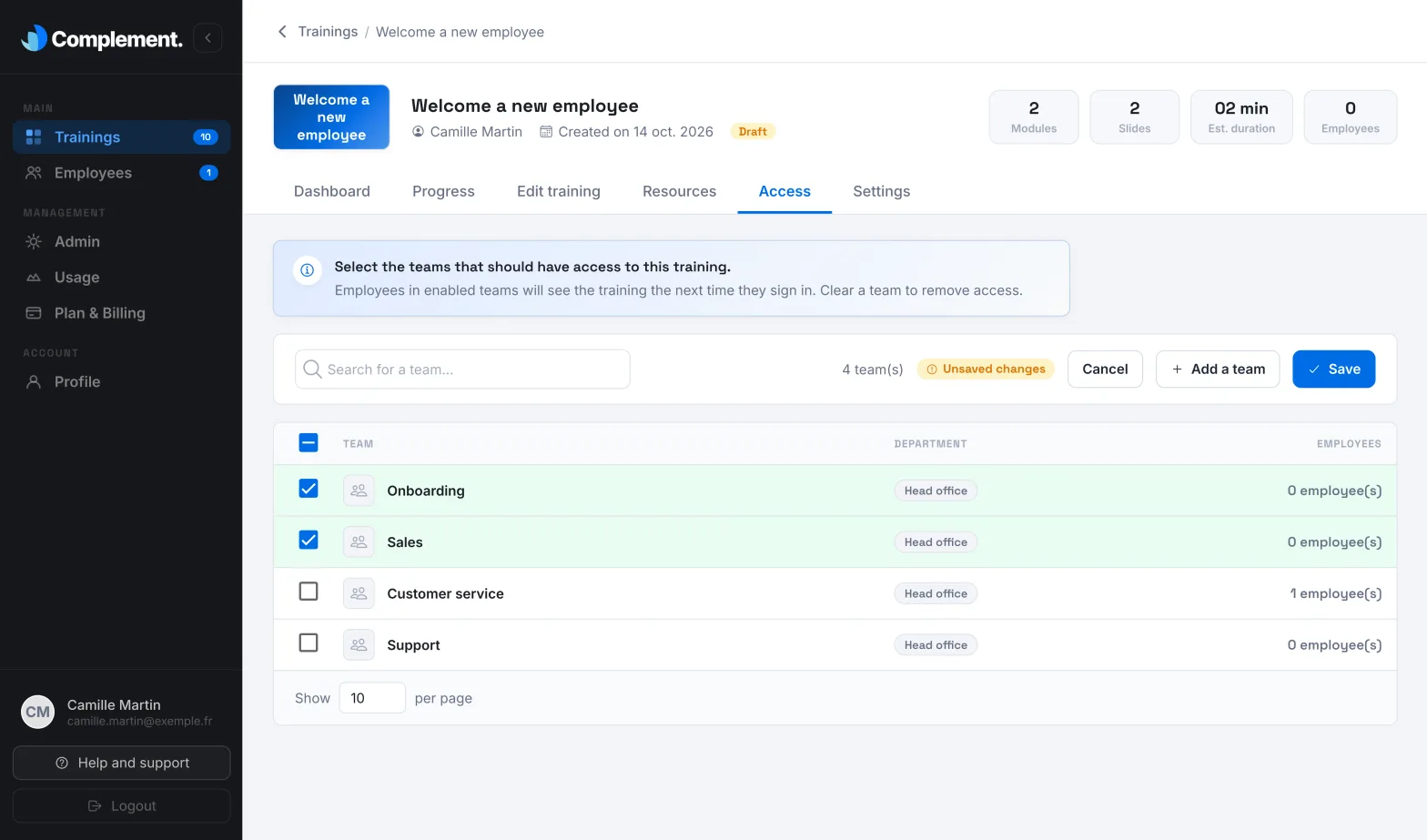
Learners in the ticked teams find the course the next time they sign in, once it is published.
Announce the course#
Just after publishing, the Send an email to employees window offers to notify the teams that have access. Tick the teams, then click Send. Learners receive an email with the subject "A new course is waiting for you on", followed by the name of your platform.
Add your own message to this email, for example from a manager. Tell them:
- why this course matters to them;
- that they will talk aloud with an avatar, which answers their questions;
- that they can also answer in writing;
- what the deadline is.
Offer an onboarding course#
The onboarding course starts automatically at the end of a learner's onboarding, when they first sign in. Use it to introduce them to talking with the avatar before your other courses.
To choose the course that plays this role, publish it, then go to Settings, Onboarding section, and turn on Use as onboarding training. This option is reserved for Administrators and Content managers. Only one course plays this role at a time: turning it on for one course removes it from the previous one.
Turn it on before you invite your learners: it starts at the end of their onboarding, which only happens the first time they sign in.
Set a deadline and reminders#
A clear deadline helps learners organise their time. In Settings, Duration & success section:
- Turn on Limit completion date and choose the date.
- Turn on Email reminders. Complement suggests two reminders before the deadline.
- Adjust them: add a reminder with Choose a date, remove one with its cross. A reminder that has been sent is marked with a tick.
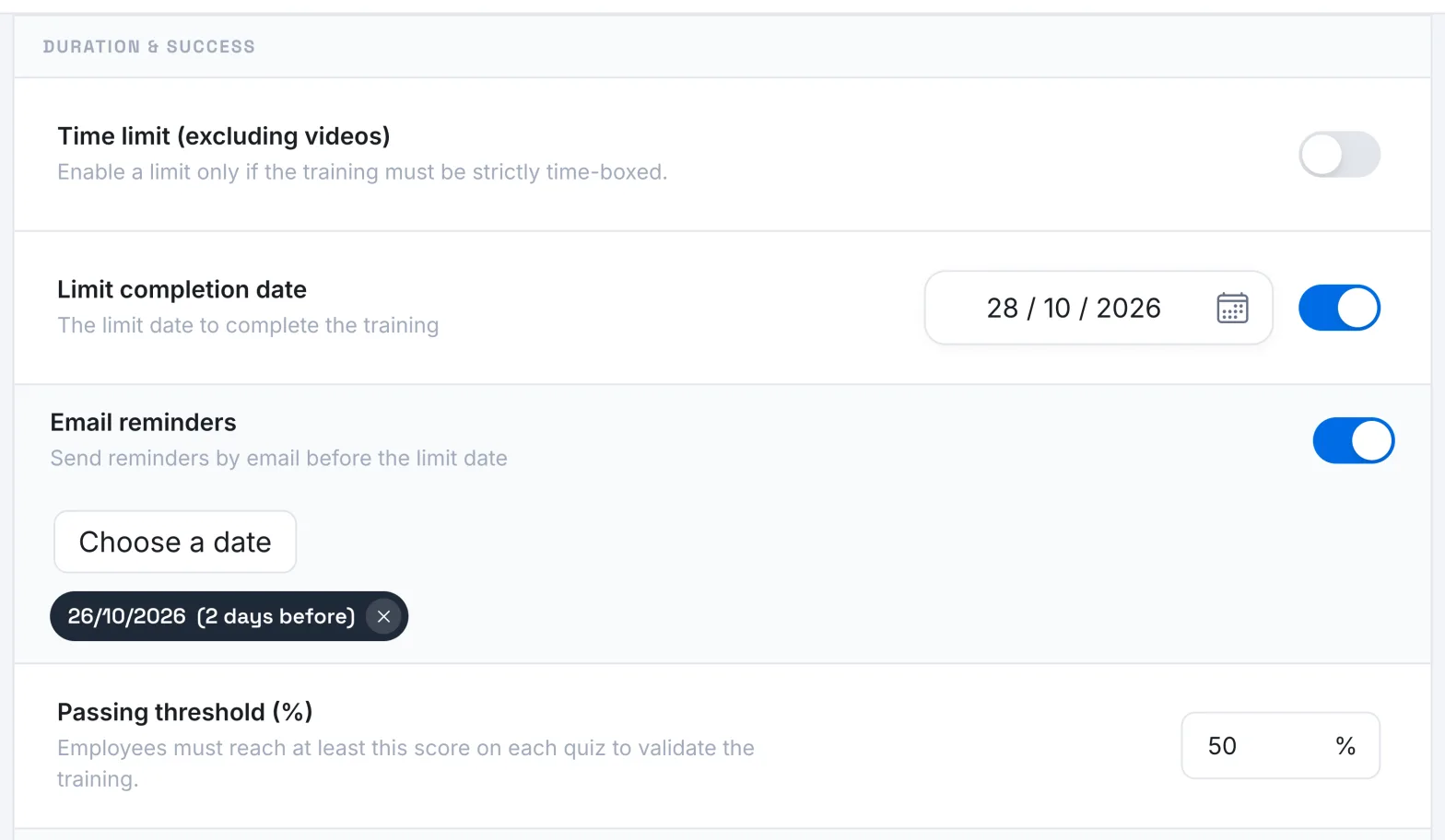
Learners see the deadline in their space. On the date of each reminder, learners who have access to the course and have not yet viewed all of its slides receive an email with the subject "The deadline for your course is approaching".
Adapt these reminders to your schedule. For a course to be followed over several weeks, add a reminder halfway through, for example.
Prepare learners to talk with the avatar#
The first contact with the avatar goes better when the equipment is ready. Pass on these tips in your announcement:
- Use an up-to-date browser and allow microphone access when the browser asks. If access is denied, the app shows "Your microphone is blocked by the browser" and explains how to restore it.
- Settle in a quiet place, or use a headset with a microphone.
- Answer in writing with the Write button when speaking is not possible.
- On a smartphone, hold the screen in landscape mode.
- Report a problem with the player's Problem? button.
The technical details are in System requirements and Microphone or sound.
Monitor the first week#
The first few days quickly reveal what is holding learners back. Check the course regularly:
- In the Progress tab, look for learners with the Not started status: a message from you may be enough to get them going.
- In the Dashboard, the Questions asked to the avatar block shows the number of new questions over the last seven days. Read them: a question that comes up often points to something to clarify.
- Look at the Quiz results: a chapter that few learners pass deserves to be reviewed.
Quickly correct what needs correcting, then republish, grouping your changes. The method is detailed in Improve a course with analytics.
Was this article helpful?
Thank you for your feedback!
Thank you. Tell us what is missing through Help and support in the app, and we will complete the article.