

Design a conversational course
The principles of a course where the avatar explains and the learner speaks: one idea per slide, regular interactions, one quiz per chapter.
In Best practices
In Complement, an avatar presents each slide aloud, and the learner can answer it or interrupt it at any time. A good conversational course is therefore not a slideshow with a voice-over: it alternates short explanations with moments when the learner speaks. This guide sets out the principles to follow and how they apply in the editor.
What the avatar does with your content#
Before you design, keep in mind how the AI tutor uses what you write:
- The slide script is the basis of what the avatar says. It is not read word for word: the avatar rephrases it for speech, keeping the same information.
- The slide visual is described to the AI tutor when you publish. It uses this description to explain a diagram or answer a question about what is on screen.
- Learners' questions can come at any time. The AI tutor answers questions related to the course, then carries on with the slide.
- The avatar asks your interaction, survey and quiz questions, then responds to the learner's answer.
One idea per slide#
Each slide covers a single concept. The learner follows more easily, and when they interrupt the avatar to ask a question, getting back on track takes little time.
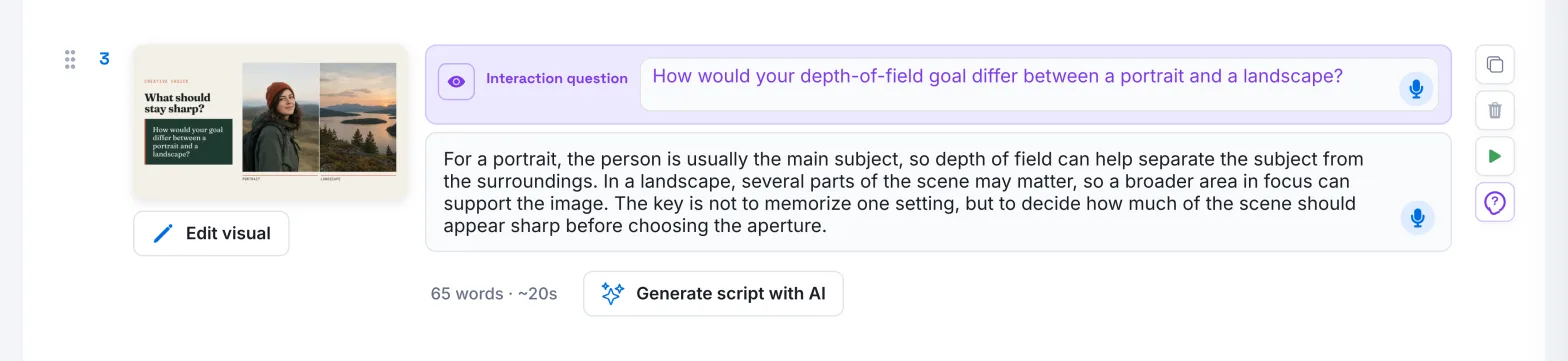
The editor helps you stick to this principle. Under each script, a counter shows the word count and an estimated duration. When the text gets longer, it adds "Consider splitting this slide", then "Too long, split into several slides".
To split a slide:
- Click Duplicate this slide.
- Divide the script between the two slides.
- Adapt the visual of each one.
Keep everything that matters in the script. Some learners follow the course mainly by listening: a concept that only appears on the visual may pass them by.
The avatar explains, the learner speaks#
A course where the avatar talks alone from the first slide to the last is still a lecture. Give the learner a chance to speak regularly. They can answer aloud or in writing, with the Write button.
Complement offers three opportunities to do this:
| Moment | What happens | Scored? |
|---|---|---|
| Interaction question | The avatar asks your question at the start of the slide, then presents the slide, building on the learner's answer. | No |
| Survey question | The avatar collects the learner's opinion and briefly thanks them. | No |
| Chapter's quiz | The avatar asks each question, says clearly whether it accepts the answer and explains why. | Yes |
Outside these moments, the learner can always interrupt the avatar to ask a question or ask it to explain again.
Regular interactions#
Alternate a few explanation slides with a moment of exchange. To place your interactions:
- At the start of a concept, ask what the learner already knows or has experienced. The avatar starts from their answer to explain the slide.
- After an explanation, have the learner apply the concept to a real situation.
- Between two parts, insert a survey question to collect an opinion. Hover over the space between two slides, click the + button that appears (Add content), then Survey question.
If the visual gives away the answer to your interaction question, turn on Mask the slide during the interaction question.
Details on how to write them are in Effective questions and quizzes.
One quiz per chapter#
Each chapter ends with its end-of-chapter quiz. This is required: without a quiz, publishing stops with the message "Every chapter must have a quiz". Quiz questions can only be placed at the end of a chapter.
The quiz also tracks progress. A learner passes a chapter when they reach the passing threshold in its quiz, and passes the course when all chapters are passed. So focus each quiz on the key points of the chapter it concludes.
Short chapters#
A short chapter can be followed in one go and quickly ends with a quiz. Learners thus confirm what they have learnt as they go through the course, not just once at the end.
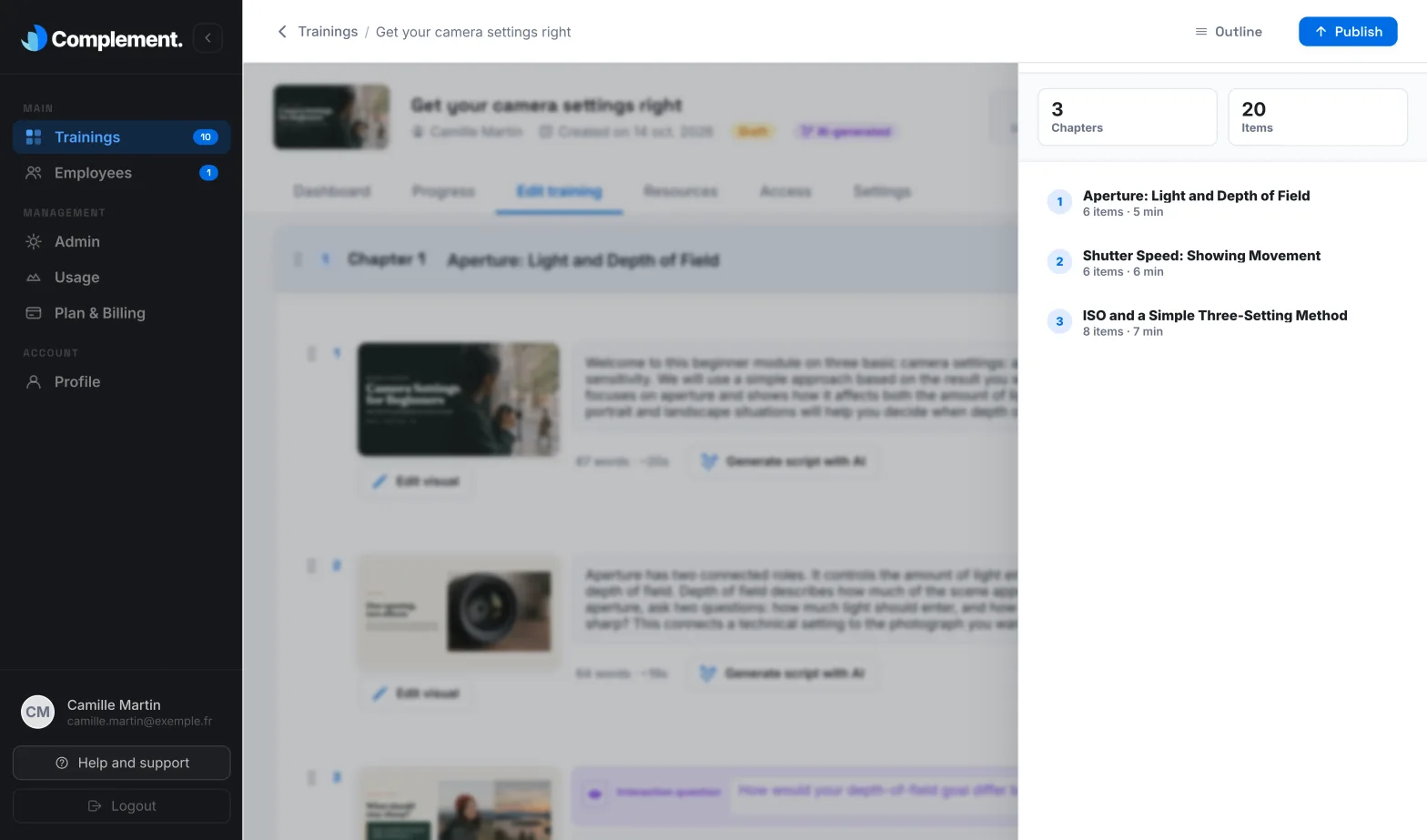
To check the balance of your course, click Outline at the top of the editor. The panel shows the number of items and an estimated duration for each chapter. A chapter much longer than the others is a good candidate for splitting.
A few settings complete this principle:
- Give each chapter a clear title: learners use it to find their way in the course table of contents.
- If your chapters must be followed in order, turn on Require chapter order in Settings.
- Take care over the first slide: its visual is used as the course thumbnail.
Test as a learner#
Before publishing, go through the whole course as a learner would. The play button to the right of each slide starts the test from that slide. Interrupt the avatar, ask it questions, give a wrong answer in a quiz to hear its correction. Also ask a colleague to review your scripts and questions.
Was this article helpful?
Thank you for your feedback!
Thank you. Tell us what is missing through Help and support in the app, and we will complete the article.