

Write an avatar script
Write for speech: full sentences, transitions, no lists. Follow the length warnings and take care over video slide scripts.
In Best practices
The script is the text the avatar says on a slide. You enter it next to the slide visual, in the Edit training tab. It will be heard, not read: this guide helps you write it for speech.
What the avatar does with your script#
The avatar does not read your script word for word. It rephrases it for speech, following a few rules:
- It keeps the same information and roughly the same number of sentences.
- It keeps technical terms, names, dates, figures and quotations exactly as written: check them carefully.
- It adds no introduction or conclusion. Any transitions you want to hear must therefore be in the script.
- It adapts its tone to the learner's preferences, such as the avatar's personality or the vocabulary level.
- It speaks in the language chosen by the learner. If that language differs from the language of your script, it rephrases your text in that language.
The AI tutor also receives a description of the slide visual, created when you publish. This description helps it explain a diagram or answer a question. But your script sets what is said.
Writing for speech#
- Write complete sentences, with a subject, a verb and an object. Notes in telegraphic style are hard to rephrase well.
- Keep to one idea per sentence. A short sentence is understood the first time it is heard.
- Take care over transitions: "Now let's look at…", "Let's take an example.", "Above all, remember this."
- Only greet the learner on the first slide. On the following slides, go straight into the subject.
- Speak to the learner and give examples from their everyday life.
- Link what you say to the visual: "on the right of the slide", "as you can see in this diagram".
- Explain every important concept in the script as well. Some learners follow the course mainly by listening.
No lists to read out#
The avatar speaks without bullet points or formatting. A list copied into a script becomes an enumeration that is hard to follow by ear. Turn it into connected sentences.
Instead of:
Steps: 1. verify identity 2. look up the record 3. offer a solution
Write:
Always start by verifying the customer's identity. Then look up their record. You can then offer them a suitable solution.
If your list is long, group the items by theme or spread them over several slides.
Follow the length warnings#
Under each script, a counter shows the word count and an estimated duration. When the text gets long, it adds a warning:
- "Consider splitting this slide": the script is starting to get long;
- "Too long, split into several slides": split the slide.
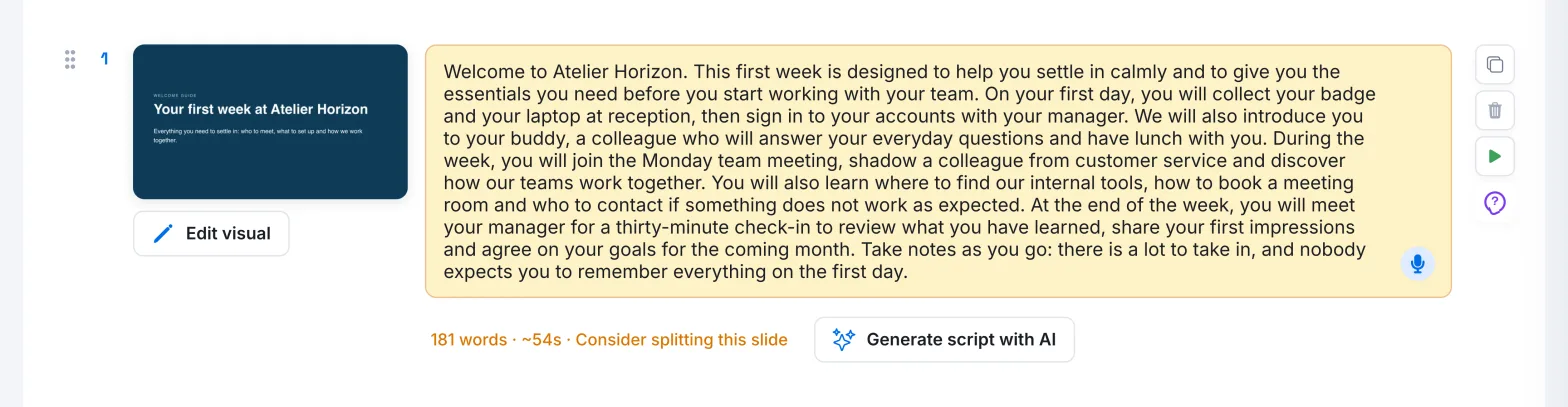
To split a slide, click Duplicate this slide, divide the script between the two slides, then adapt each visual. A short slide keeps the learner's attention. It also makes it easier to pick up again when they interrupt the avatar to ask a question.
The script of a video slide#
On a video slide, the script introduces the video before it starts. The editor reminds you: "Keep it short: the script only introduces the video in 1-2 sentences". If you write too much, the warning becomes "The video script should introduce the video (1-2 sentences), not present it in detail".
Say in one or two sentences why the video is worth watching and what to look out for. For example: "In this video, notice how the adviser rephrases the customer's request." Without a script, the video is shown straight away.

The AI tutor does not analyse the content of videos. If information in the video is essential, repeat it in the script of a following slide: the AI tutor can then explain it and answer questions about it.
The script of a slide with an interaction question#
When a slide has an interaction question, the avatar asks it first and waits for the learner's answer. It then presents the slide, building on what the learner said.
Your script must therefore contain the answer and the explanations. Do not repeat the question in the script: the avatar has already asked it.
Start from an AI-generated first draft#
On a content slide, the Generate script with AI button suggests a text based on the slide visual. The AI takes the course title and description into account. The suggested text is added after the existing script. Always review it and adapt it to your audience.
What not to put in a script#
- Instructions meant for the avatar, such as "Say that…" or "The avatar must explain…". The whole script is treated as content to be spoken.
- Questions that expect an answer. The avatar does not wait for an answer after a script: use an interaction question.
- Bullet points, tables or formatting symbols.
- Essential information that appears only on the visual.
- Greetings at the start of every slide.
Was this article helpful?
Thank you for your feedback!
Thank you. Tell us what is missing through Help and support in the app, and we will complete the article.