

Effective questions and quizzes
Write questions the avatar marks well: precise expected answer, multiple-choice explanation, suitable passing threshold, useful interactions and surveys.
In Best practices
Complement offers four ways to question the learner. The end-of-chapter quiz, with open questions or multiple-choice questions, measures what they have retained and counts towards passing the course. Interaction questions and survey questions make them think and speak, without a score. This guide helps you write each one so that the avatar makes the most of it.
How the avatar assesses a quiz answer#
The avatar asks the question aloud, and the question appears on screen. The learner answers aloud or in writing, in their own words. The AI tutor then acts as the teacher:
- it compares the answer with your expected answer, or with the choices ticked Correct for a multiple-choice question;
- it states clearly whether or not it accepts the answer;
- if the answer is too vague, it points out what was missing: a figure, a name, a step, a number of items;
- an incorrect statement on an important point is not accepted, even if the rest is right.
Your expected answer is therefore the reference for marking. If the avatar's verdict remains ambiguous, the answer counts as not accepted. A clear, precise expected answer avoids these cases and makes the feedback more useful.
After answering, the learner also sees your text on screen, under the heading Explanations if they got it right, or Expected answer if they got it wrong. Write it for them, in full sentences.
Phrasing an open question well#
An open question is made up of the Question to ask and the Expected answer.
For the question:
- Ask only one question at a time.
- Write it for the ear: it will be asked aloud. Avoid tables and references such as "below".
- If you expect several items, say how many: "Name the three steps of…".
- Prefer questions that make the learner explain or apply something. A closed question, answered with yes or no, does not check much.
For the expected answer:
- List the items needed to accept the answer, and only those.
- Write exactly the terms, figures or names that must appear.
- If several answers are acceptable, say so in the expected answer.
For example, for the question "What should you do first with an unhappy customer?", the expected answer "Listen to the customer without interrupting, then rephrase their request" is more useful than "Listening".
If your question relies on an image, the AI tutor receives a description of it when you publish. This is not the case for a video or audio file added with Add media: the expected answer must then stand on its own.
Writing a multiple-choice question and its explanation#
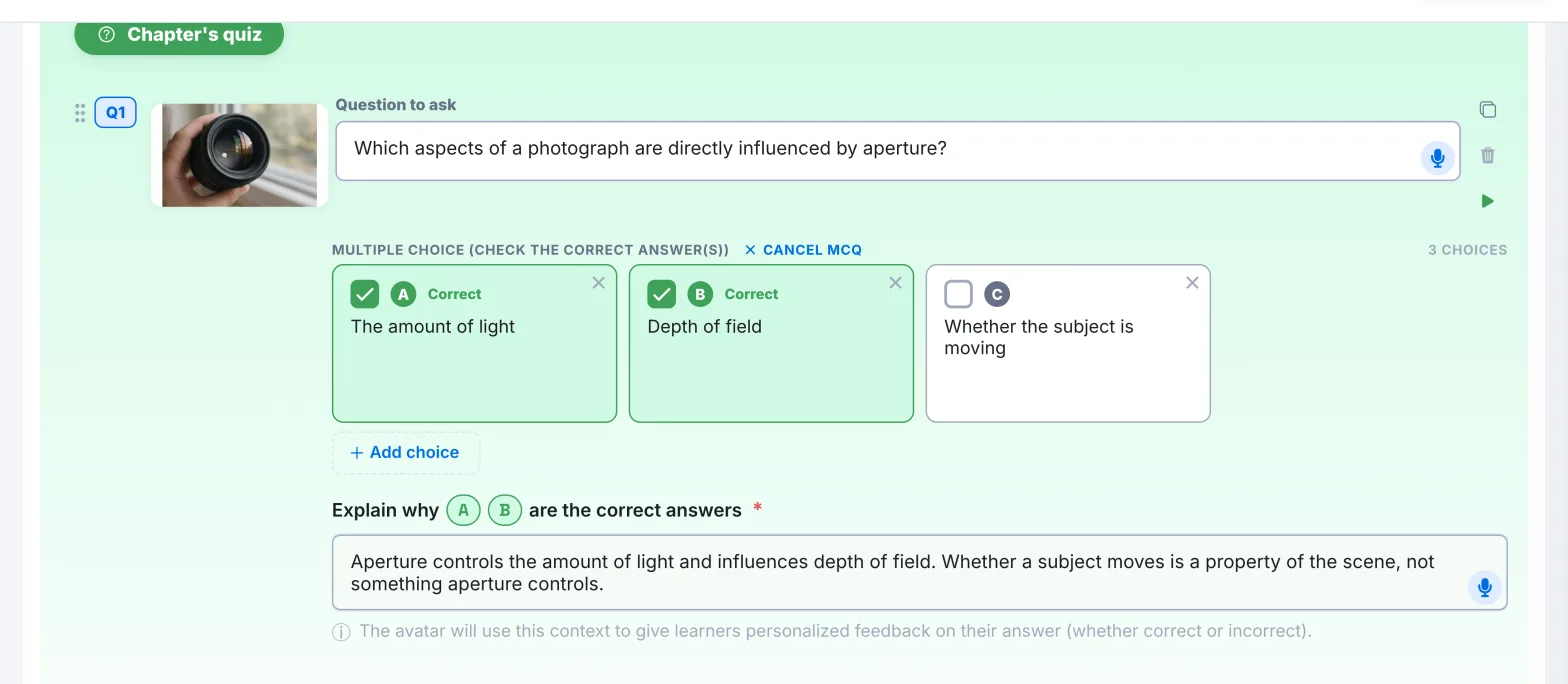
To turn a question into a multiple-choice question, click Create MCQ. The choices are labelled with letters. Tick Correct on each right answer.
The avatar asks the question without reading out the choices: they appear on screen, with their letter. The learner can answer with the letter, with the text of the choice or with both.
A few rules:
- Write plausible choices. An obviously wrong choice teaches nothing.
- If there are several right answers, the learner must give all of them, and no wrong one. Point this out in the question: "What are the two…".
Once a right answer is ticked, the Explain why field appears. It is required. The avatar uses it to comment on the learner's answer, whether it is right or wrong. Explain why the right answer is correct, and why the most likely mistakes are wrong.
Generating questions with AI#
In the end-of-chapter quiz, Generate a question with AI suggests a question and its expected answer, based on the chapter's scripts. Each click adds a new question. So write your scripts before generating, then review each question and its expected answer.
Choosing the passing threshold#
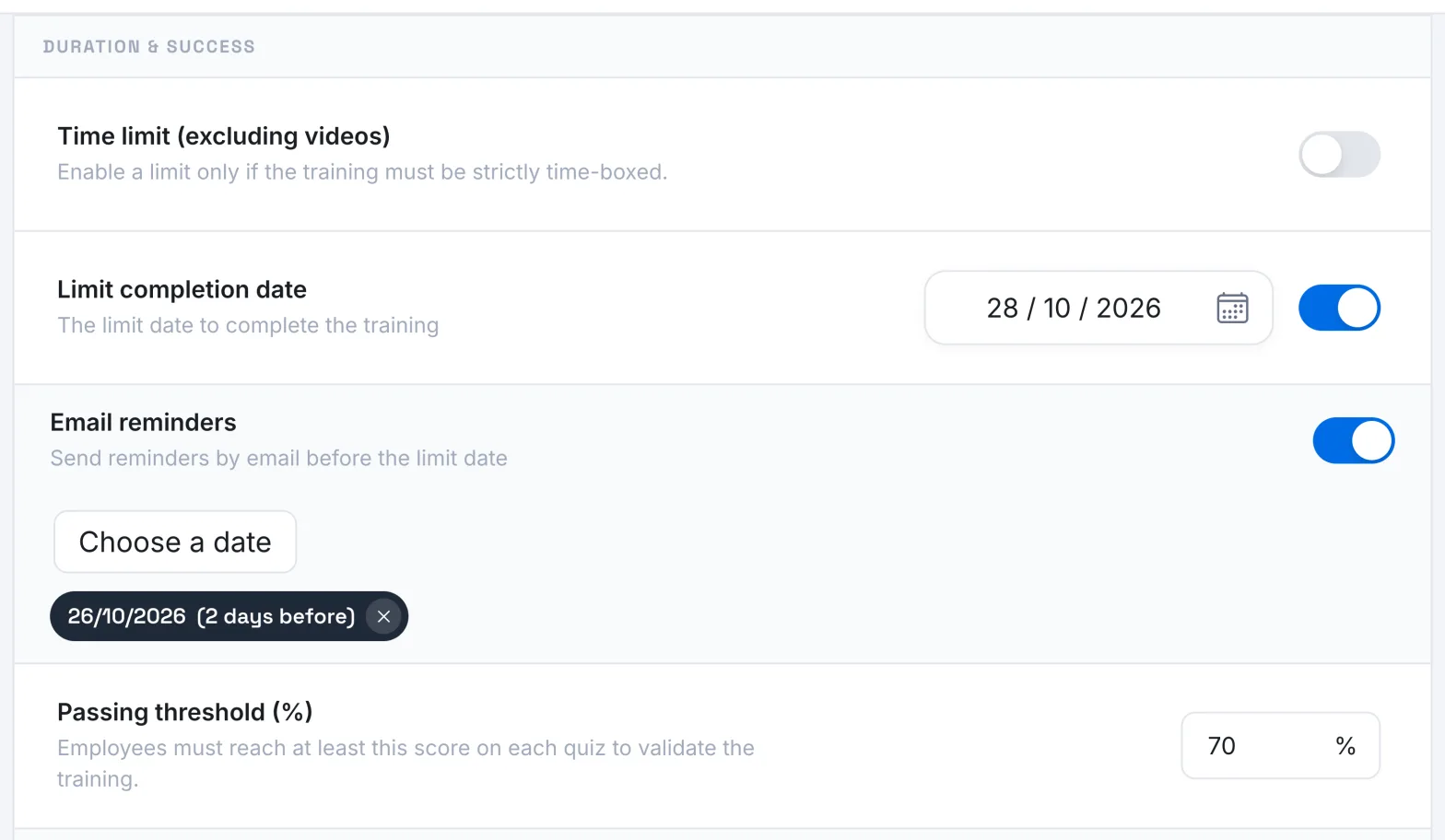
The Passing threshold (%) is set in Settings, in the Duration & success section. It is 50% when a course is created. It applies to each chapter's quiz: the learner passes a chapter when their share of correct answers reaches the threshold. They pass the course when all chapters are passed.
To choose the threshold:
- Take the number of questions into account. With four questions and a threshold of 80%, all four answers must be correct: a single mistake blocks the chapter.
- Raise the threshold for content where mistakes are costly, such as a safety instruction.
- Keep a moderate threshold for an introductory course.
A learner who does not pass a quiz can take it again. If you want them to go through the slides before testing themselves, turn on Require slides before quiz.
Interactions and surveys, to get learners thinking#
The Interaction question is placed on a slide. The avatar asks it before presenting the slide, then continues by building on the learner's answer. It does not score the answer or say whether it is right. To make it work:
- Ask a genuine open question about the learner's experience or knowledge: "Have you ever been in this situation? What did you do?".
- Put the answer in the slide script, which is presented straight afterwards.
- If the visual gives away the answer, turn on Mask the slide during the interaction question.
The Survey question collects an opinion, with no right or wrong answer. The avatar thanks the learner and responds briefly. For example, ask what is still difficult or what would be useful in the learner's job.
Answers to interaction questions and surveys appear in the course Dashboard. They show you what your learners already knew and what they think of the course.
Was this article helpful?
Thank you for your feedback!
Thank you. Tell us what is missing through Help and support in the app, and we will complete the article.