

Convert an existing module
Turn a PowerPoint, a PDF or a SCORM package into a conversational course, then rework the scripts, questions and quizzes.
In Best practices
You already have training materials: a PowerPoint, a PDF, an e-learning module in SCORM format. Complement lets you reuse them to create a conversational course. There are two ways to do this, with different results.
Two ways to convert a module#
| Method | Accepted formats | What you get |
|---|---|---|
| Import as slides | PDF, JPG, PNG, WEBP | Each page becomes a slide. Your visuals are kept as they are. You write the scripts, questions and quizzes. |
| Generate with AI (Beta) | PDF, Word, PowerPoint, Excel, CSV, SCORM (ZIP), images | A new module: slides, scripts, quizzes, interaction questions and surveys. The AI designs new visuals from your content. |
Choose import if your visuals work well and you want to keep them. Choose generation to rework the teaching approach, or if your material is mostly text. If a file is rejected, the app tells you why.
From a PowerPoint#
A PowerPoint file cannot be imported directly as slides. You have two options:
Keep your slides#
Export your presentation to PDF from PowerPoint, then import that PDF:
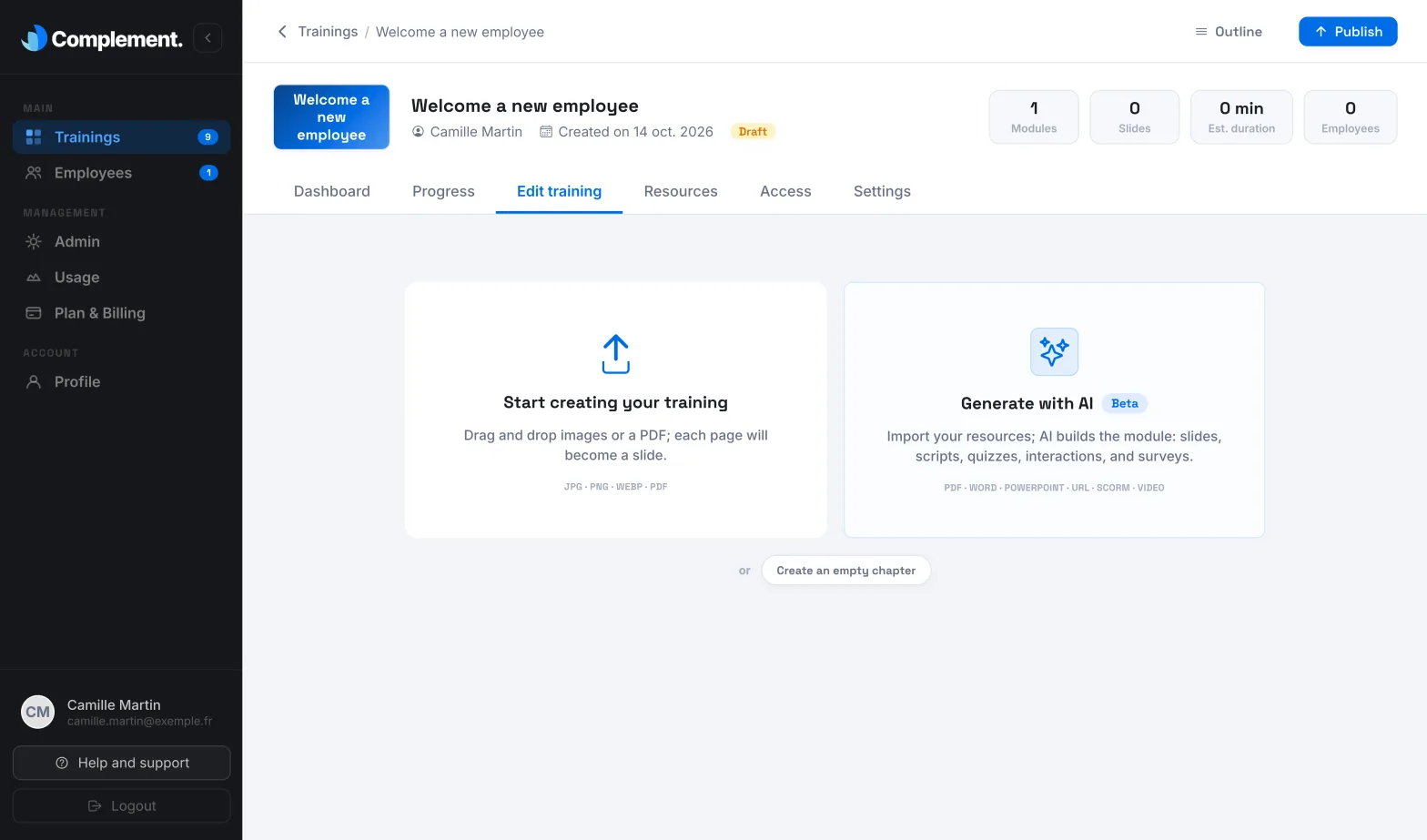
- Open Trainings › your course › Edit training.
- On an empty course, click Start creating your training. In an empty chapter, click Drag and drop or upload a PDF or image.
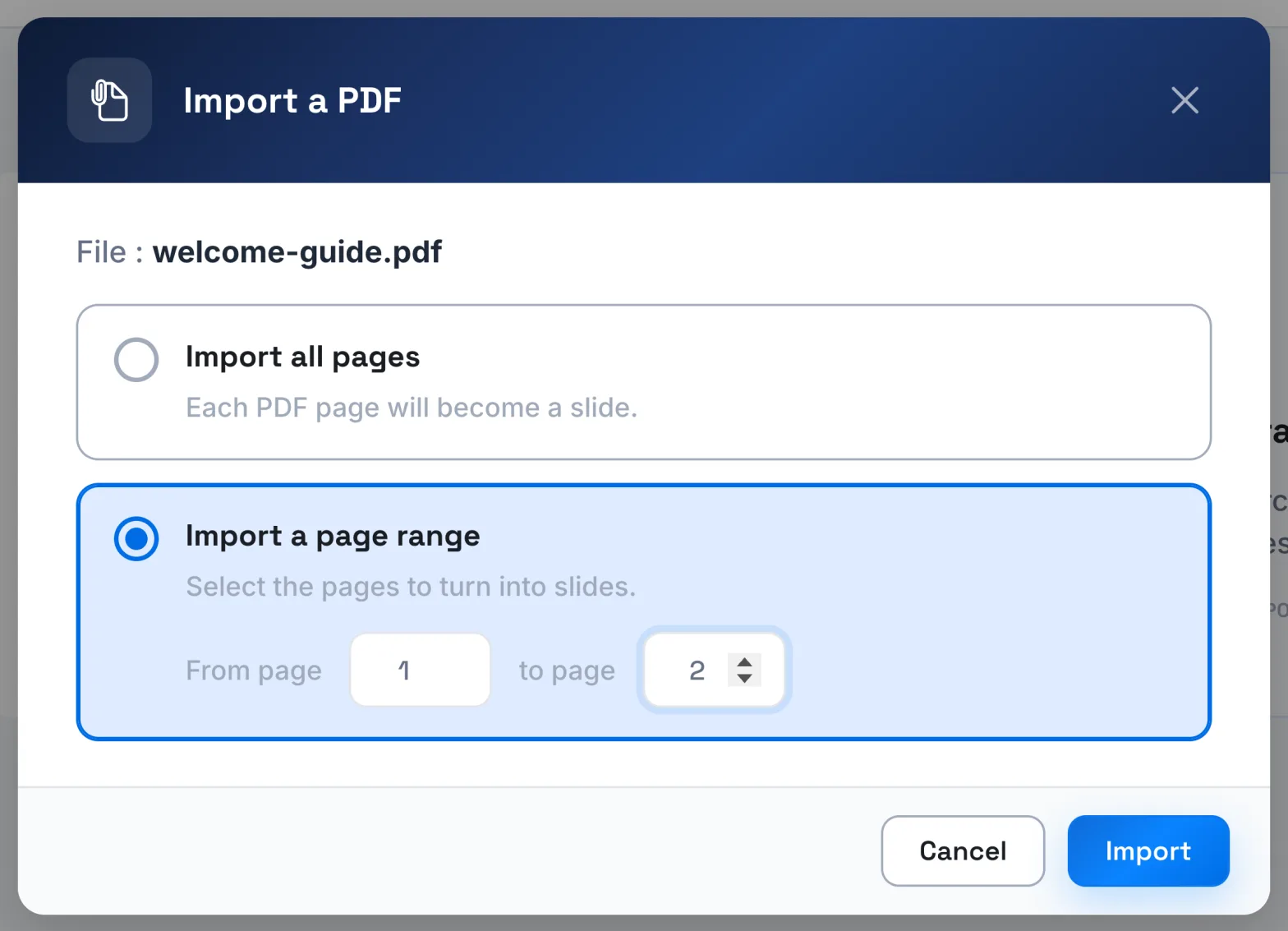
- Choose Import all pages or Import a page range.
Speaker notes are not carried over: each imported slide arrives with an empty script. Copy your notes into the script of each slide, then rewrite them for speech.
Start again from your content#
Add the PowerPoint file as a source for AI generation. Only the .pptx format is accepted: first save an older .ppt file in this format.
From a PDF#
Both methods are available. A PDF of slides is imported as slides as it is. For a text PDF, such as a guide or a procedure, prefer AI generation: imported as slides, each page would become a slide crowded with text.
If the PDF is password-protected, import as slides is refused: remove the protection before importing it.
From a SCORM package#
A SCORM module cannot be imported as slides. It can only be used as a source for AI generation. Add the module's ZIP file, exported as SCORM 1.2 or 2004.
Complement extracts its text and images, subtitles included. Audio and video are not analysed: if a narration exists only as audio, with no text or subtitles, it will not be carried over. Content loaded through external links is not read either.
Advice on choosing your documents and writing the prompt is in Prepare your sources for AI.
What to rework afterwards#
A converted module is not yet a conversational course. Plan for this work:
- Scripts: after an import, write the script of each slide, or use Generate script with AI for a first draft. After a generation, review all the scripts. A text written to be read does not work well when spoken: see Write an avatar script.
- Interactions: the clicks and drag-and-drop activities of an e-learning module are not carried over. Replace them with interaction questions and surveys, asked by the avatar.
- Quizzes: each chapter must have its end-of-chapter quiz before the course can be published. Check the expected answer of each question and the explanation of each multiple-choice question.
- Structure: a long module works better split into short chapters, each ending with its quiz.
- Resources: add your original documents in the Resources tab and turn on Use these resources to answer employees: the AI tutor can then use them to answer questions. It reads PDFs, Word and PowerPoint documents; other formats, such as a SCORM package or a spreadsheet, are not read.
And the other way round?#
Complement does not produce SCORM or xAPI output. Integration with your LMS uses LTI 1.3: see Connect your LMS with LTI 1.3.
Was this article helpful?
Thank you for your feedback!
Thank you. Tell us what is missing through Help and support in the app, and we will complete the article.