

Prepare your sources for AI
Choose the right documents, write a precise prompt, set the number of slides and the language, then review the module generated by AI.
In Best practices
AI generation builds a complete module from your prompt and, if you wish, from your documents: slides, scripts, quizzes, interaction questions and surveys. The result depends heavily on what you give it. This guide helps you prepare your sources and your prompt, then review the module.
Before you start#
- You generate a module from an empty course: click Generate with AI in the Edit training tab.
- To add a chapter to an existing course, create an empty chapter, then click Generate with AI in that chapter.
Choosing the documents#
Documents are optional. To add them, turn on I’m adding resources to help the AI build the module. You can upload files or tick documents already in the course resources.
Accepted formats: PDF, Word, PowerPoint, Excel (XLSX, XLS), CSV, SCORM (ZIP) and images (PNG, JPEG, WebP). If a file is rejected, the app tells you why. The summary tables are in Accepted formats.
What you need to know to choose them well:
- When you provide documents, the AI relies on them for facts and adds no outside knowledge. Anything that is not in them will not be in the module.
- Remove outdated versions. The AI cannot tell which one is correct.
- Avoid documents that contradict each other. When two sources disagree and the AI cannot decide between them, it leaves the point out.
- For a SCORM package, only text and images are read, subtitles included. Audio and video are not.
- Without documents, the AI relies on general knowledge. For your internal procedures, figures or regulations, always provide your own documents.
Files uploaded in the generation window then stay in the course's Resources tab. They are not shared with learners.
Writing an effective prompt#
The prompt answers the question What module would you like to create today?. It is required, and you can dictate it. Your documents provide the facts; the prompt sets everything else:
- the audience and their level;
- the objective: what the learner must be able to do at the end;
- the angle and the points to highlight;
- what to leave out;
- the tone and the type of examples;
- your visual preferences, if you have any.
Three examples:
A module for new advisers in our customer service team. Objective: handle a complaint from start to finish. Rely only on the attached guide. Focus on listening and rephrasing, with examples from real situations. Do not cover refunds.
A data protection awareness module for managers who are not legal experts. Practical tone, no jargon. Show them what to do when an employee asks to see their data. Understated colours, simple illustrations.
A chapter on handling objections, to place after the presentation of the offer. Reuse the products and examples already used in the course.
The last example is for a chapter. The AI then takes the existing chapters into account to avoid repetition and keep the same tone. Once the chapter is generated, the whole course carries the AI-generated badge.
Choosing the number of slides and the language#
Number of slides offers two options:
- Auto: the AI chooses the number of slides that suits the subject.
- Custom: you enter the number of slides you are aiming for.
This number only counts slides. Quiz questions, interaction questions and surveys come on top.
Module language is required. The whole module is written in this language, even if your documents are in another one. Choose your learners' language: the slide visuals stay in the module language, whereas the avatar speaks the language chosen by each learner.
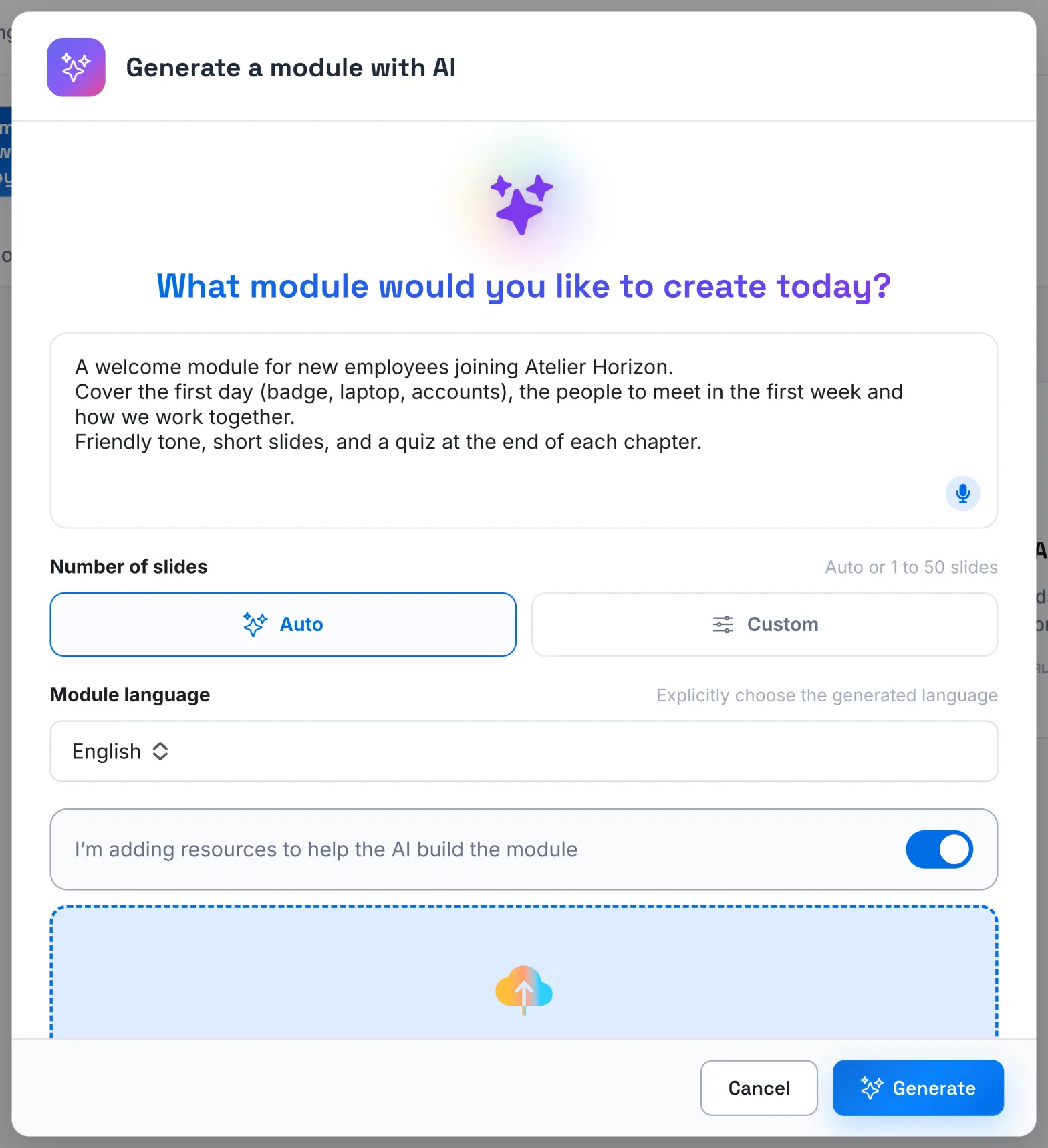
Click Generate. Generation can take several minutes. You can keep using the app: you will be notified when it is finished.
Reviewing and correcting after generation#
The generated module is a draft: learners see nothing until it is published. Review it in full:
- Check facts, figures and names against your sources.
- Read each script aloud and follow the length warnings.
- Check each interaction question. If the visual gives away the answer, turn on Mask the slide during the interaction question.
- Review the expected answers and the multiple-choice explanations: the avatar uses them to correct learners.
- Review the course description in Settings: generation rewrites it.
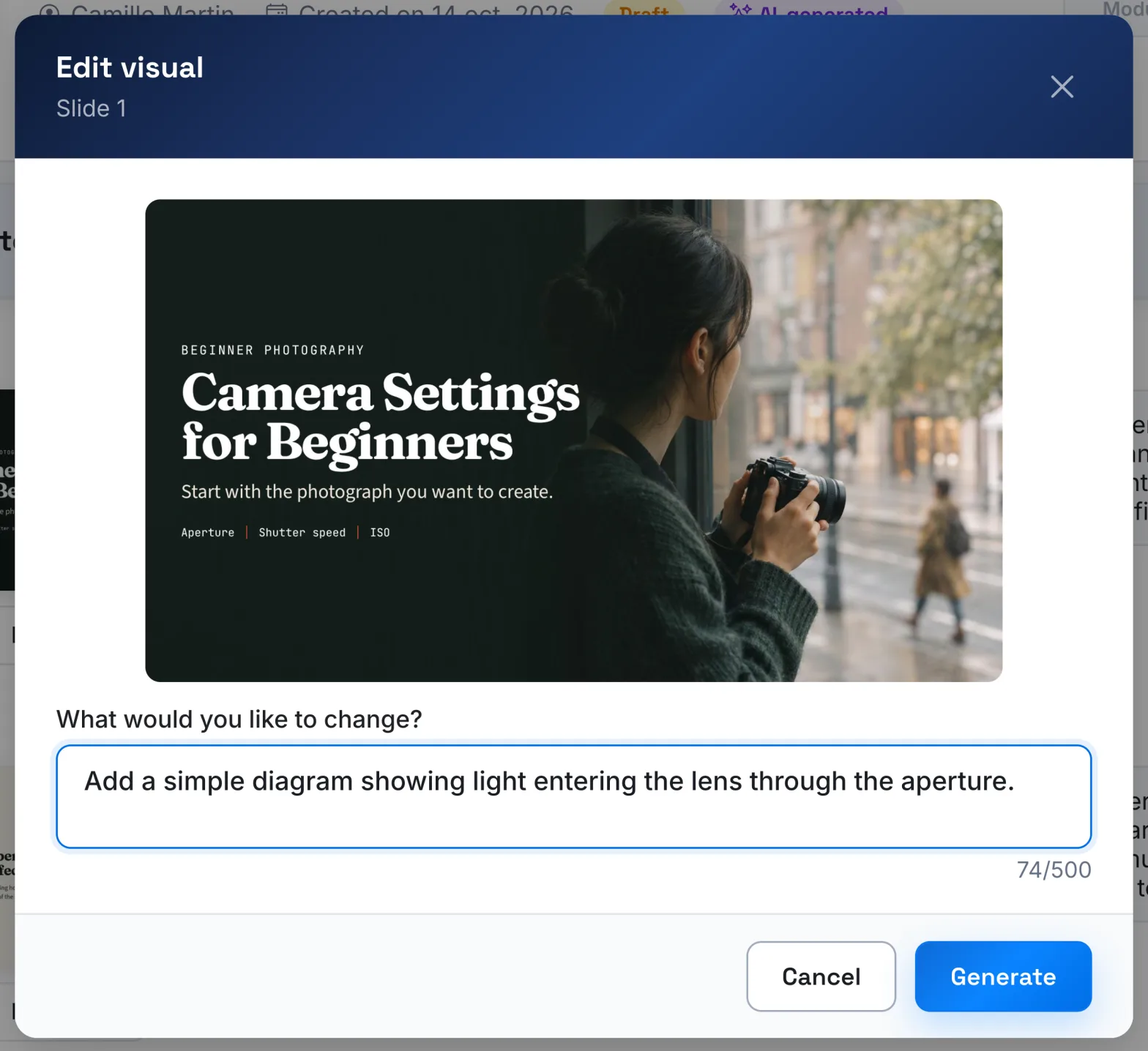
To correct a visual, click Edit visual, describe the change you want, then click Generate. The Version history lets you go back to an earlier version with Restore this version.
Finally, test the module as a learner before publishing it.
Was this article helpful?
Thank you for your feedback!
Thank you. Tell us what is missing through Help and support in the app, and we will complete the article.