

Feed the AI tutor
What the AI tutor knows about your course, what the description is for and how to choose the resources it consults to answer.
In Best practices
During a session, the learner can interrupt the avatar to ask it a question. The AI tutor answers based on what you have given it. This guide explains what it knows about your course and how to add to that knowledge without misleading it.
What the AI tutor knows#
The AI tutor relies on three sources:
- the published version of the course, in particular the scripts of all the slides. Its knowledge is updated each time you publish;
- the current slide: its script, a description of its visual created when you publish, and the course and chapter titles;
- the course resources, if you allow it to consult them.
It only answers questions related to the course. After answering, it carries on with the slide.
The course description#
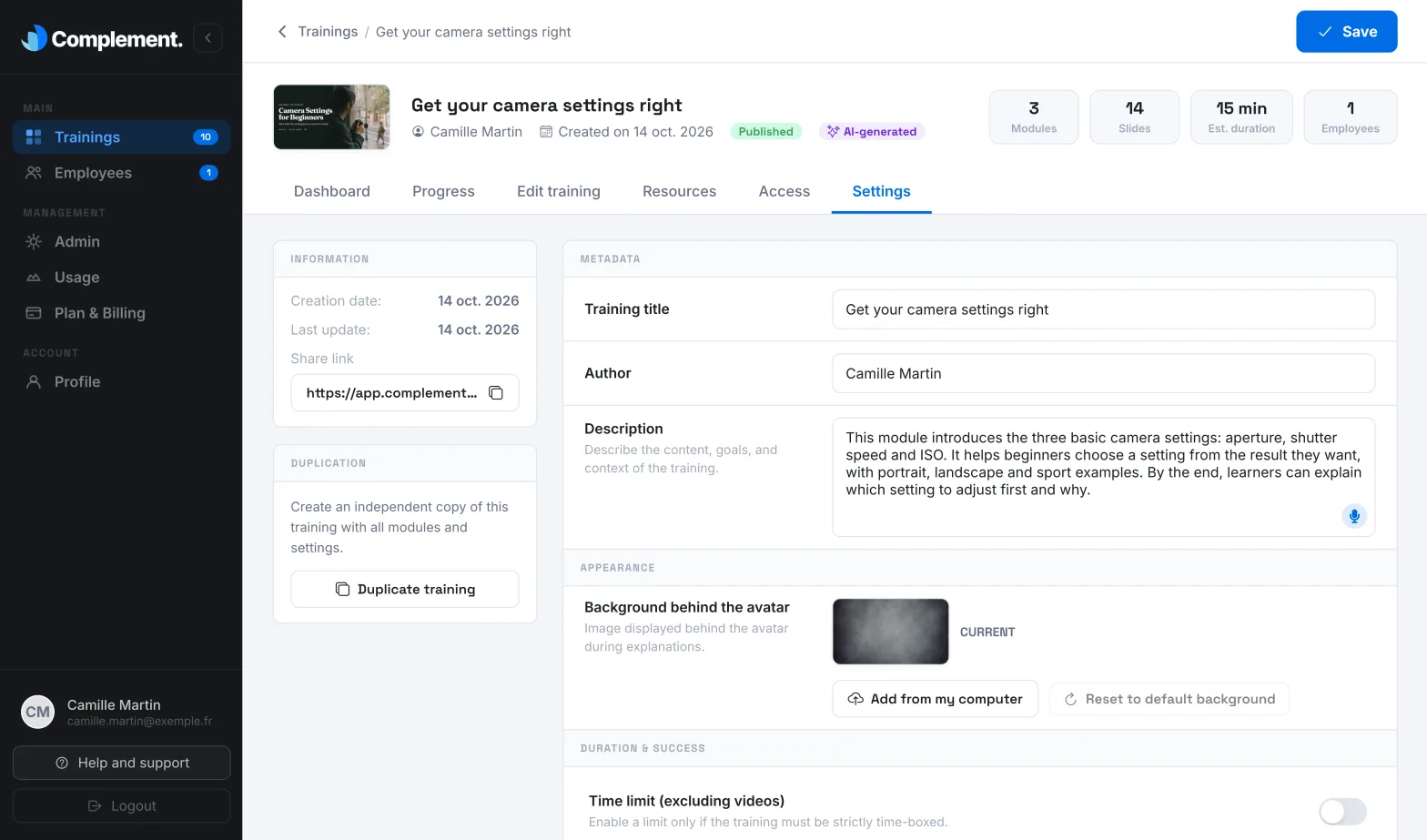
You fill in the description in Settings, in the Metadata section. It has two uses:
- it is shown on the course overview page, on the learner side;
- it gives context to the editor's AI when you click Generate script with AI or when you generate a new chapter.
During a session, however, the AI tutor does not read the description. Anything it needs to answer must be in the scripts or in the resources.
To write it, follow the app's advice: a summary of what will be covered and of what the learner will master by the end. Also state the target audience and the context. After an AI generation, review it: generation rewrites it.
Reference resources#
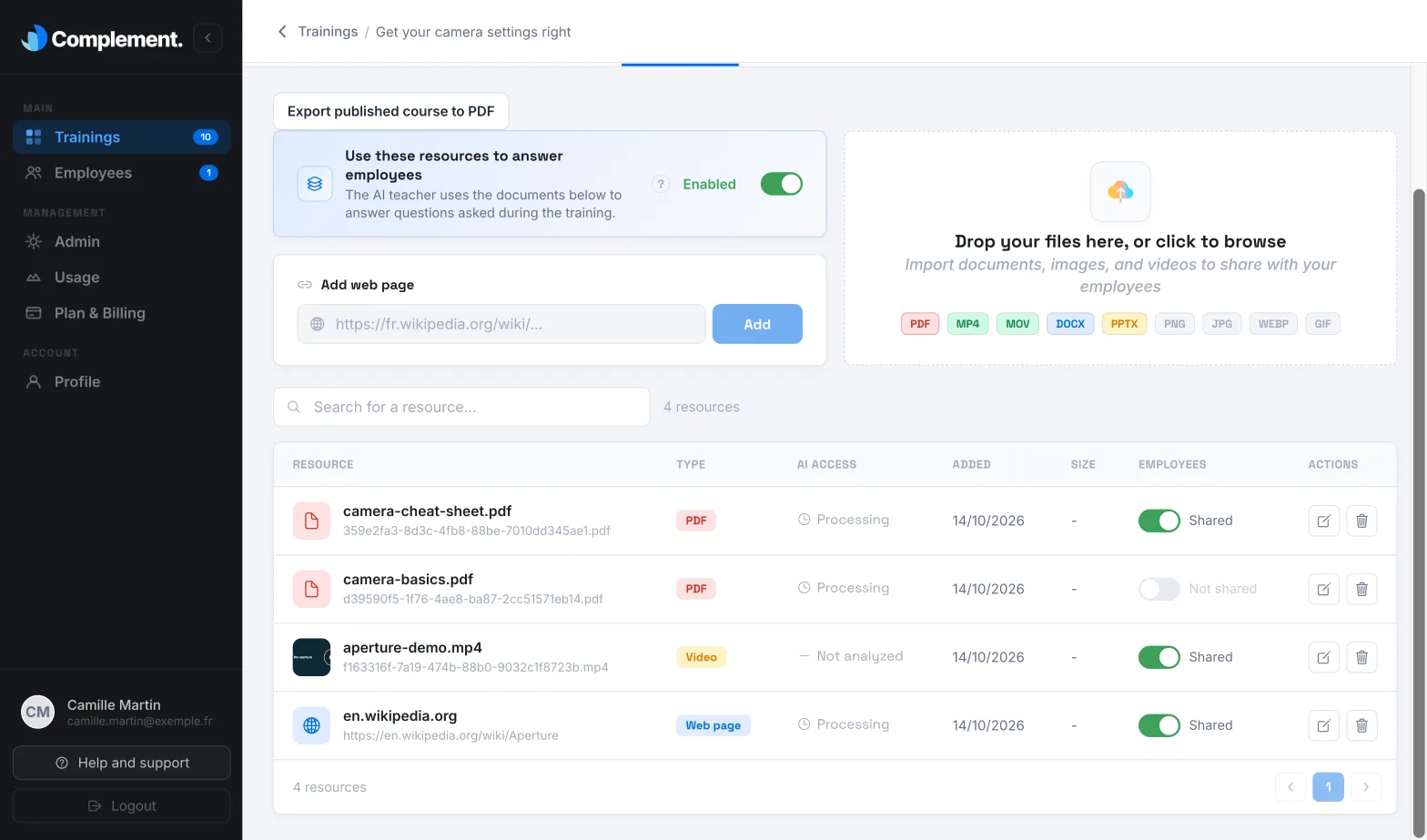
In the Resources tab, you add files and web pages. For the AI tutor to consult them, turn on Use these resources to answer employees. This switch is off by default.
As the app points out, resources improve accuracy on specialist topics. They are consulted in real time, which makes each answer a little slower.
What the AI tutor reads:
- PDFs, Word and PowerPoint documents;
- the text of web pages, read without signing in: a page reserved for signed-in users gives it nothing.
What it does not read: videos, images and the content of an online video added as a web page. These resources remain useful to learners.
Sharing with learners is a separate setting. In the Employees column, a switch shows Shared or Not shared for each resource: it decides whether learners see it. A resource you add is shared by default. A resource that is not shared is still consulted by the AI tutor when the resources switch is on.
Statuses in the AI access column#
| Status | Meaning |
|---|---|
| Available | The AI tutor can use the resource. |
| Processing | The resource is being analysed. |
| Error | The resource could not be analysed. This is the case for an image. Hover over the status to find out more. |
| Not analyzed | Videos are not analysed by the AI tutor. |
| Disabled | The switch is off: the AI tutor does not consult the resources. |
Turning on the switch restarts the analysis. While it is on, each time you add or delete a resource, the analysis restarts too. If the app shows "The resource was added, but updating the AI teacher failed", the next publication restarts the update. Web pages are read again at each update: a change to a page is taken into account at the next publication.
What to include#
- Reference documents that go further than the course: procedures, product sheets, regulations, FAQs, glossary.
- Only their latest version.
- Public, stable web pages.
What to avoid#
- Outdated documents: the AI tutor could answer based on a rule that no longer applies.
- Contradictory documents, whether they contradict each other or your scripts: the learner may hear an answer that differs from the slide.
- Confidential documents: even when it is not shared, a document consulted by the AI tutor can be quoted in its answers. Add nothing your learners must not know.
- Off-topic documents: the AI tutor only answers questions related to the course, so they are of no use to it.
Check the result#
Test the course as a learner and ask the avatar the questions your learners will ask. After the launch, read the questions actually asked and the avatar's answers in the Dashboard: see Improve a course with analytics.
Was this article helpful?
Thank you for your feedback!
Thank you. Tell us what is missing through Help and support in the app, and we will complete the article.