

Understand the structure of a course
Chapters, slides, videos, interaction questions, surveys and quizzes: the building blocks of a course, and how a draft differs from the published version.
In Create a course
- Understand the structure of a course
- Create a course
- Generate a course with AI
- Import a PDF or images
- Organise chapters
- Edit a slide
- Write the avatar script
- Edit a slide visual with AI
- Add interaction questions and surveys
- Add a video
- Create the end-of-chapter quiz
- Add resources to a course
- Saving and editing with others
- Preview a course
- Publish a course
- Course settings
- Course completion rules
- Trainer rights on a course
- Manage your courses
- Export a course to PDF
A Complement course is divided into chapters. In each chapter, the avatar presents your content items one by one, then the learner takes the end-of-chapter quiz.
Before you start#
- You build the content in the Edit training tab of the editor. To get started, see Create a course.
What a chapter contains#
A chapter runs through content items in the order you choose, then ends with the Chapter's quiz.
| Content | What you prepare | What happens for the learner |
|---|---|---|
| Slide | An image and a script, the text the avatar says aloud. | The avatar presents the slide by rephrasing your script. |
| Video | A video link or file, with an optional short introduction. | The avatar says the introduction, then the video takes over. |
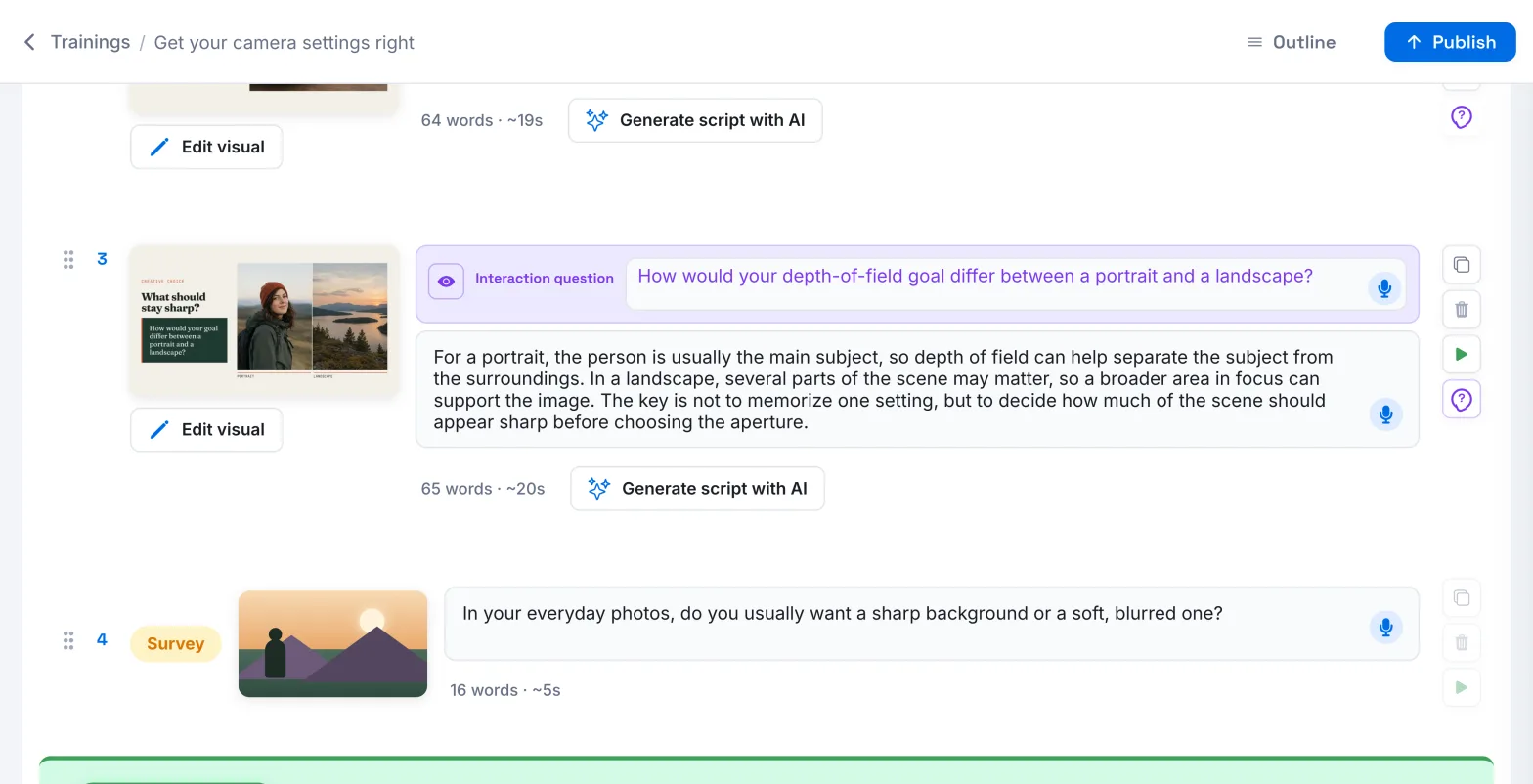
| Interaction question | A question attached to a slide. | The avatar asks it before explaining the slide, then builds on the answer. |
| Survey question | A question to gather an opinion, with an optional image. | The learner answers freely. Their answer is not graded. |
| End-of-chapter quiz | Open questions or multiple-choice questions. | The avatar asks the questions and assesses the answers. |
An imported PDF is not a separate content type: each page becomes a slide.
To publish, each chapter must contain at least one slide and one quiz question.
Add content#
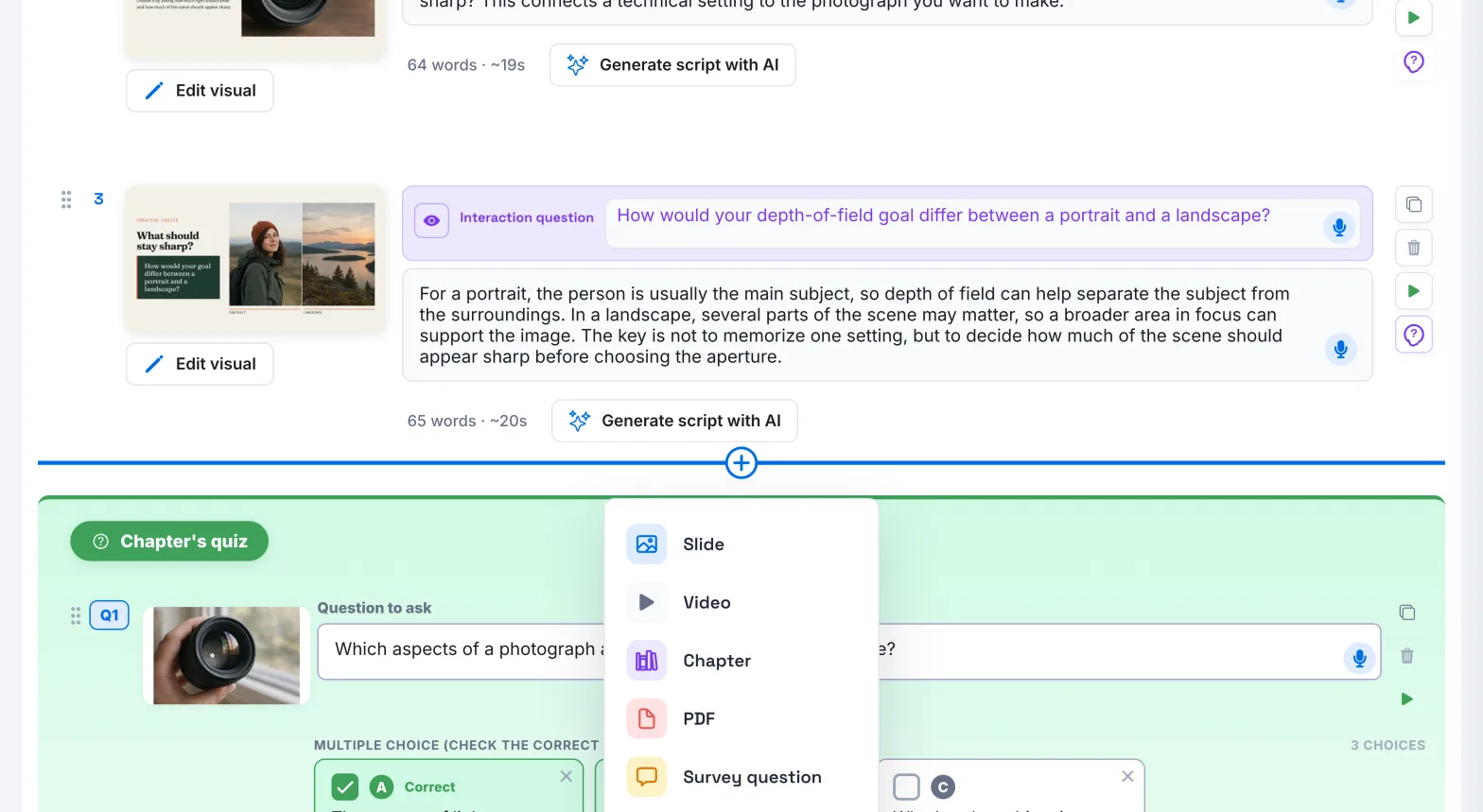
As soon as a chapter contains a slide, a + button appears at the top of the chapter and below each slide. On hover, it shows Add content. Click it to choose:
- Slide: one or more images, each of which becomes a slide;
- Video: a video link or file;
- Chapter: splits the chapter at this point;
- PDF: a PDF in which each page becomes a slide;
- Survey question: a question to gather the learner's opinion;
- Quiz: offered below the last slide of a chapter that does not have a quiz question yet.
The content is inserted where you clicked. The interaction question is added from the slide, with the Avatar interaction question button.
Draft and published version#
Your learners never see what you are in the middle of editing.
- The draft is what you edit in the editor. Every change is saved automatically: the indicator at the top right shows Saving changes..., then Saved.
- The published version is the one learners follow. It only changes when you click Publish.
Below the course title, the status shows Draft as long as the course has never been published, then Published. If you edit a course that is already published, the message "You have unpublished changes" stays visible until the next publication. A course created by AI also carries the AI-generated badge.
The editor tabs#
- Dashboard: the course's activity, key statistics and completion.
- Progress: each learner's progress, quiz scores and status.
- Edit training: chapters, slides and quizzes. This is where you publish.
- Resources: the files and links learners can consult, and the AI tutor's knowledge.
- Access: the teams that have access to the course.
- Settings: title, description, duration, passing criteria and rights.
A course opens on Edit training. Once your learners have spent some time in it, it opens on Dashboard instead.
Was this article helpful?
Thank you for your feedback!
Thank you. Tell us what is missing through Help and support in the app, and we will complete the article.