

Preview a course
Test your course draft in the player, with the avatar, from any slide or quiz question, before you publish it.
In Create a course
- Understand the structure of a course
- Create a course
- Generate a course with AI
- Import a PDF or images
- Organise chapters
- Edit a slide
- Write the avatar script
- Edit a slide visual with AI
- Add interaction questions and surveys
- Add a video
- Create the end-of-chapter quiz
- Add resources to a course
- Saving and editing with others
- Preview a course
- Publish a course
- Course settings
- Course completion rules
- Trainer rights on a course
- Manage your courses
- Export a course to PDF
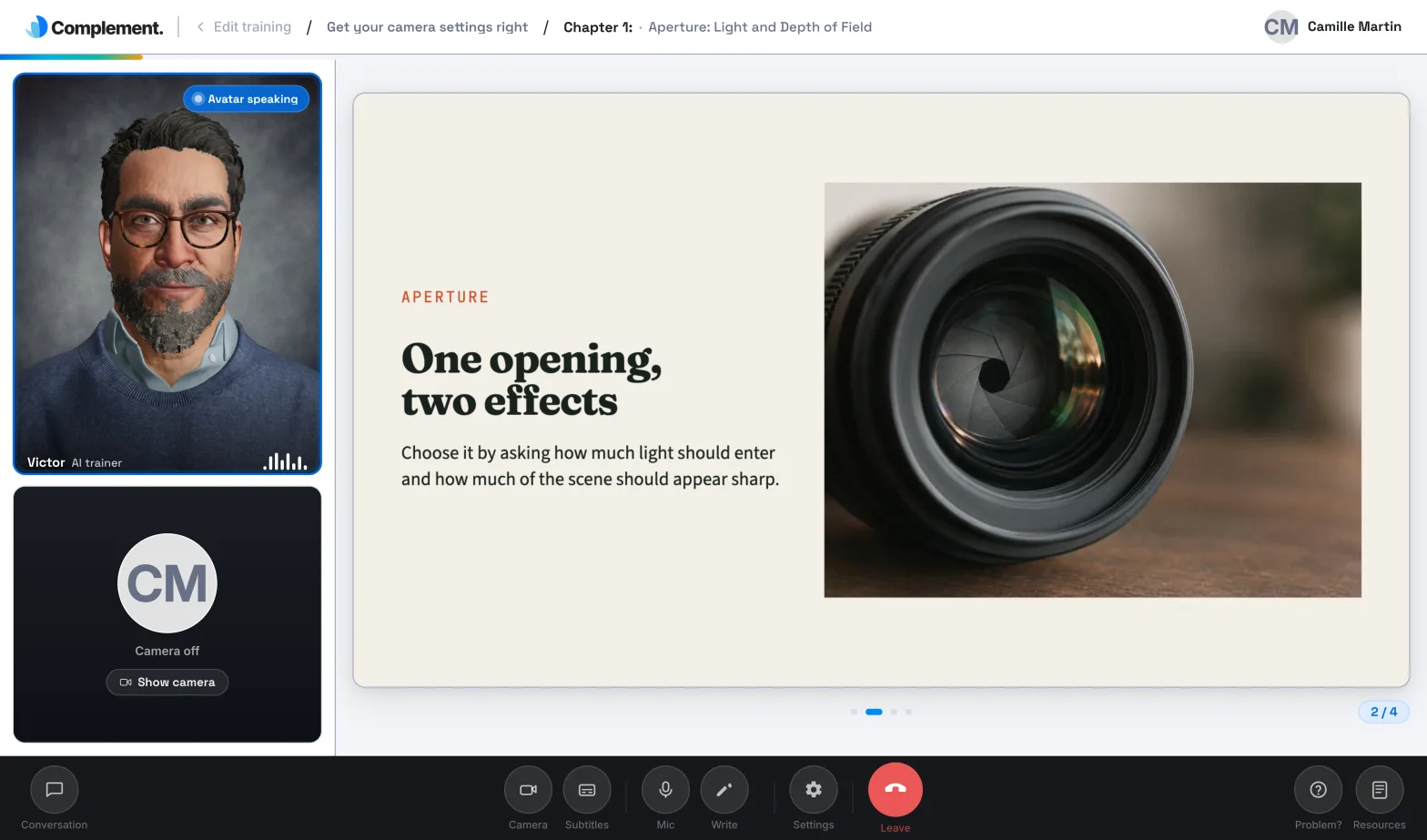
The preview lets you follow your course as a learner would, with the avatar. It plays your draft: you check slides, scripts and quizzes before publishing.
Before you start#
- Each chapter must contain at least one slide.
- The preview remains available in read-only mode: a course opened by another person, the Guest role, or a Trainer without edit rights.
- It is not available when your platform is blocked. See Read-only platform.
Start the preview#
- Open Trainings › your course › Edit training.
- Find the slide or quiz question you want to test from.
- Click its play button, Test from here (training preview), on the right.

Complement first saves your draft, then opens the player at that point.
From a quiz question, the preview starts directly at the quiz, at that question. This works even if the Require slides before quiz option is on: this rule does not apply to the preview.
What the preview shows#
- The player plays the draft: your latest saved changes, whether published or not.
- When you finish a chapter, the next one opens, still in preview.
- To go back to the editor, click Edit training, at the top left of the player. You return to the Edit training tab.
When the button is unavailable#
The Test from here (training preview) button stays greyed out:
- while saving, as long as the indicator shows Saving changes...;
- while publishing;
- on a slide that does not have a script yet, unless it is a video;
- when your platform is blocked.
If one of your chapters contains no slides, the message "A chapter must contain at least one slide" appears and the preview does not open. Add a slide to the empty chapter, or delete it.
Was this article helpful?
Thank you for your feedback!
Thank you. Tell us what is missing through Help and support in the app, and we will complete the article.