

Sign in for the first time
Activate your account from the email you received, choose your password or sign in with Google or Microsoft, then choose your language.
In Take a course
Your organisation has opened a Complement account for you. The first time you sign in, you activate this account, then choose your language. Your courses are then waiting for you.
Before you start#
- Your account is created by your organisation. If you have received neither an email nor sign-in details, contact your administrator.
- Complement works in your browser, on a computer, tablet or smartphone, with no app to install. See System requirements.
The account creation email#
Depending on how your organisation created your account:
- either you receive an email titled "Your", followed by your organisation's name, then "account is ready";
- or your organisation gives you your password itself. In that case, go straight to signing in.
Keep this email: it reminds you of your login, which is your email address.
Choose your password#
- Click "Choose my password" in the email.
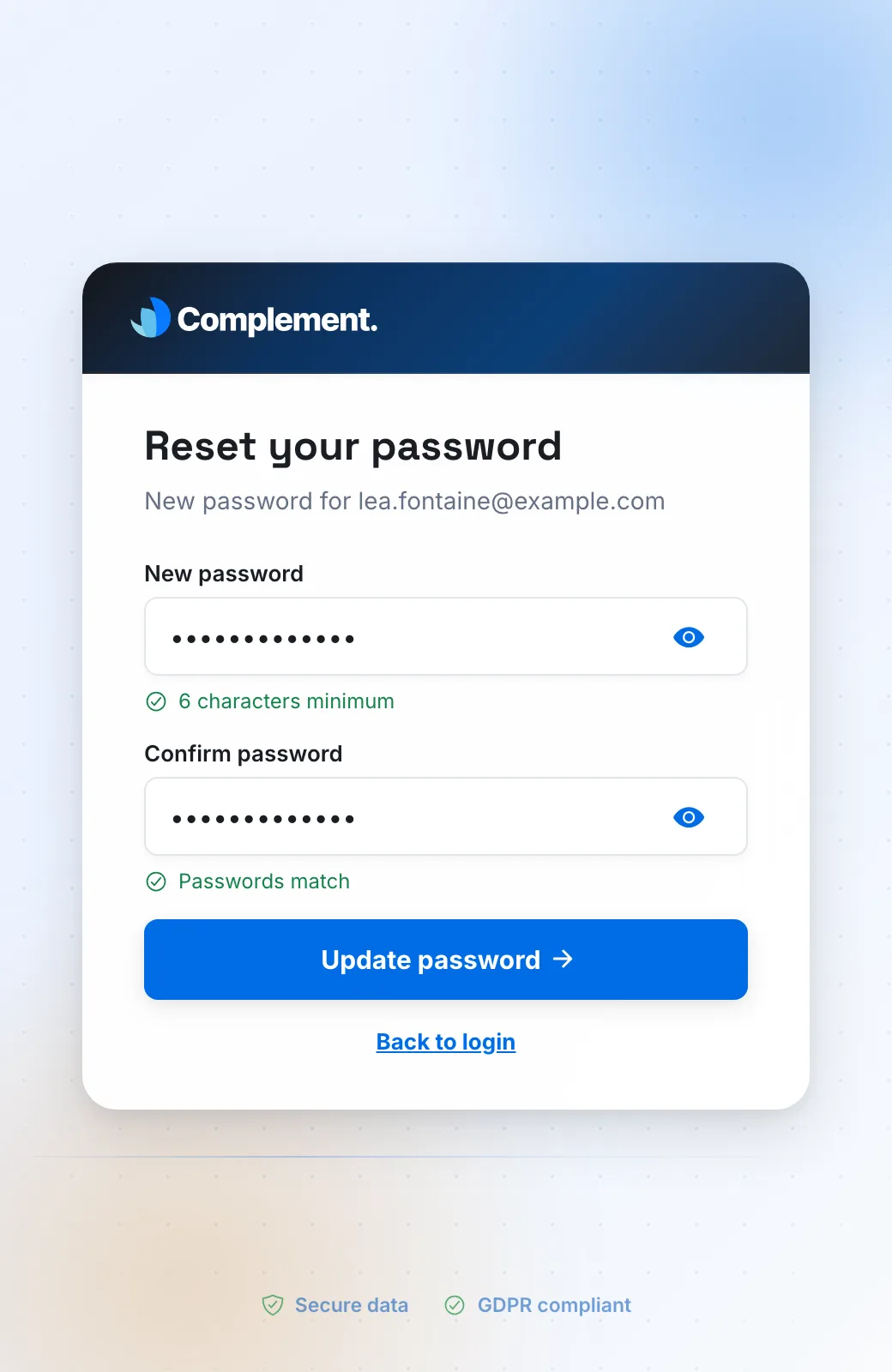
- Enter your password in New password, then a second time in Confirm password. Two green ticks confirm that it is long enough and that both entries match.
- Click Update password. The sign-in page opens with the message "Password updated successfully. Sign in with your new password."
- Enter your address in Email and your password in Password, then click Sign in.
If the page shows "Expired link", click Request a new link. Enter your email address if it is not already filled in, then click Continue: a new link is sent to you by email.
Sign in with Google or Microsoft#
If your organisation uses sign-in with Google or Microsoft, you have no Complement password to create.
- Click "Sign in" in the email.
- On the sign-in page, click Google or Connect with Microsoft, depending on what your organisation uses.
- Sign in with the account provided by your organisation.
If the message "No active Complement account matches this sign-in. Contact your organization." appears, check that you are using your organisation's account. Otherwise, contact your administrator. See also Sign-in problems.
Choose your language#
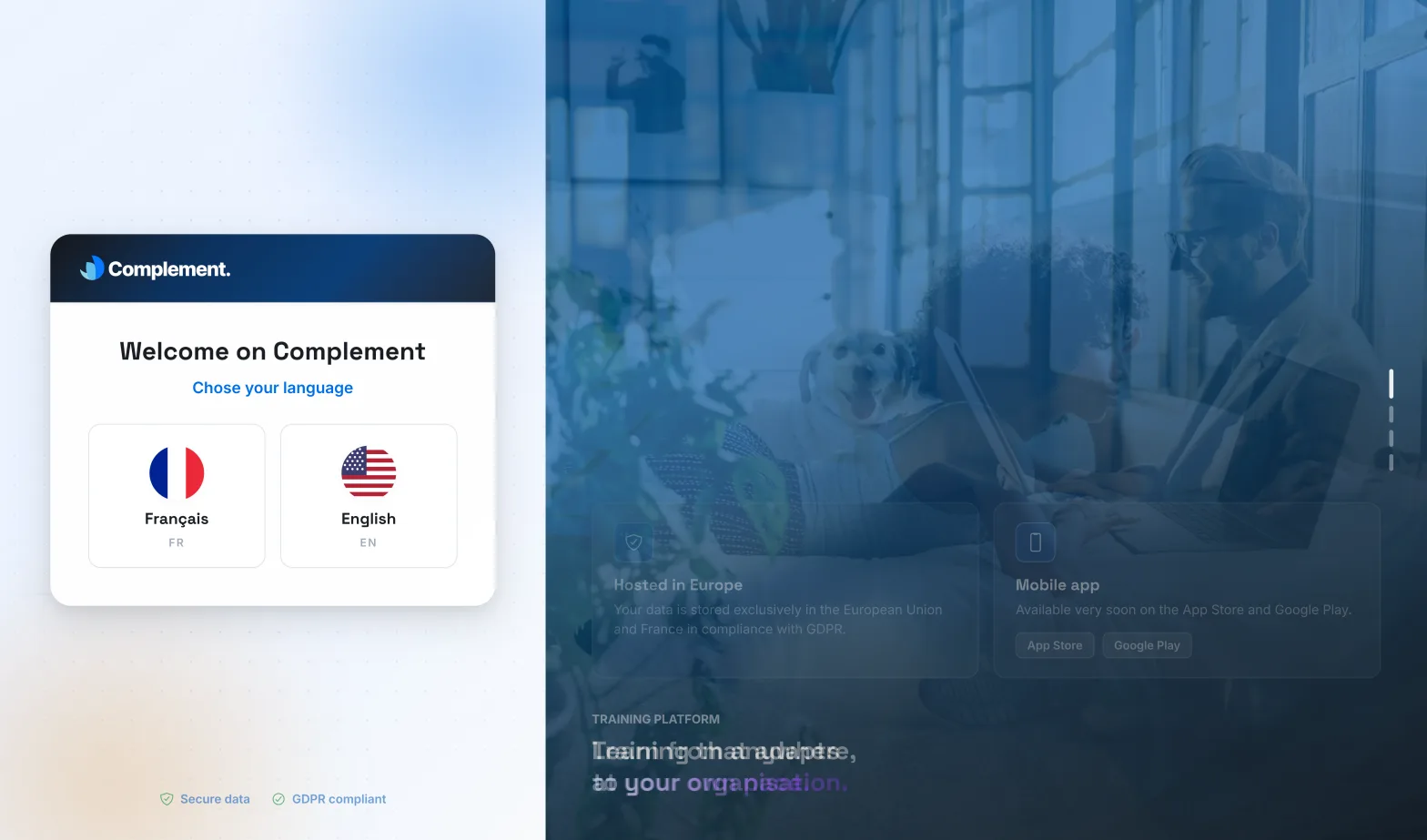
The first time you sign in, a welcome screen asks you: "Chose your language". Click French or English: your choice is saved straight away, with nothing else to confirm.
This choice sets both the interface language and the language the avatar speaks to you in. You can change each of them separately in Profile › Languages: see Your profile and languages.
What happens next#
- If your organisation has set up a welcome course, it starts automatically: you go straight into the player, at the start of that course.
- Otherwise, you arrive on My trainings, the list of courses your organisation has assigned to you.
After that, you go straight to My trainings. To sign in again, see Sign in.
Was this article helpful?
Thank you for your feedback!
Thank you. Tell us what is missing through Help and support in the app, and we will complete the article.