

Customise your organisation
Change your organisation's name and logo, check your sector and choose how your learners are organised.
In Administer your platform
- Customise your organisation
- Manage the teaching team
- Track usage
- Activate your platform
- Manage your subscription
- View your enterprise contract
- Why is your platform read-only?
- Understand your administrator alerts and emails
- Enable SSO sign-in with Google or Microsoft
- White-label your platform
- Which options should you ask your Complement account manager for?
- Connect your LMS with LTI 1.3
- LMS: add courses, manage groups and grades
- Data security and privacy
The Admin page brings together your organisation's general information: its name, its logo and its sector. You also choose there how your learners are organised.
Before you start#
- Only Administrators can access the Admin menu.
- If your platform is read-only, the information remains visible but can no longer be changed: see Why is your platform read-only?.
- The same page contains the list of your team members: see Manage the teaching team.
Change the organisation name#
- In the menu, open Admin.
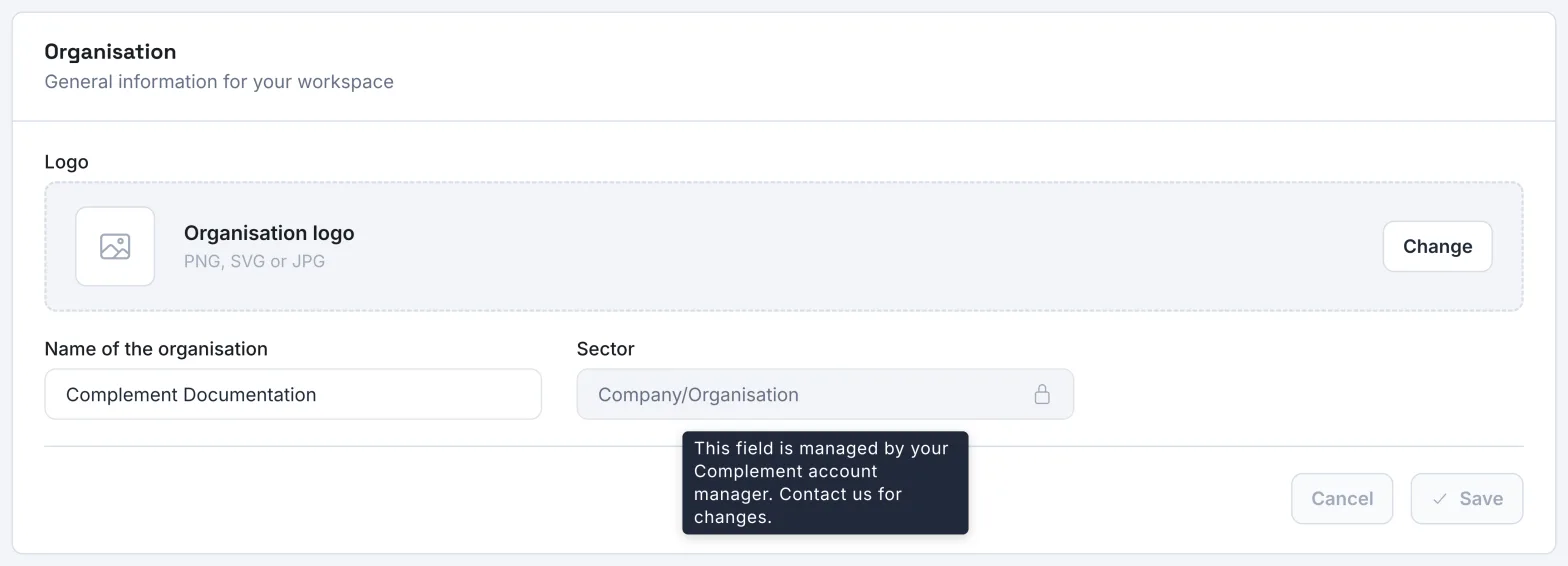
- In the Organisation card, edit the Name of the organisation field.
- Click Save. To go back to the previous name, click Cancel.
The message "Your organisation was successfully updated" confirms the change. Your organisation's name appears in particular in the email received by a person whose account you create.
Change the logo#
- In the Organisation card, click Change, next to the logo preview.
- In the Change logo window, drag your file in or click Browse.
- Click Save.
The logo is accepted in PNG, SVG or JPG format. If a file is rejected, the app tells you why.
Your logo appears at the top of your learners' menu. It also appears in the header of some emails sent to your users, such as the account creation email or the announcement of a new course.
Your sector#
The Sector field shows your type of organisation, for example Company/Organisation. It sets the vocabulary of the interface: your learners are called, for example, Employees, Students, Trainees or Public servants.
This field is locked, as its padlock shows. On hover, the app explains: "This field is managed by your Complement account manager. Contact us for changes." To change your sector, contact your Complement account manager.
Organise your learners#
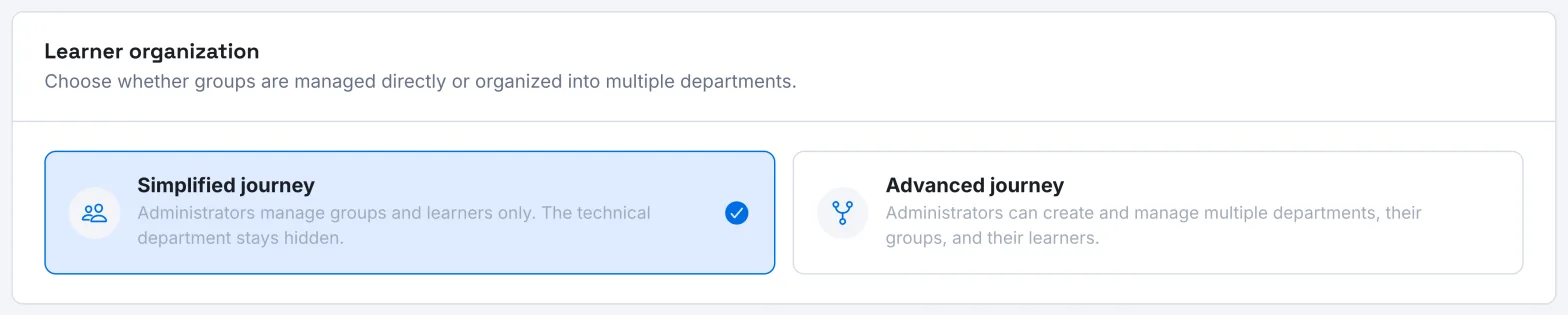
The Learner organization card sets how your learners are grouped:
- Simplified journey: you manage your teams and their learners directly, with no intermediate level;
- Advanced journey: you create several departments, each grouping its own teams and learners.
Click the option you want: the change applies immediately and a message confirms it.
Switching back to the simplified journey is blocked while your organisation has several departments. The app then asks you to go back to a single department; no data is merged or deleted automatically.
How each journey works is explained in Organise departments and teams.
Was this article helpful?
Thank you for your feedback!
Thank you. Tell us what is missing through Help and support in the app, and we will complete the article.