

Personalise your tutor
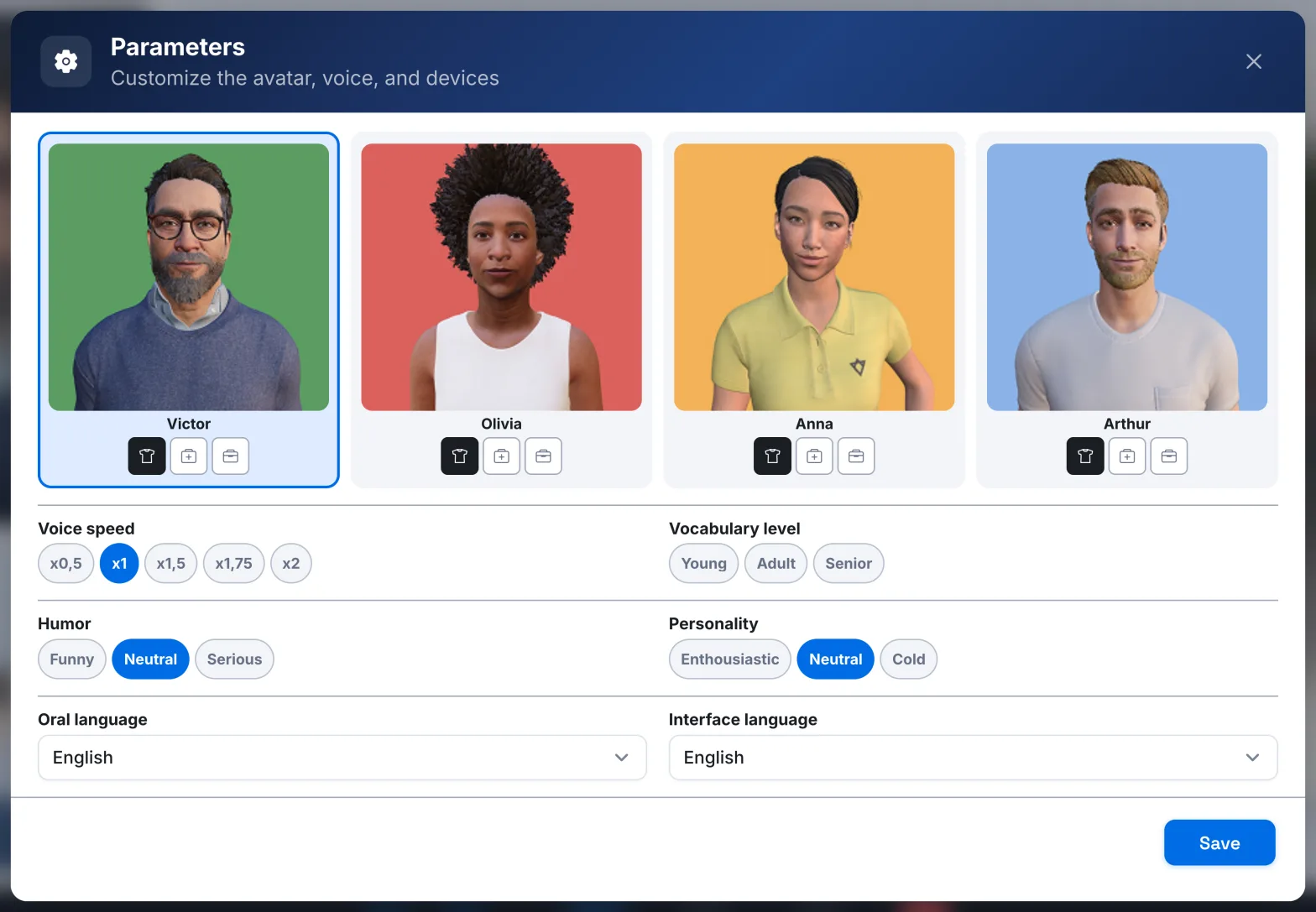
Choose your avatar and its outfit, its voice speed, vocabulary level, personality and humour, and your spoken and interface languages.
In Take a course
You choose who teaches you and how they talk to you. These settings are personal to you: they apply to all your courses, and you can change them at any time.
Open the settings#
- Click Settings in the control bar, during a session. On a small screen, go to More › Settings. You can also click the avatar's first name.
- Change your settings.
- Click Save.
The Settings button is disabled during a quiz. If you close the window without saving, your previous settings are kept.
Choose your avatar#
Four avatars are available: Victor, Olivia, Anna and Arthur. Each one has its own voice. Click a portrait to choose it. By default, your avatar is Victor.
If your organisation has turned on several outfits, buttons appear under each avatar: Casual, Corporate or Medical. Hover over them to see a preview, then click the one that suits you.
After you change avatar or outfit, the avatar reloads for a few moments before resuming.
Set the voice and tone#
| Setting | Options | Effect |
|---|---|---|
| Voice speed | From slowest to fastest, x1 being the normal speed | How fast the avatar speaks. |
| Vocabulary level | Young, Adult, Senior | The avatar adapts its explanations and its vocabulary. |
| Humor | Funny, Neutral, Serious | Funny adds touches of humour. Serious uses formal, precise vocabulary. |
| Personality | Enthousiastic, Neutral, Cold | Enthousiastic makes the avatar lively and motivating. Cold makes it factual. |
You can also change the speed without opening the settings: just ask the avatar to speak faster or more slowly. See Talk with the avatar.
Choose your languages#
- Oral language: the language the avatar speaks to you in. You can choose French, English or Spanish. Portuguese, Italian and Simplified Chinese are in beta: they are marked (BETA) in the list.
- Interface language: the language of the menus and buttons, French or English.
The two languages are independent: for example, you can keep the interface in French and choose an avatar that speaks to you in English.
You can also set them outside a session, in Profile › Languages. There they are called App Language and Language of conversation with the avatar. See Your profile and languages.
Was this article helpful?
Thank you for your feedback!
Thank you. Tell us what is missing through Help and support in the app, and we will complete the article.