

Generate a course with AI
Describe your module and add your documents: AI builds chapters, slides, scripts, quizzes and surveys. A Beta feature to review before publishing.
In Create a course
- Understand the structure of a course
- Create a course
- Generate a course with AI
- Import a PDF or images
- Organise chapters
- Edit a slide
- Write the avatar script
- Edit a slide visual with AI
- Add interaction questions and surveys
- Add a video
- Create the end-of-chapter quiz
- Add resources to a course
- Saving and editing with others
- Preview a course
- Publish a course
- Course settings
- Course completion rules
- Trainer rights on a course
- Manage your courses
- Export a course to PDF
Describe the module you want and add your documents if you have any: AI builds a complete course, which you then review in the editor.
Before you start#
- You must be able to edit the course: see Trainers' rights on a course.
- A complete module is generated in an empty course: create the course first (see Create a course).
- AI generation is turned on by default. Your Complement account manager can turn it off: the Generate with AI buttons then disappear.
Start the generation#
- Open Trainings › your empty course › Edit training.
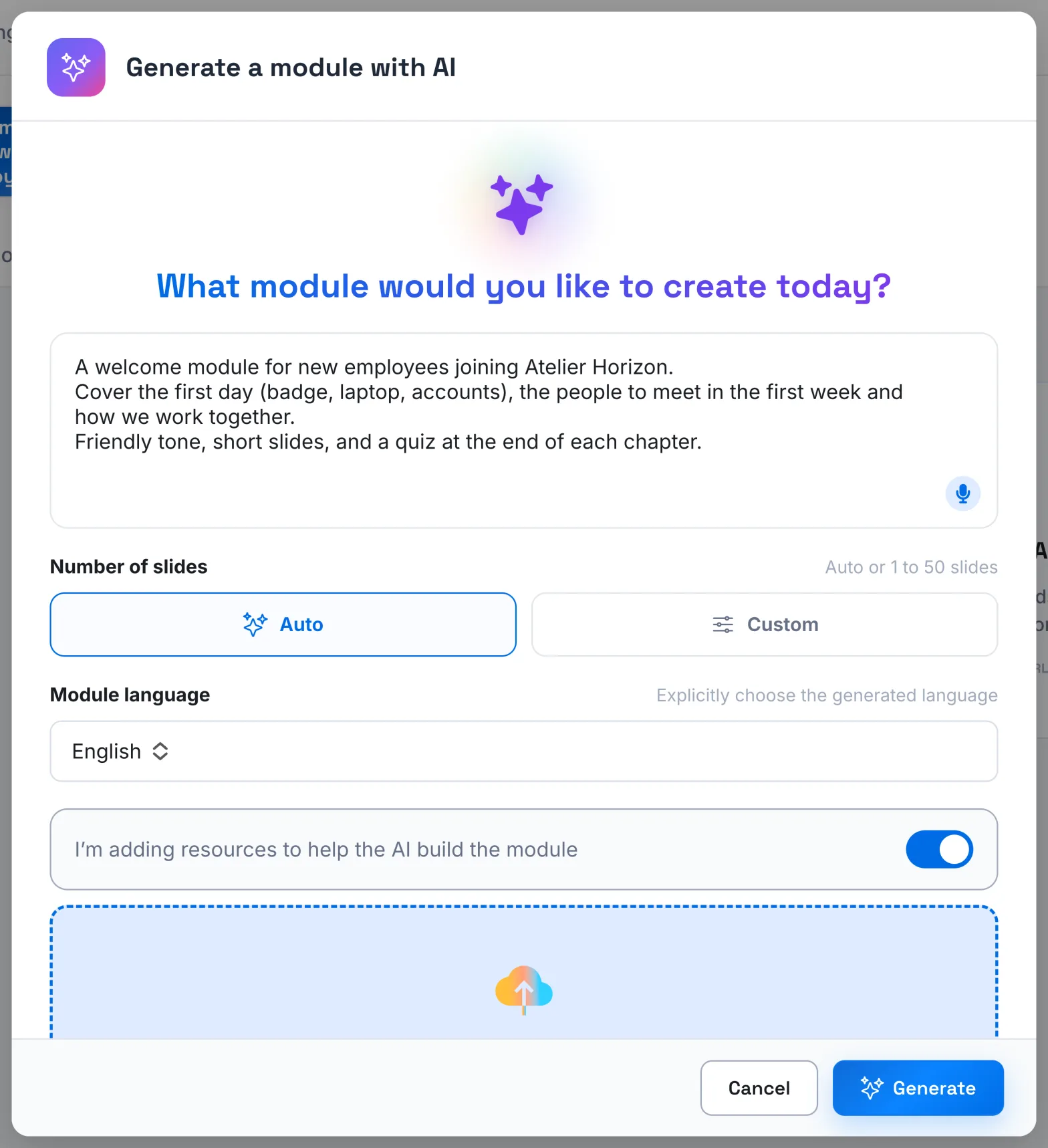
- Click Generate with AI. The Generate a module with AI window opens.
- Describe the module under What module would you like to create today?: topic, audience, level, objectives. You can also dictate your instructions.
- Set the Number of slides: Auto to let AI decide, or Custom to enter the number you want.
- Choose the Module language: French, English, Spanish, Portuguese, Italian or Simplified Chinese.
- Turn on I’m adding resources to help the AI build the module to base the generation on your documents (see below).
- Click Generate. The button stays greyed out until the instructions and the language are filled in.
Add your documents#
Once the option is turned on, you can combine two sources:
- new files, dragged into the Add files here, or click to browse area;
- files already in the course's resources, which you tick under Additional documents and images.
| Type | Accepted formats |
|---|---|
| Documents | PDF, Word (.docx), PowerPoint (.pptx) |
| Spreadsheets | Excel (.xlsx, .xls), CSV |
| E-learning module | SCORM, as a .zip file |
| Images | PNG, JPEG, WebP |
Only these formats are accepted. If a file is rejected or unreadable, the app tells you. With the option turned on, tick at least one document to start the generation.
SCORM is used only as a source: Complement does not export to SCORM or xAPI. Once the course is generated, the files added in this window stay in the Resources tab, without being made available to learners.
During the generation#
While the generation is running, the course cannot be edited. The editor shows progress in three steps: "Something is cooking!", "Adding the learning ingredients…", then "Final touches, almost there!"
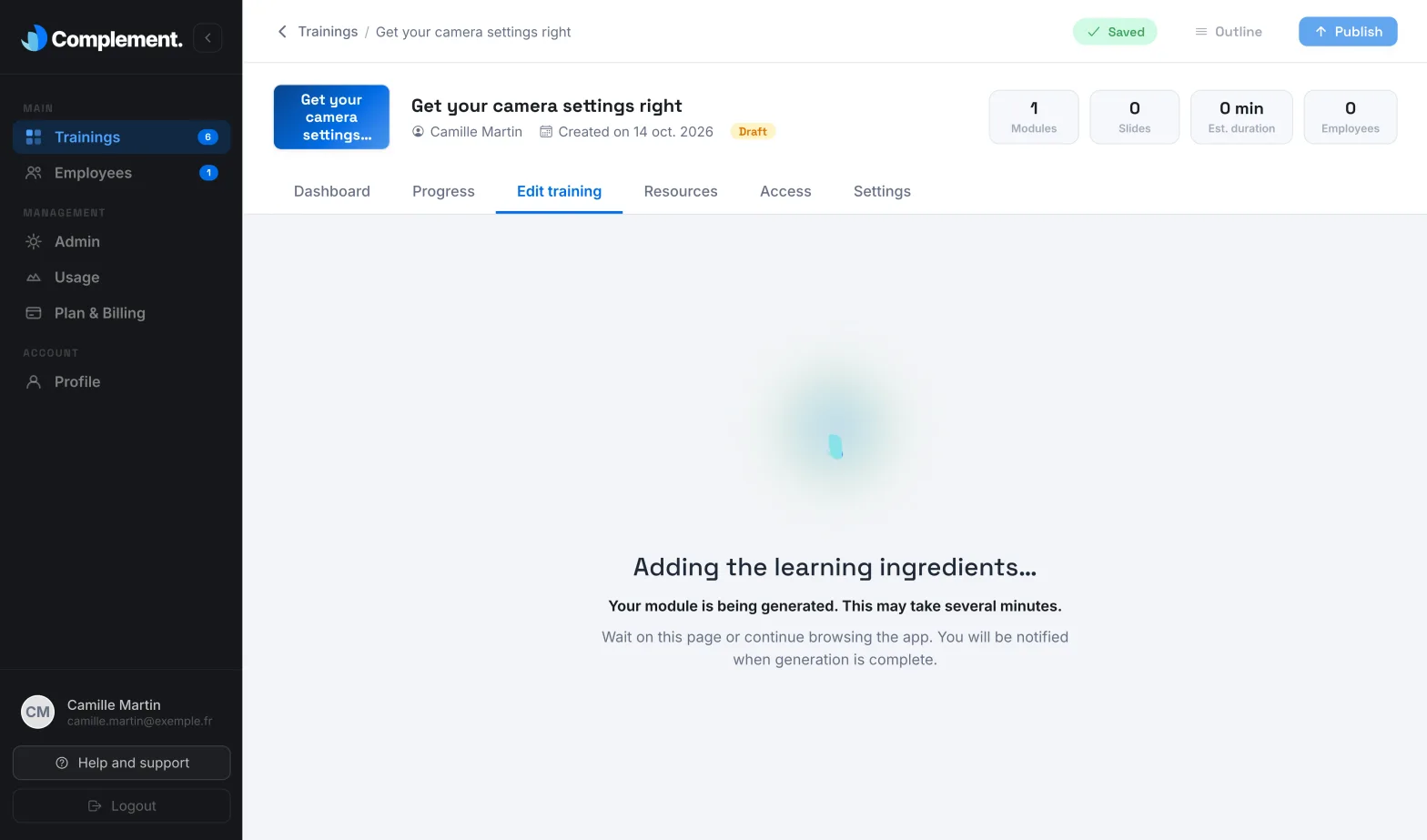
The generation can take several minutes. Stay on the page or keep using Complement: the generation continues without you. If you are in the app when it finishes, a "The module was generated successfully." notification appears, with an Open training button. If it fails, a message lets you know: see Failed import or generation.
What you get#
AI creates chapters and slides, each with its visual and script, as well as interaction questions, surveys and end-of-chapter quizzes. It also writes a course description, which replaces yours. The course then carries the AI-generated badge.
The course stays a draft until it is published. Review each slide: you can touch up a visual with AI (see Edit a slide visual with AI).
Generate a single chapter#
In a course that already has content, AI can also fill an empty chapter.
- Add an empty chapter (see Organise chapters).
- Click Generate with AI in this chapter. The Generate a new chapter with AI window opens.
- Answer What chapter would you like to add to this course?, then set the number of slides, the language and your documents as for a module.
- Click Generate.
The chapter must be empty: no slide and no completed quiz question. AI takes the rest of the course into account and updates the course description. In a course generated by AI, it also adjusts the introduction slide.
Was this article helpful?
Thank you for your feedback!
Thank you. Tell us what is missing through Help and support in the app, and we will complete the article.