

Import a PDF or images
Turn a PDF or images into slides: page-by-page import, choosing a page range, tracking the import and error messages.
In Create a course
- Understand the structure of a course
- Create a course
- Generate a course with AI
- Import a PDF or images
- Organise chapters
- Edit a slide
- Write the avatar script
- Edit a slide visual with AI
- Add interaction questions and surveys
- Add a video
- Create the end-of-chapter quiz
- Add resources to a course
- Saving and editing with others
- Preview a course
- Publish a course
- Course settings
- Course completion rules
- Trainer rights on a course
- Manage your courses
- Export a course to PDF
Do you already have material as a PDF or images? Import it: each page of the PDF, or each image, becomes a slide. All that remains is to write the script for each slide.
Before you start#
- You must be able to edit the course: see Trainers' rights on a course.
- Accepted formats: PDF, and JPG, PNG or WebP images. If a file is not accepted, the app shows a message listing the allowed formats.
- A password-protected PDF cannot be imported: remove the protection first.
Import into an empty course#
- Open Trainings › your course › Edit training.
- Drag and drop your files onto the Start creating your training card, or click it to choose them:
- images: each image becomes a slide;
- a PDF: the Import a PDF window opens. Import one PDF at a time.
In an empty chapter, the Drag and drop or upload a PDF or image card works the same way.
Choose the pages of a PDF#
The Import a PDF window shows the file name and offers two options:
- Import all pages: each page of the PDF becomes a slide;
- Import a page range: fill in From page and to page.
Then click Import.
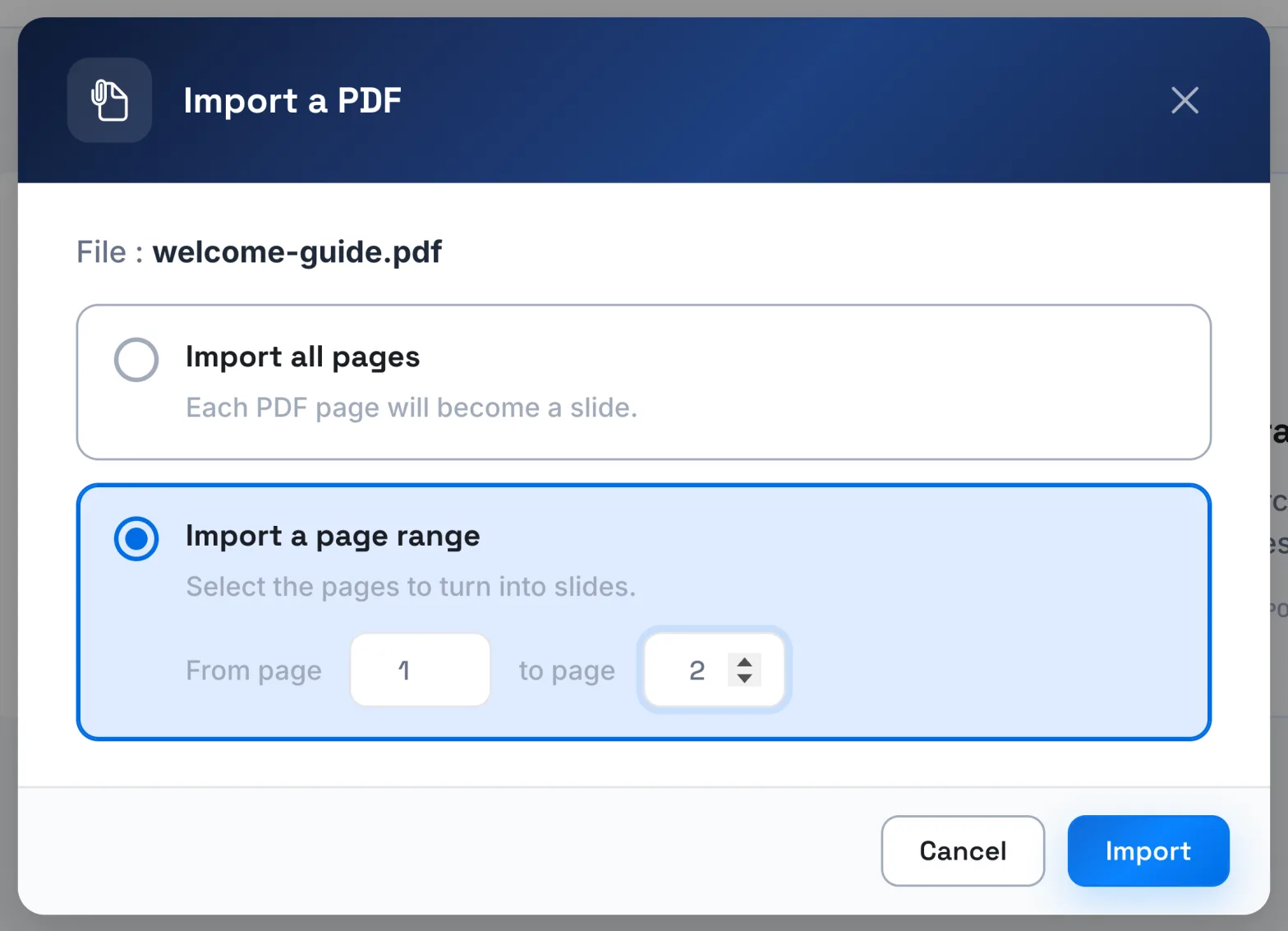
If the range is inconsistent or goes beyond the number of pages in the file, the app shows "This page range is invalid". If your selection has too many pages for a single import, the window tells you: choose a shorter range, then import the rest the same way.
Track the import#
The import runs in the background. The PDF transformation in progress... window shows the number of pages converted and the steps, from Reading PDF file to Creating slides.
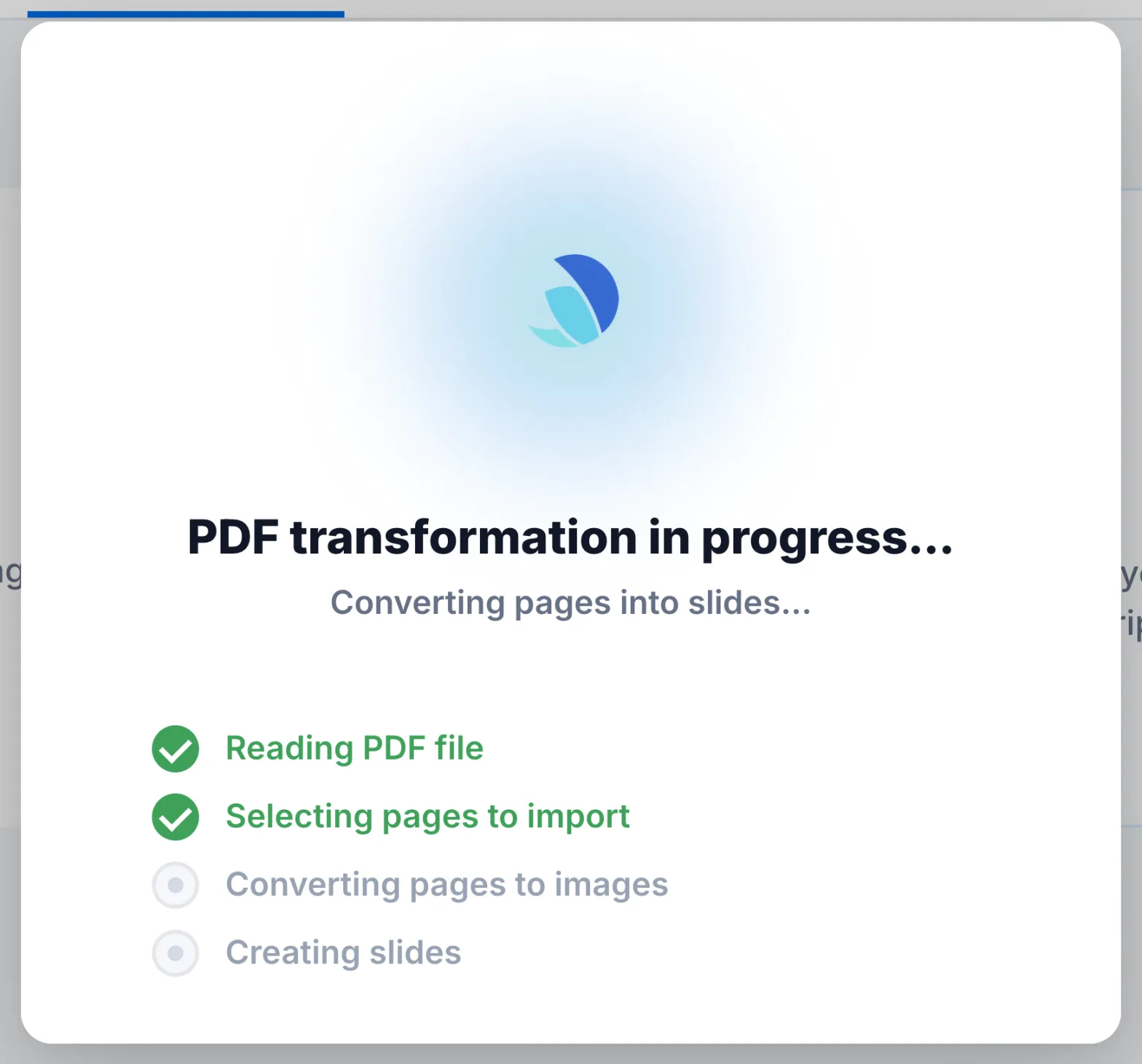
- To stop the import, click Cancel.
- During the import, you cannot edit the course.
- If you leave the page, the import continues. When you return to the course, the editor shows its progress again.
When the import finishes, the new slides appear in the chapter.
Insert a PDF or images into a chapter#
- Go to the place you want: at the top of a chapter or below a slide.
- Click Add content, then:
- PDF to import a PDF: choose the file, then the pages in the Import a PDF window;
- Slide to import one or more images.
The new slides are inserted at that point.
If the import fails#
| Message | What to do |
|---|---|
| "This PDF is password protected. Remove the protection before importing it." | Save a copy of the PDF without a password, then import the copy. |
| "This PDF cannot be read. Check the file and try again." | Check that the PDF opens on your computer, or export it again. |
| "A PDF import is already running for this course." | Wait for the current import to finish. |
| "Your editing session is no longer active. Reload the page before trying again." | Reload the page, then start the import again. |
For other cases, see Failed import or generation.
Next: write the scripts#
Imported slides have a visual but no script yet. To publish, each slide must have one: write it, dictate it or use Generate script with AI. See Write the avatar script.
Was this article helpful?
Thank you for your feedback!
Thank you. Tell us what is missing through Help and support in the app, and we will complete the article.