

Connect your LMS with LTI 1.3
Integrate Complement with your LMS through LTI 1.3 / LTI Advantage from the LMS Config menu, automatically or manually. No SCORM or xAPI export.
In Administer your platform
- Customise your organisation
- Manage the teaching team
- Track usage
- Activate your platform
- Manage your subscription
- View your enterprise contract
- Why is your platform read-only?
- Understand your administrator alerts and emails
- Enable SSO sign-in with Google or Microsoft
- White-label your platform
- Which options should you ask your Complement account manager for?
- Connect your LMS with LTI 1.3
- LMS: add courses, manage groups and grades
- Data security and privacy
The LMS integration lets your learners open Complement courses from your organisation's LMS, without signing in again. It is based on the LTI 1.3 / LTI Advantage standard.
Before you start#
- You must be an Administrator: the LMS Config menu is reserved for this role.
- Your Complement account manager turns on the LMS integration for your platform. The LMS Config menu then appears in the Management section of the menu.
- Complement works with LMSs that support LTI 1.3. Your account manager declares your LMS type during this activation.
- Some of the steps are done in your LMS administration.
Choose the method#
The LMS configuration page offers two methods:
- Automatic registration, marked Recommended: your LMS and Complement exchange their information themselves;
- Manual registration: you copy the information from one into the other, in both directions.
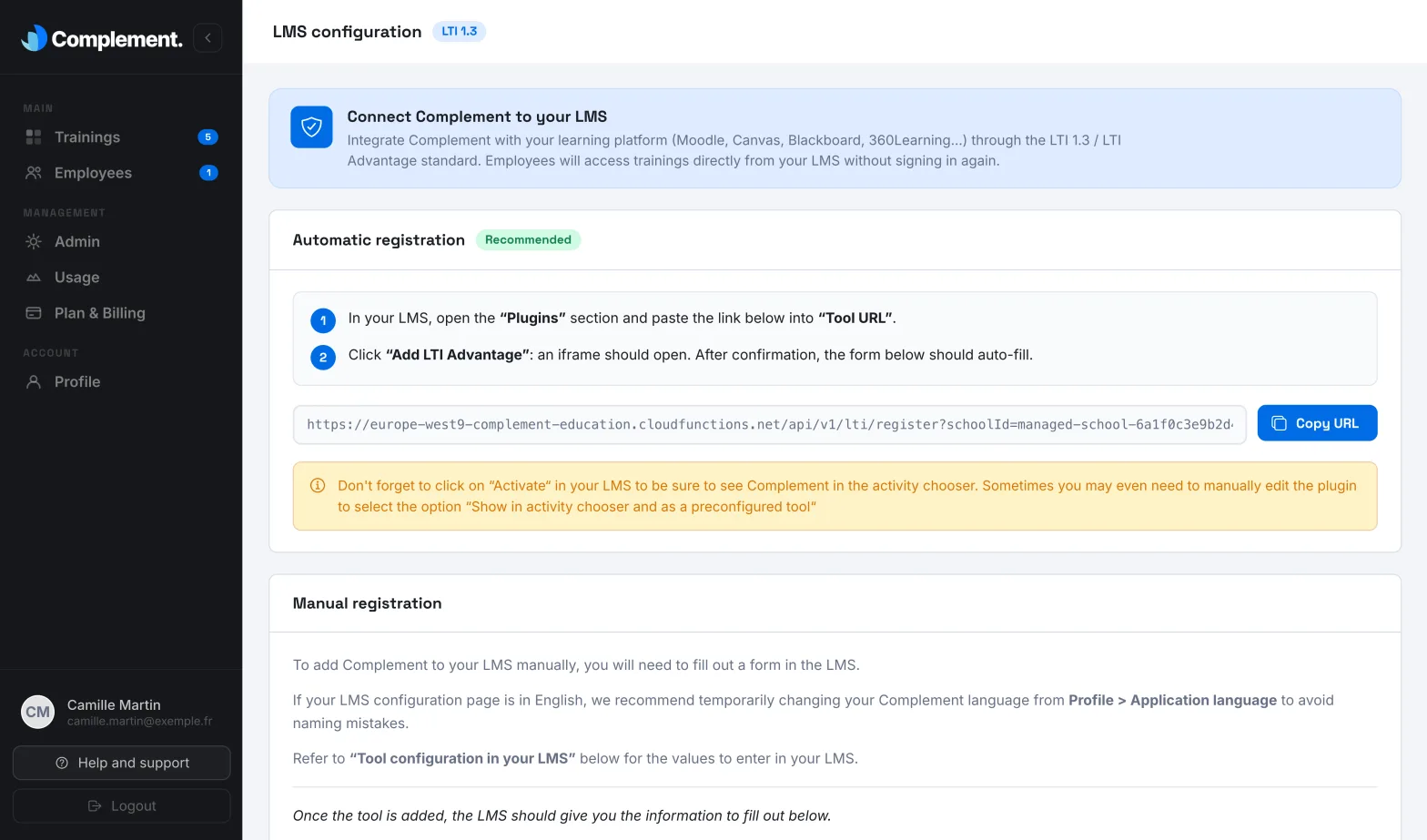
Automatic registration#
- Open LMS Config. In the Automatic registration card, click Copy URL.
- In your LMS, in the "Plugins" section, paste this address into the "Tool URL" field.
- Click "Add LTI Advantage". Complement opens in a window of your LMS.
- Sign in with your Complement Administrator account.
- The LMS configuration page shows: "This action will connect your LMS instance to your organisation in Complement. Click “Confirm” to proceed with the registration." Click Confirm.
- When the message "The registration was successful. You can close this page." appears, click Close.
- In your LMS, activate the Complement tool so that you can choose it as an activity in a course. If needed, edit the tool and select the option "Show in activity chooser and as a preconfigured tool".
Your LMS information then appears in the Manual registration card.
Manual registration#
1. Declare Complement in your LMS#
In your LMS, create an external tool with the values from the Tool configuration in your LMS card. Each value has a button to copy it.
| Field | Value |
|---|---|
| Tool name | Complement |
| Tool URL, Initiate login URL | The addresses shown |
| Redirection URI(s), Content Selection URL | The same address |
| JWKS Url (Public Keyset URL) | The address shown |
| Public key type, Public key | RSA, and the key shown |
| LTI version | LTI 1.3/LTI Advantage |
| Privacy > Share launcher's name with tool | Always |
| (Optional) Privacy > Share launcher's email with tool | Always |
| Supports Deep Linking (Content-Item Message) | Yes |
| Tool configuration usage | Show in activity chooser and as a preconfigured tool |
| Icon URL (Optional) | The address shown |
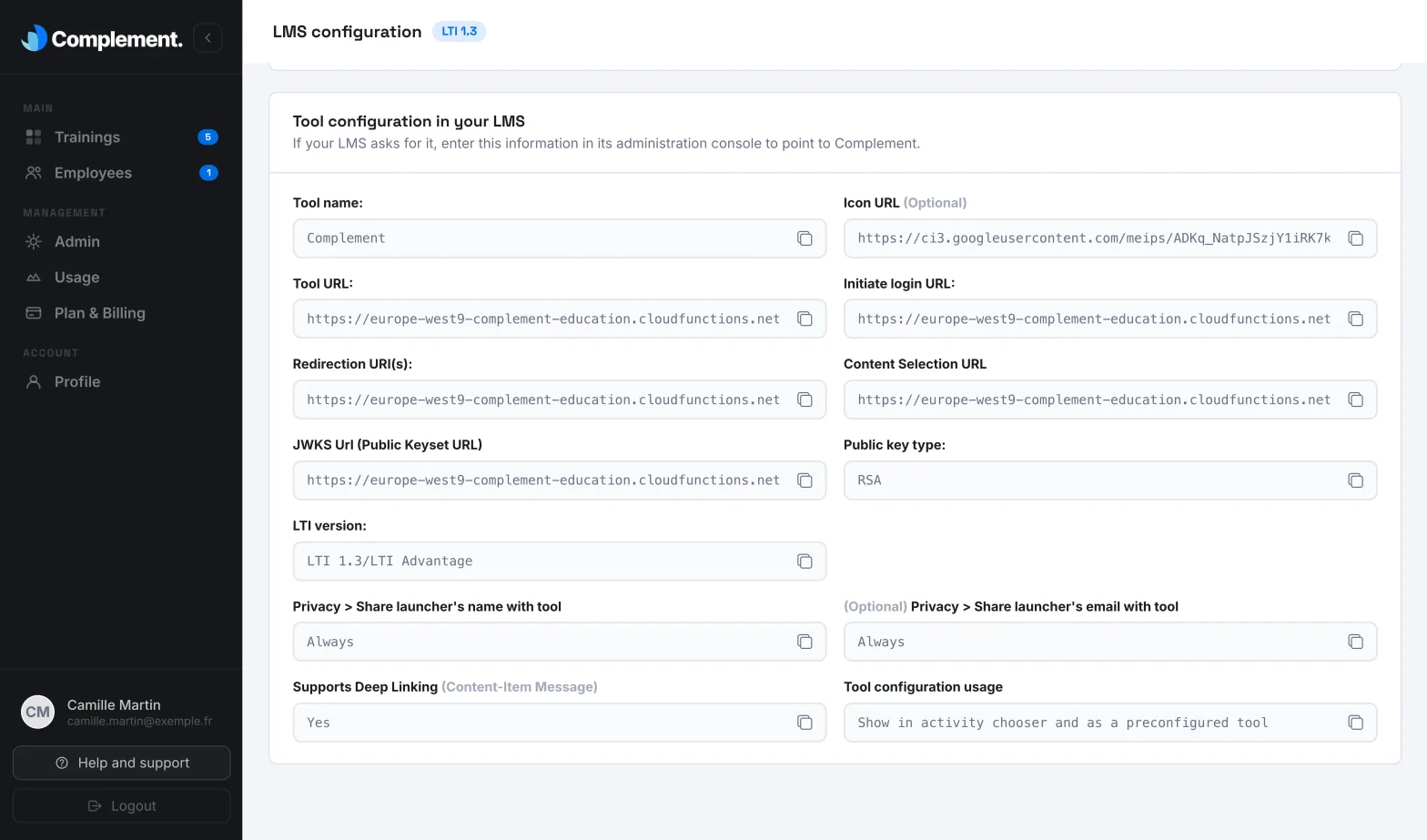
Sharing the email is optional. Without it, the list of learners shows Created via LMS instead of the email address.
2. Enter your LMS details in Complement#
Once the tool has been added, your LMS gives you the information to enter in the Manual registration card.
- Fill in LMS name, Issuer (Platform identifier), Authorization Endpoint (OIDC Login URL), Access Token Endpoint (LTI Services Token URL), JWKS URL (LMS Public Keys), Client ID and Deployment ID (LMS Deployment Identifier). All fields are required.
- Click Save configuration.
When you enter the Issuer (Platform identifier), Complement tries to fill in the Authorization Endpoint (OIDC Login URL), Access Token Endpoint (LTI Services Token URL) and JWKS URL (LMS Public Keys) fields from your LMS: check them before saving. The message "Your LMS config was successfully updated" confirms the change.
Next steps#
Add your Complement courses to your LMS courses, check the default LMS team and map your teams to the LMS groups: see LMS: add courses, manage groups and grades.
Was this article helpful?
Thank you for your feedback!
Thank you. Tell us what is missing through Help and support in the app, and we will complete the article.