

Add resources to a course
Add web pages and files to a course, share them with your learners and let the AI tutor use them to answer their questions.
In Create a course
- Understand the structure of a course
- Create a course
- Generate a course with AI
- Import a PDF or images
- Organise chapters
- Edit a slide
- Write the avatar script
- Edit a slide visual with AI
- Add interaction questions and surveys
- Add a video
- Create the end-of-chapter quiz
- Add resources to a course
- Saving and editing with others
- Preview a course
- Publish a course
- Course settings
- Course completion rules
- Trainer rights on a course
- Manage your courses
- Export a course to PDF
Resources complement a course: web pages, documents, images and videos. You choose which ones your learners can view. The AI tutor can also draw on your documents to answer their questions.
Before you start#
- You must be able to edit the course. In read-only mode, you see the list but cannot change it.
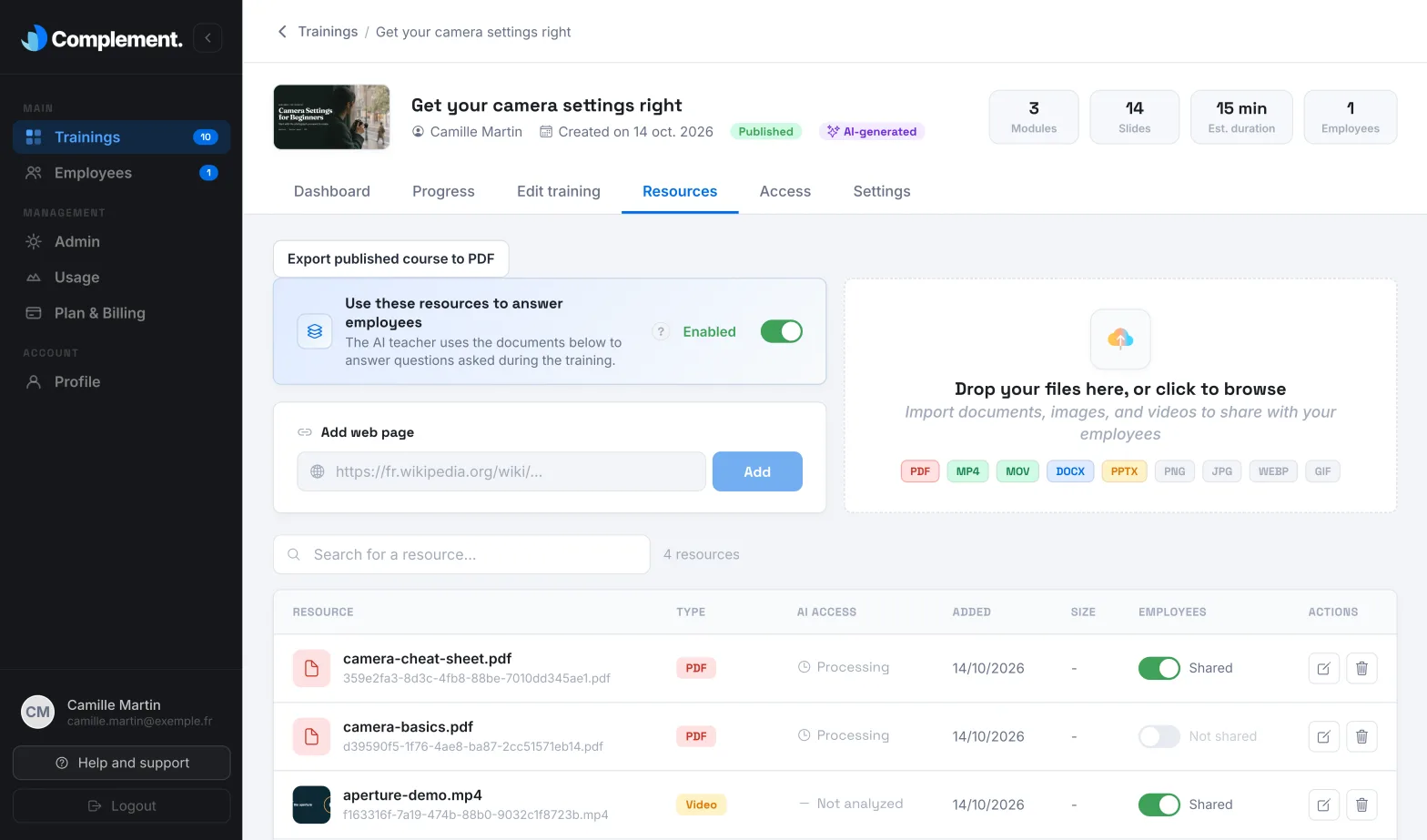
- Open Trainings › your course › Resources.
Add a web page#
- In Add web page, paste the address of the page.
- Click Add.
Add a file#
Drag a file into the Drop your files here, or click to browse area, or click it to choose one. Add your files one at a time.
| Type | Accepted formats |
|---|---|
| Documents | PDF, DOCX, PPTX |
| Images | PNG, JPG, WEBP, GIF |
| Videos | MP4, MOV |
If a file is rejected, the app tells you why.
Let the AI tutor draw on your resources#
The Use these resources to answer employees toggle decides whether the AI tutor consults your resources when a learner asks it a question. It is off by default. Once it is on, answers become more precise on specialist topics, but take a little longer.
The AI tutor reads web pages and PDF, DOCX and PPTX documents. It does not analyse images or videos. The content of your published slides is always available to it, whether the toggle is on or off.
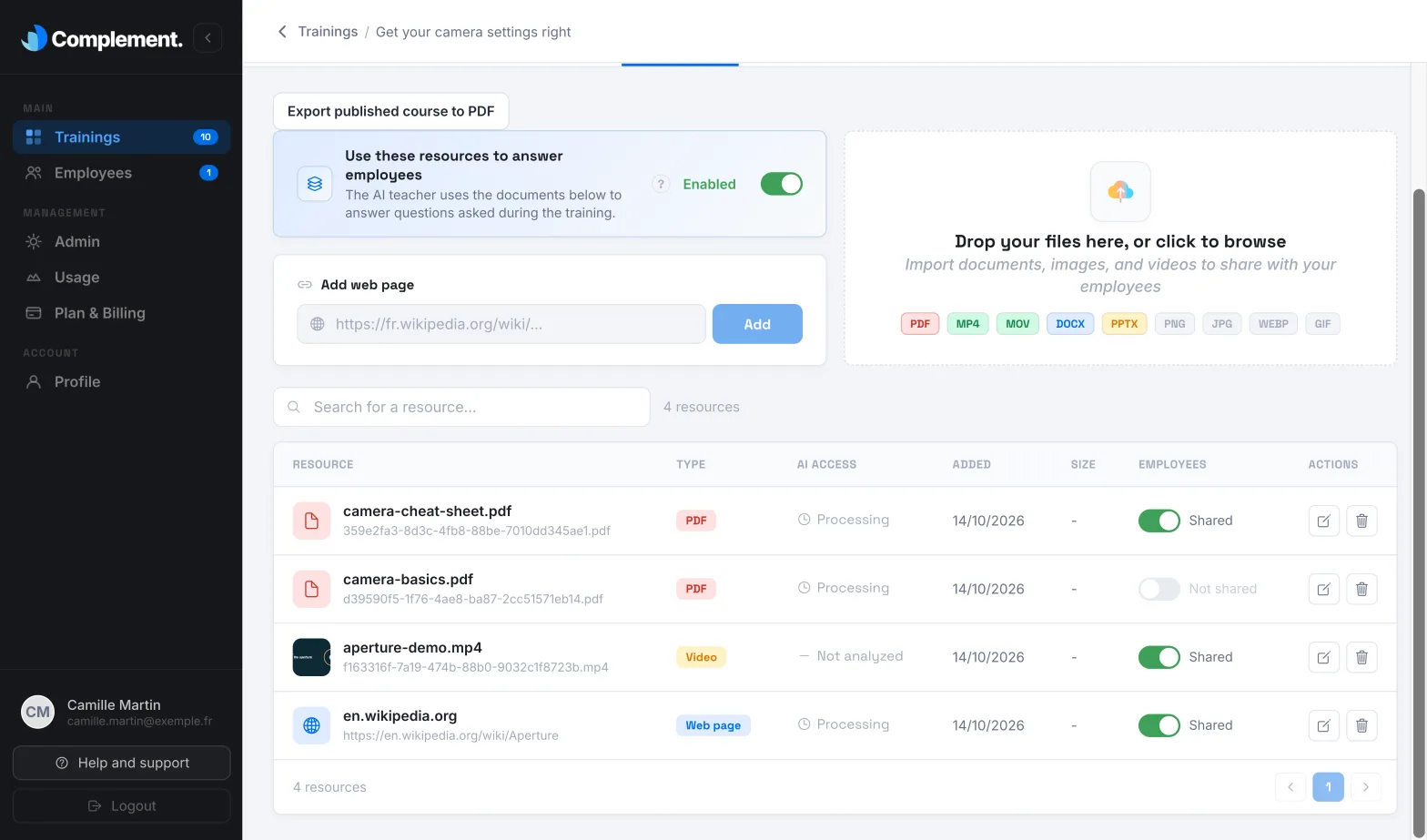
The AI access column shows the status of each resource:
| Status | Meaning |
|---|---|
| Available | The AI tutor can use the resource. |
| Processing | Complement is preparing the resource for the AI tutor. |
| Error | The resource could not be analysed. Hover over the status to find out more. |
| Not analyzed | The resource is a video: the AI tutor does not use it. |
| Disabled | The toggle is off: the AI tutor does not use the resource. |
Share a resource with learners#
In the Employees column, each resource's toggle shows Shared or Not shared. Every new resource is shared.
Your learners find shared resources in the course outline and with the Resources button in the player. A resource marked Not shared remains visible to the teaching team. If the AI tutor toggle is on, the tutor can still use it.
Some sources used to generate the course with AI remain reserved for the teaching team: their sharing toggle is disabled.
Rename or delete a resource#
- To rename a resource, click the Edit icon, enter the New name, then click Rename. Your learners see this new name.
- To delete a resource, click the Delete icon, then Delete permanently. Your learners no longer have access to it and the AI tutor no longer consults it.
The slides PDF#
For a course that was not generated by AI, Complement adds a PDF of the published slides each time you publish. Its name starts with "SUPPORT", followed by the course title. Its AI access status is always Available.
For a course generated by AI, the Export published course to PDF button appears at the top of the tab: see Export a course to PDF.
Was this article helpful?
Thank you for your feedback!
Thank you. Tell us what is missing through Help and support in the app, and we will complete the article.