

Find your courses
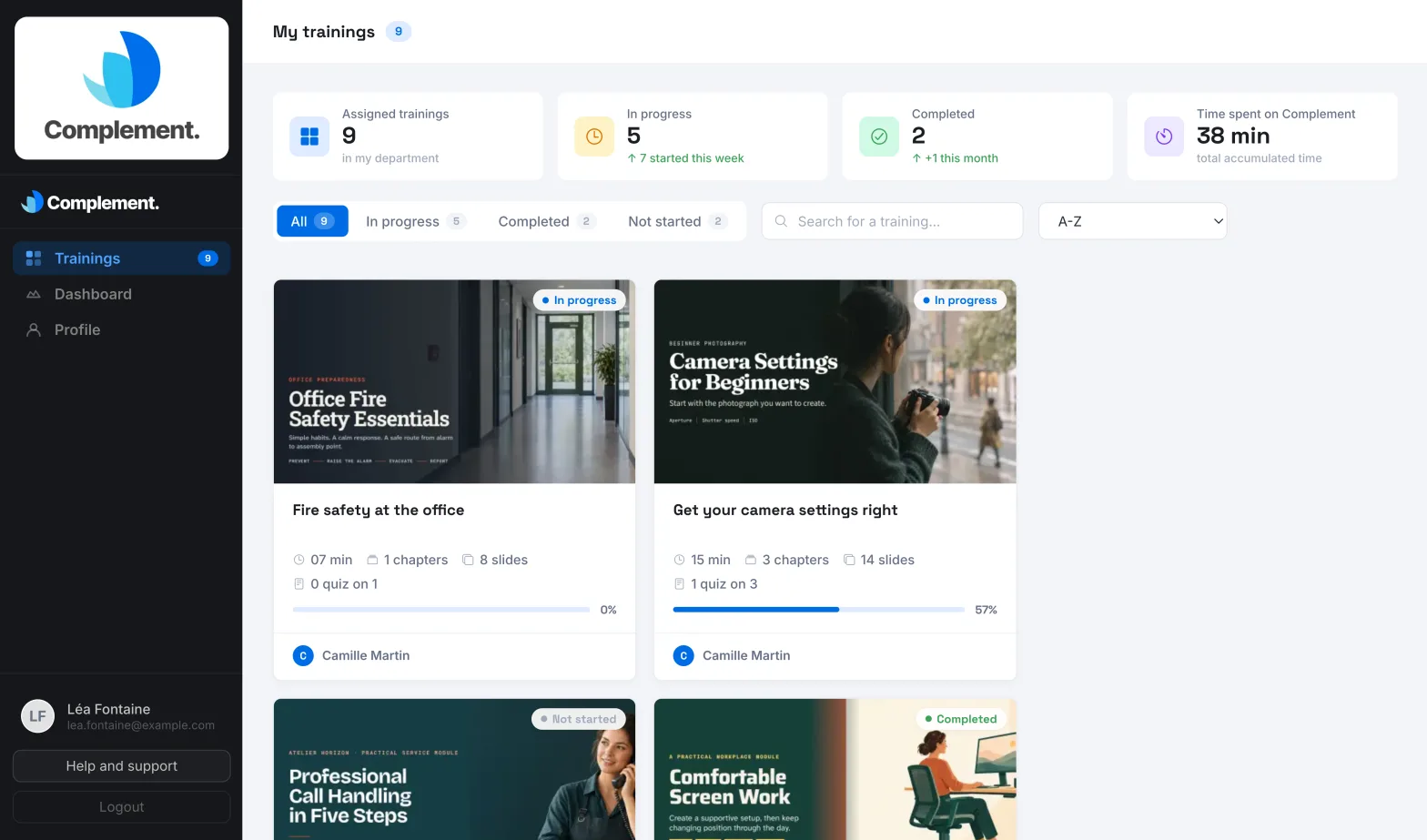
The My trainings page: counters, filters, search, sorting, deadline badges and past courses kept after you change team.
In Take a course
My trainings brings together all the courses your organisation has assigned to you. You can see at a glance where you are and what you still have to do.
Open the page#
Click Trainings in the menu. On a smartphone, this menu is at the bottom of the screen.
Where your courses come from#
You do not choose your courses: your organisation assigns them to your team. A course appears in the list as soon as it is published and assigned to your team.
When a new course is published, your organisation can let you know with an email "A new course is waiting for you on", followed by the platform name. Its "Start now" button opens the course's table of contents directly.
If the page shows "Either there are no trainings to display, or you don't have access.", no course is assigned to you yet. Contact your administrator.
The counters#
At the top of the page, four counters sum up your activity:
- Assigned trainings: the number of courses assigned to your team;
- In progress: the courses you have started, with the number started this week;
- Completed: the courses you have finished, with the number finished this month;
- Time spent on Complement: the total time spent on these courses.
Filter, search and sort#
- Click a filter to narrow the list: All, In progress, Completed, Not started or Past trainings. Each filter shows its number of courses.
- Type the title of a course or the name of its author in the search field.
- Choose the display order: A-Z, Progress descending or Progress ascending.
Read a course card#
Each card shows:
- the status: Not started, In progress, Completed (with the date) or Unavailable;
- the estimated duration, and the number of chapters and slides;
- once you have started the course, the number of quizzes passed, for example "2 quiz on 5";
- your progress as a percentage;
- the authors of the course.
An Unavailable course can no longer be opened: you have reached the maximum time set for this course. See Finish and pass a course.
Deadline badges#
When a course has a deadline and is not finished yet, its card shows a badge:
| Badge | What it means |
|---|---|
| "Due:" followed by the date | The deadline is not close yet. |
| Number of days, for example "6d left" | The deadline is getting close. |
| "Due today" | It is the last day. |
| "Expired … ago", with the number of days | The deadline has passed. |
As the deadline gets closer, the badge and the card change colour. The badge disappears as soon as the course is finished.
Past courses#
When you change team, your administrator can let you keep access to the courses of your former team. They then appear in the Past trainings filter, with your progress. You can still open them and carry on.
If this filter shows "No past trainings to display.", you have no courses kept from a former team.
Open a course#
Click a card: the course's table of contents opens. If the course has been changed since your last visit, the Modified training message appears first. Click Got it! to continue.
Was this article helpful?
Thank you for your feedback!
Thank you. Tell us what is missing through Help and support in the app, and we will complete the article.