

Manage the teaching team
Add, edit or delete the members of your team, choose their role and track the creator seats they use.
In Administer your platform
- Customise your organisation
- Manage the teaching team
- Track usage
- Activate your platform
- Manage your subscription
- View your enterprise contract
- Why is your platform read-only?
- Understand your administrator alerts and emails
- Enable SSO sign-in with Google or Microsoft
- White-label your platform
- Which options should you ask your Complement account manager for?
- Connect your LMS with LTI 1.3
- LMS: add courses, manage groups and grades
- Data security and privacy
Your teaching team brings together the people who create, manage or view your courses. You manage it in the Administrators section of the Admin page: each member has a role, which sets what they can do.
Before you start#
- Only Administrators can access the Admin menu.
- Learners are not managed here: see Add a learner.
The roles#
The Role selector offers four roles. A gauge shows their level of access and a box describes the selected role:
| Role | Level | What the app says |
|---|---|---|
| Administrator | 4/4 | "Full platform access": manage content, teams and members; track usage and credit alerts; change the platform settings. |
| Content manager | 3/4 | "Advanced content and account access": manage content like a trainer; create or delete teams, departments and learners; set the onboarding modules. |
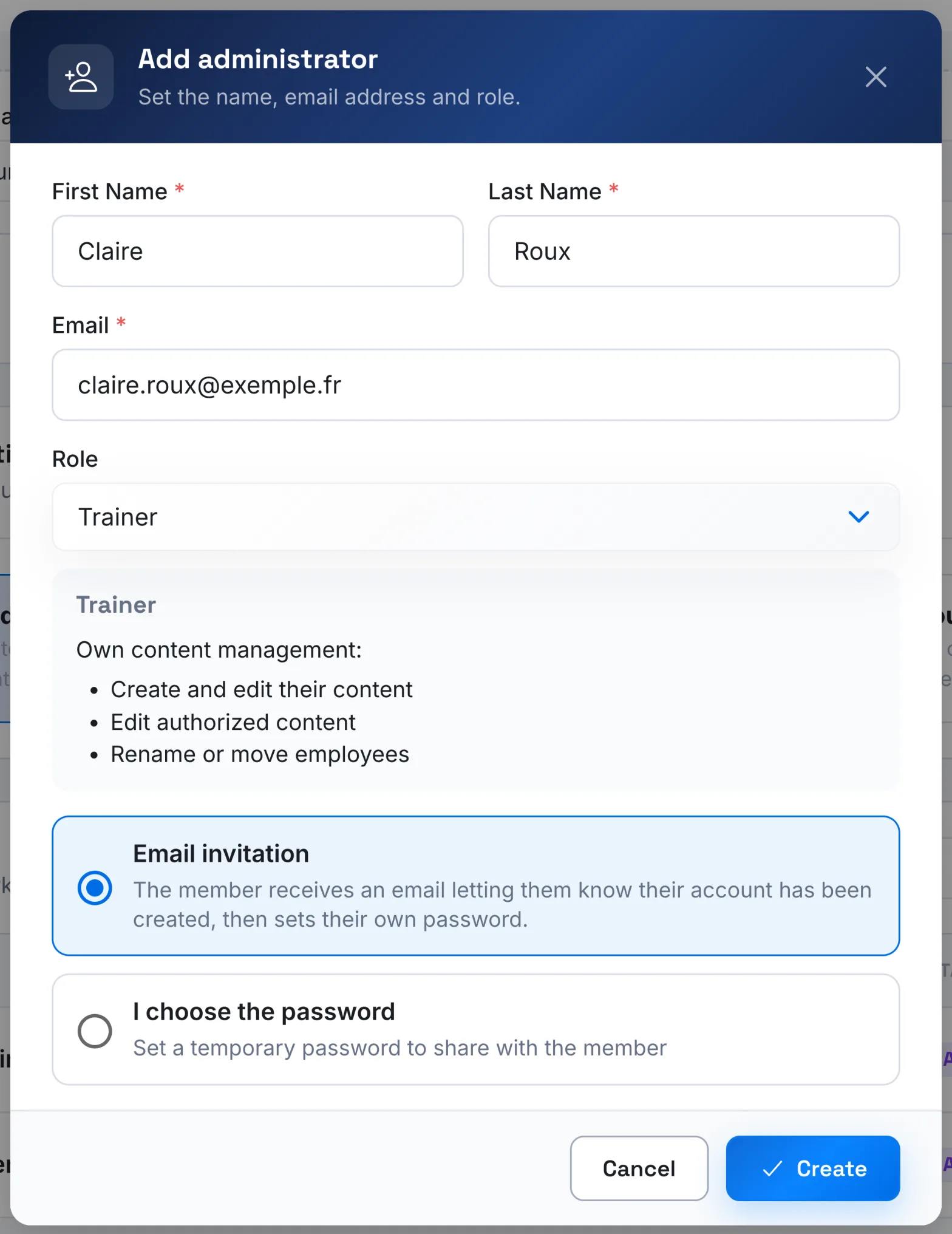
| Trainer | 2/4 | "Own content management": create and edit their own content; edit authorised content; rename or move a learner. |
| Guest | 1/4 | "Read-only access": view authorised content, without creating or editing anything. |
Only the Administrator can access the Admin, Usage and Plan & Billing menus. The full list of rights is in Roles and permissions.
Creator seats#
Each Administrator, Content manager and Trainer uses a creator seat. The Guest does not: "Does not consume a creator licence."
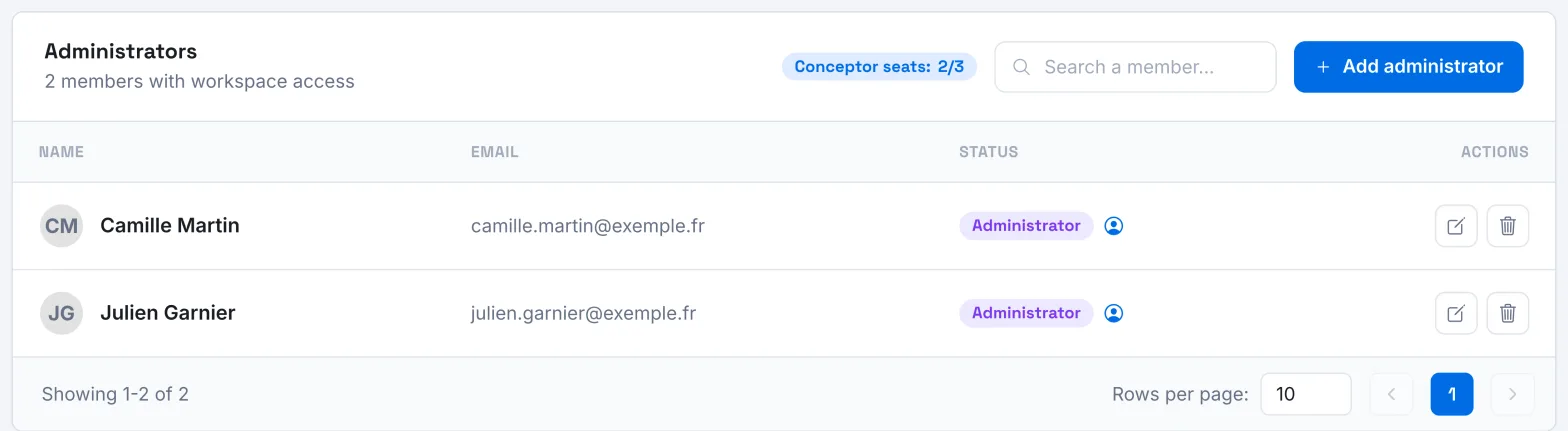
During the free trial, only 1 seat is included, used by the account that created the platform: you can add Guests, but no other course creators. With a paid plan, the number of seats matches your creator licences; with an enterprise plan, it is set by your contract. With the Learner seats plan, a creator seat counter appears above the list.
When all seats are taken, adding a course creator is refused with an error message, and so is changing a Guest to another role. Free up a seat by changing a member to Guest or deleting them, or add seats: see Manage your subscription.
Add a member#
- Open Admin. The Administrators section lists the members of your team; the Status column shows their role.
- Click Add administrator. This button is used for all roles.
- Fill in First Name, Last Name and Email.
- Choose the Role. The role offered by default is Administrator: check it.
- Choose how the member receives their access (see below).
- Click Create.
A Trainer or a Guest also receives read rights on the courses where the Automatically add read rights option is turned on: see Trainer rights on a course.
How the member receives their access#
- Email invitation: the member receives an account creation email, with your organisation's name. They choose their own password there. If the link has expired, they request a new one with Forgotten password on the sign-in page.
- I choose the password: you set a temporary password. No email is sent: give the member their sign-in details yourself.
- If your platform uses SSO sign-in, the first option becomes SSO account · notification only: the member signs in with your organisation's account and receives an email telling them their account is ready.
Edit a member#
- On the member's row, click the pencil icon (Edit).
- Change their first name, last name or role. Their email address is Not editable.
- Click Save.
You cannot change your own role.
Delete a member#
- On the member's row, click the bin icon (Delete).
- Read the warning: "This action is final and cannot be undone."
- Click Delete.
The account is deleted and its creator seat is freed up.
Was this article helpful?
Thank you for your feedback!
Thank you. Tell us what is missing through Help and support in the app, and we will complete the article.