

Manage your subscription
Adjust your seats, change plan, add hour credit and find your invoices in Plan & Billing.
In Administer your platform
- Customise your organisation
- Manage the teaching team
- Track usage
- Activate your platform
- Manage your subscription
- View your enterprise contract
- Why is your platform read-only?
- Understand your administrator alerts and emails
- Enable SSO sign-in with Google or Microsoft
- White-label your platform
- Which options should you ask your Complement account manager for?
- Connect your LMS with LTI 1.3
- LMS: add courses, manage groups and grades
- Data security and privacy
Once your platform is activated, Plan & Billing shows your plan, your seats and your payments. You can adjust your subscription there at any time.
Before you start#
- Only Administrators can access Plan & Billing.
- This article covers plans subscribed to online: they are monthly, with no commitment. For an enterprise plan, see View your enterprise contract.
- While a payment is being confirmed, the app shows Payment confirmation in progress and billing actions wait for the confirmation.
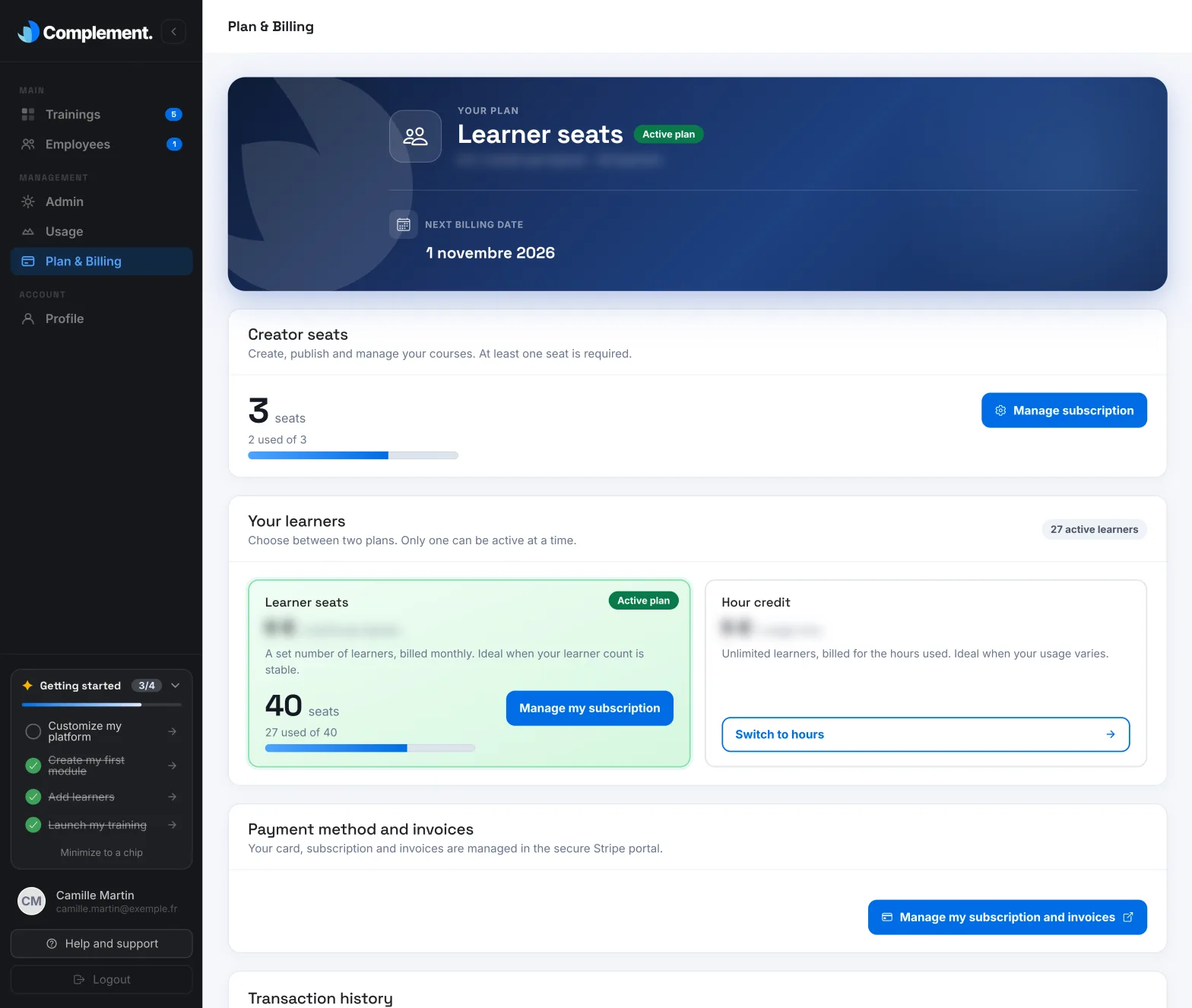
At the top of the page, the Your plan block shows your plan, the Monthly total excl. tax and your Next billing date.
Change the number of seats#
- Open Plan & Billing.
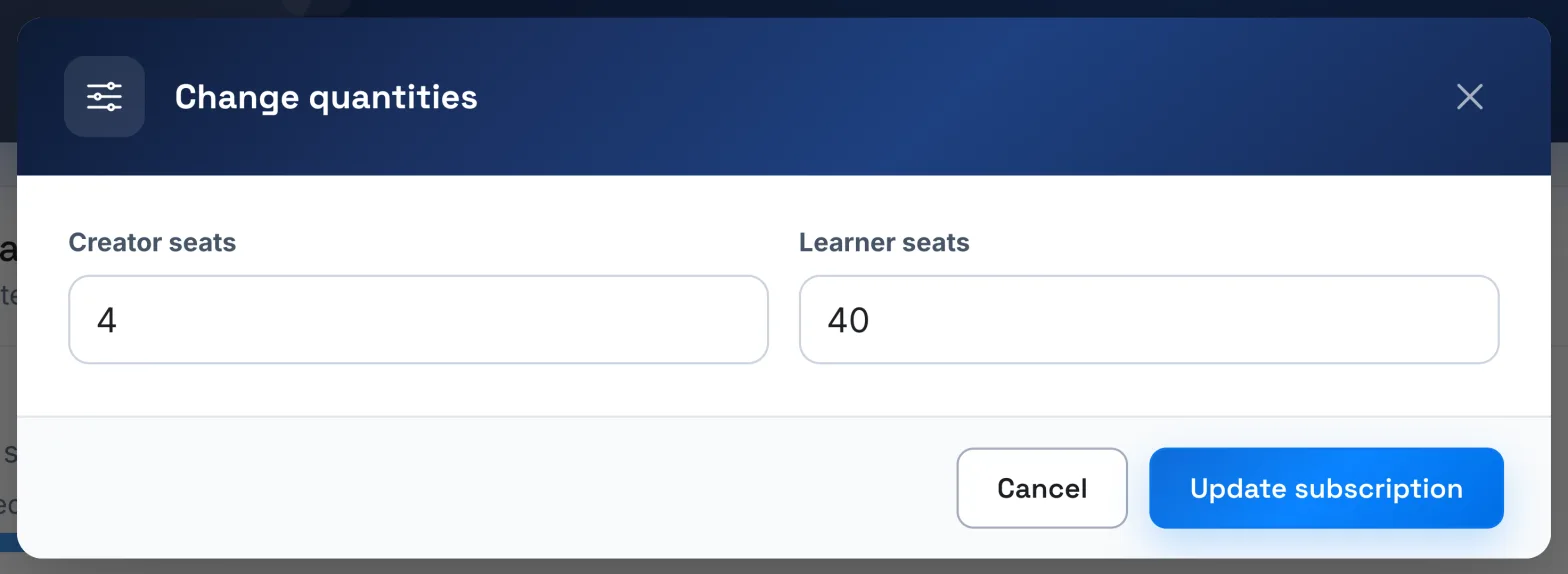
- In the Creator seats panel, click Manage subscription. With the Learner seats plan, the Manage my subscription button opens the same window.
- In Change quantities, enter the number of Creator seats and, with learner seats, of Learner seats.
- Click Update subscription: a preview appears.
- Click Pay now if a payment is due, otherwise Confirm.
The preview separates what happens Today from what your next billing date will include:
- If you add seats, the preview shows the prorated amount to pay today, up to your next billing date. The new seats apply as soon as the payment is confirmed.
- If you remove seats, nothing is charged today. The reduction applies at the next billing date; until then, your current seats remain available. Plan & Billing shows Seat reduction scheduled with its date. To cancel it, reopen the window, go back to the current quantities and confirm.
You cannot go below the number of active course creators or learners. The app then asks you to delete the extra accounts first.
Change learner plan#
Only one learner plan is active at a time: "Previously purchased credit is preserved."
- To switch to hour credit, click Switch to hours, then Confirm. The change takes effect at your next billing date. Until then, Plan change scheduled is shown and other changes are unavailable.
- To switch to seats, click Switch to seats, then Confirm. The confirmation shows the number of learner seats kept, which covers your active learners. If Stripe requests a payment, the invoice opens in a new tab; the change applies once the payment is confirmed.
Add credit#
With the Hour credit plan:
- In the Hour credit card, choose a pack from the Choose a pack list.
- Click Add credit.
- Complete the payment on Stripe's secure page.
The credit is added after the payment is confirmed. The Available credit is shown in hours. To track how it is used, see Track usage.
Your payment method and invoices#
The Payment method and invoices panel shows the saved card: "Your card, subscription and invoices are managed in the secure Stripe portal."
- Click Manage my subscription and invoices. The Stripe portal opens.
- Make your changes in the portal.
- Leave the portal: you return to Plan & Billing, which updates.
Further down, the Transaction history table lists the transactions on your account, with their type, date and amount. Click See invoice to open an invoice, when there is one.
Cancel your subscription#
Your subscription has no commitment: you can cancel it at any time.
- In Plan & Billing, click Manage my subscription and invoices. The Stripe portal opens.
- Cancel your subscription in the portal.
The current month remains paid for: your subscription runs until your next billing date, then stops. The platform then becomes read-only, with the message "Your subscription is canceled. The platform is read only." To reactivate it, subscribe again with Activate my platform.
Was this article helpful?
Thank you for your feedback!
Thank you. Tell us what is missing through Help and support in the app, and we will complete the article.