

Trainer rights on a course
Who can view and edit a course: roles, read and edit rights, automatic granting of read rights and the place of authors.
In Create a course
- Understand the structure of a course
- Create a course
- Generate a course with AI
- Import a PDF or images
- Organise chapters
- Edit a slide
- Write the avatar script
- Edit a slide visual with AI
- Add interaction questions and surveys
- Add a video
- Create the end-of-chapter quiz
- Add resources to a course
- Saving and editing with others
- Preview a course
- Publish a course
- Course settings
- Course completion rules
- Trainer rights on a course
- Manage your courses
- Export a course to PDF
Administrators and Content managers can view and edit all courses. For Trainers and Guests, access is set course by course, in the Trainer access rights section of Settings.
Who can do what#
| Role | Sees the course | Can edit it |
|---|---|---|
| Administrator | Always | Always |
| Content manager | Always | Always |
| Trainer | If they have read or edit rights, or are one of its authors | Only with edit rights |
| Guest | If they have read rights, or are one of its authors | Never: read-only |
Being an author of a course does not give the right to edit it. A Trainer who is an author but has no edit rights sees the course in read-only mode.
When the platform is blocked, everyone switches to read-only mode. See Read-only platform.
Rights granted on creation#
When a course is created:
- all the Trainers and Guests on the platform receive read rights;
- if the person creating it is a Trainer, they receive edit rights;
- the Automatically add read rights option is turned on.
Automatically add read rights#
With this option, every Trainer or Guest added later in Admin receives read rights on the course. The same applies to a member whose role changes to Trainer or Guest.
Turn it off if the course must remain reserved for the people you choose. Rights already granted do not change. See Manage the teaching team.
Manage edit and read rights#
- Open Trainings › your course › Settings, in the Trainer access rights section.
- In the Edition rights card, click Manage edition rights. The list shows the Trainers on the platform.
- Tick or untick people. Search a user... filters the list by name or email.
- Click Apply.
- Do the same in the Reading rights card, with Manage reading rights. This list shows Trainers and Guests.
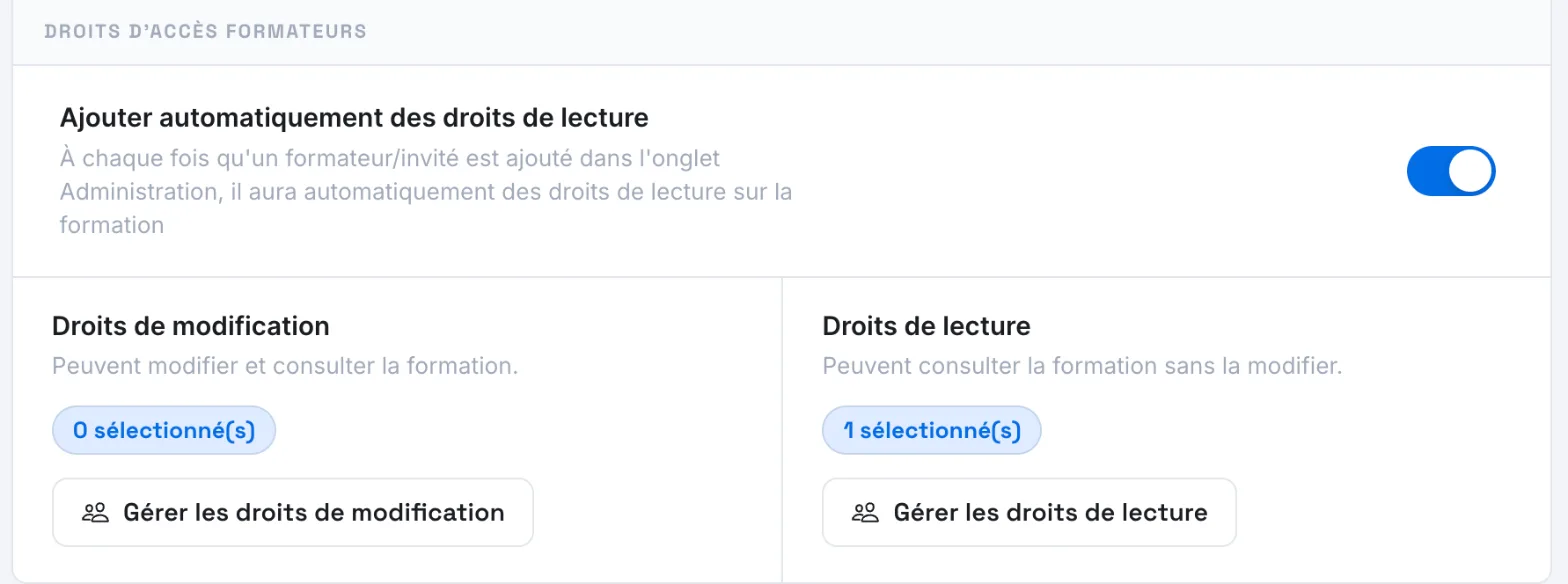
Each card shows the number of people selected. Your changes are saved as soon as you click Apply.
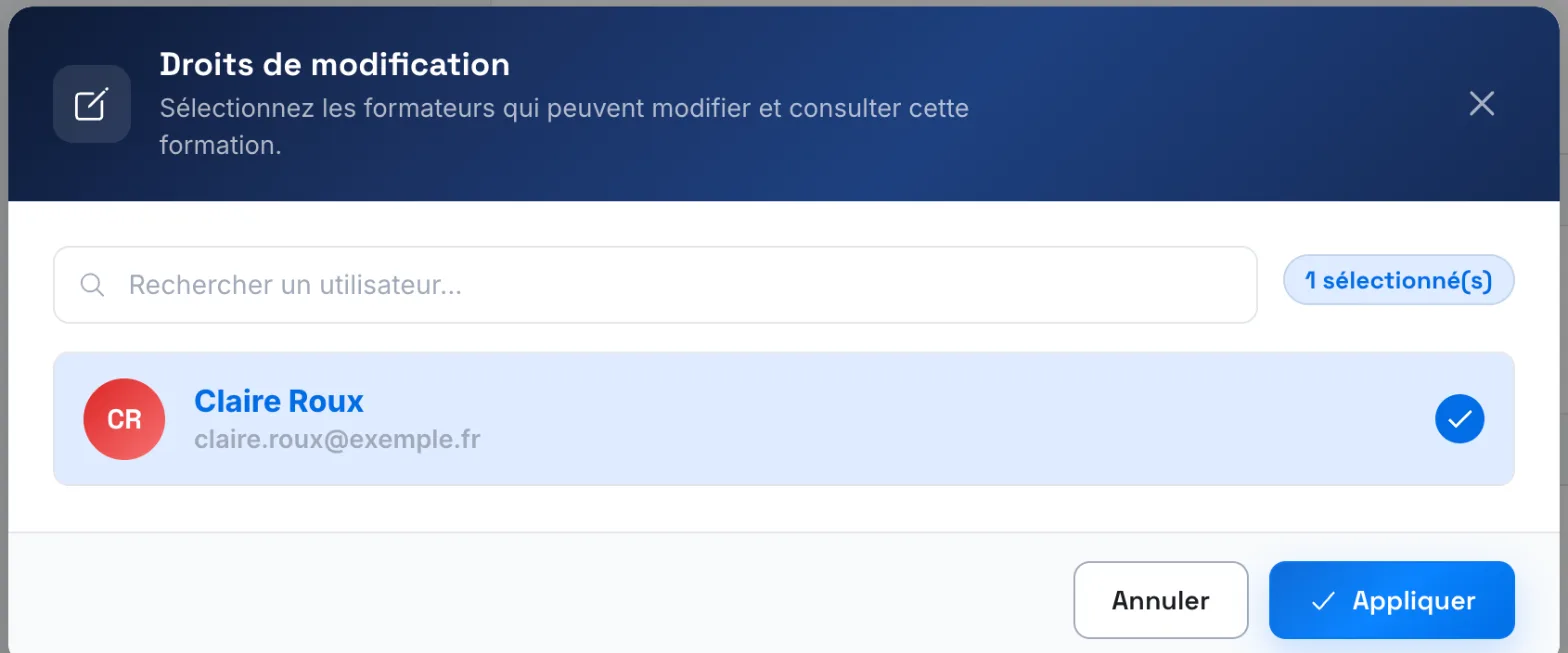
Who can change these settings#
Administrators, Content managers and Trainers with edit rights on the course can change these settings. For everyone else, the section is shown in read-only mode.
Was this article helpful?
Thank you for your feedback!
Thank you. Tell us what is missing through Help and support in the app, and we will complete the article.