

Talk with the avatar
Speak to the avatar with your mic or in writing, interrupt it, use voice commands, the conversation and subtitles. Your camera stays private.
In Take a course
The avatar explains the course to you and answers your questions about its content. You talk to it with your mic, as in a call, or you write to it.
Ask a question out loud#
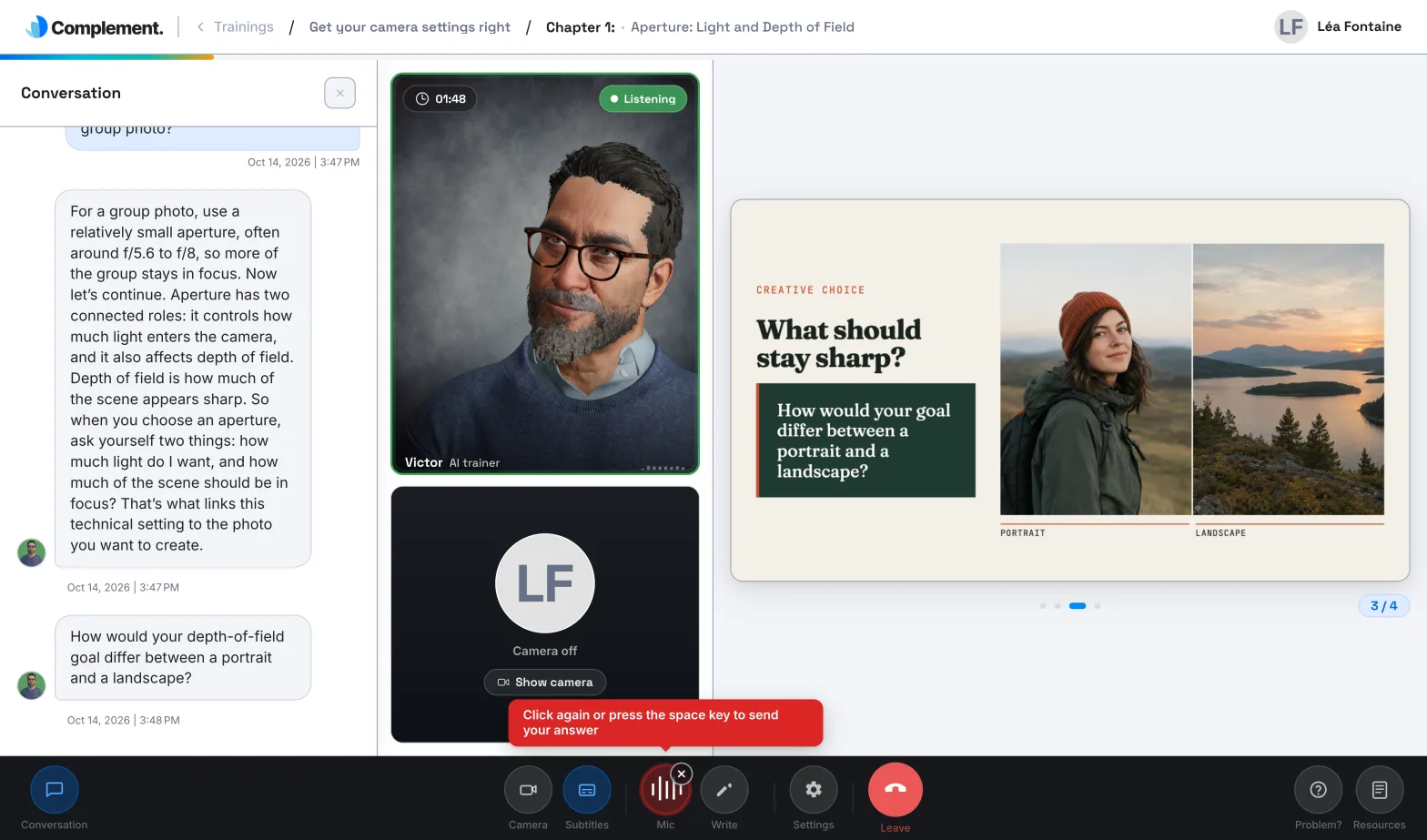
- Click Mic, or press the space bar if you have a keyboard. The avatar stops and switches to the Listening state.
- Ask your question.
- Click the mic again, or press the space bar again, to send it.
The avatar answers you, then picks up its explanation again. To cancel while you are speaking, click the small cross next to the mic.
You can interrupt it this way while it is speaking: there is no need to wait until it has finished. The mic is unavailable at times, for example during a video or while the avatar is preparing its answer.
Write a question or an answer#
- Click Write.
- Type your question, or your answer if the avatar has just asked you a question.
- Press Enter or click the send arrow.
When the avatar is waiting for your answer, the mic shows Your turn to answer. Answer out loud or in writing, whichever you prefer.
Voice commands#
You can ask the avatar, out loud:
- to go back to the previous slide or move on to the next one;
- to speak faster or more slowly. The new speed is saved in your settings;
- to skip straight to the chapter quiz;
- to leave the session.
The avatar only carries out a command if your request is clear and covers only one action. Otherwise, it treats your request as a question. During a quiz, it does not change question and does not skip the quiz. During a survey, it does not move on to the next slide.
In writing, you can also ask to change slide or speed. To pause the avatar, click it.
Something is not clear? Ask the avatar to explain it another way: it rephrases, then picks up the course again.
Read back the conversation#
Click Conversation to show the written history of the course: what the avatar told you, your questions and your answers, with their date and time. During a quiz, earlier exchanges are blurred.
Show subtitles#
Click Subtitles to show or hide the text of what the avatar says. They are on by default, and your choice is kept from one session to the next.
Turn on your camera#
Click Camera to see yourself on screen, as in a video call. Your image is only used for this display: it carries the label Private, and when you hover over it you read "Your video stays private — never recorded, shared, or stored."
The camera is off by default. Your choice is kept from one session to the next.
If your mic is blocked#
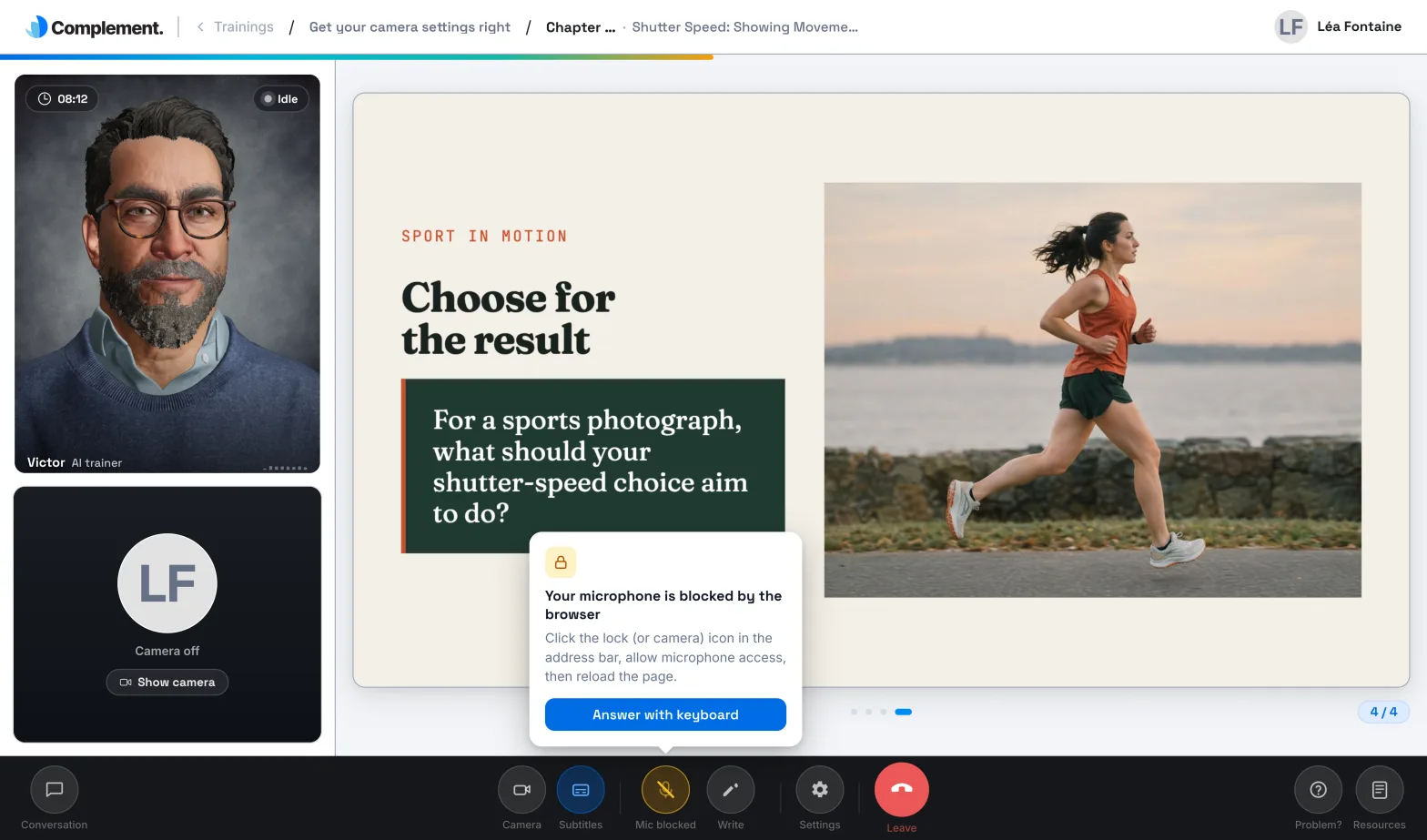
If your browser refuses access to the microphone, the button shows Mic blocked.
- Click Mic blocked. The "Your microphone is blocked by the browser" window opens.
- Follow its instructions: allow the microphone from the padlock icon in the address bar, then reload the page.
- Click Answer with keyboard to carry on in writing in the meantime.
For more help, see Microphone or sound.
If the connection is interrupted#
- If the message "Check your connection, then try again." appears, click Try again. Cancel takes you back to the table of contents.
- If the message "The connection was interrupted after your answer. Reconnect, then repeat it." appears, click Reconnect, then give your answer again.
Was this article helpful?
Thank you for your feedback!
Thank you. Tell us what is missing through Help and support in the app, and we will complete the article.