

Answer questions and quizzes
Interaction questions, surveys and end-of-chapter quizzes: question types, spoken or written answers, result, best score, new attempt.
In Take a course
During a course, the avatar asks you three kinds of questions: interaction questions and surveys as you go through the slides, then a quiz at the end of each chapter. Only the quiz counts towards passing the course.
Answer out loud or in writing#
When the avatar is waiting for your answer, the mic shows Your turn to answer.
- Out loud: click the mic, or press the space bar, give your answer, then click again to send it.
- In writing: click Write, type your answer, then press Enter.
See Talk with the avatar for details on the mic.
Interaction questions#
On some slides, the avatar starts by asking you a question, even before explaining the slide. Answer freely: there is no right or wrong answer, and nothing is marked.
The avatar takes into account what you said, then explains the slide building on your answer. The slide may be hidden during the question: it appears once you have answered.
Surveys#
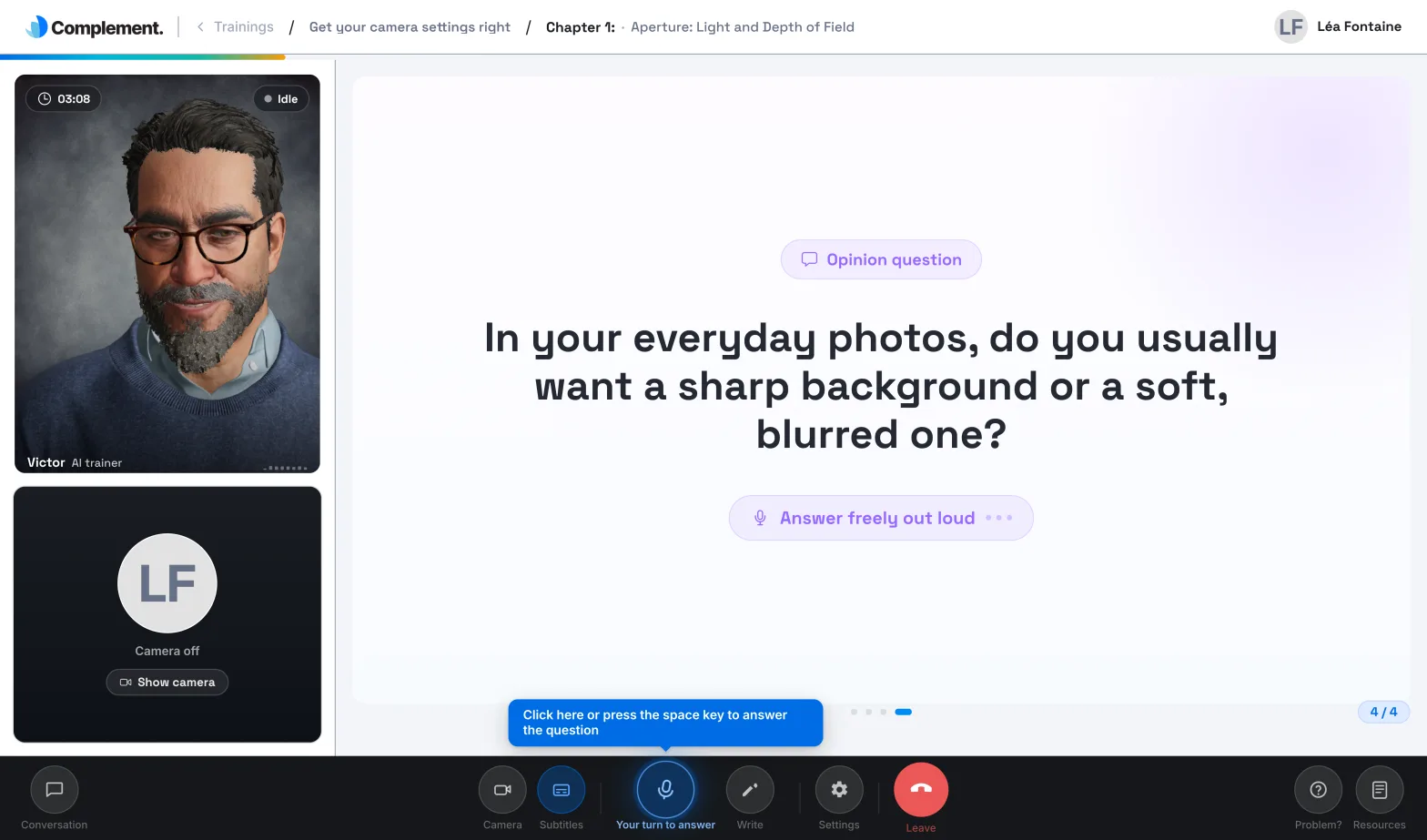
A survey slide shows the Opinion question badge, the question and the hint "Answer freely out loud". Give your opinion, out loud or in writing. The avatar thanks you and reacts briefly.
Answer the survey before moving on to the next slide.
The end-of-chapter quiz#
After the last slide of a chapter, the avatar announces the quiz and reads each question. Each one shows its number and its type:
| Type shown | How to answer |
|---|---|
| One correct answer | Give the letter or the text of the correct option. |
| Several correct answers possible | Give all the correct answers, and only those. |
| Open question | Answer in your own words. |
| Open question · Video or Open question · Audio | Watch the video or listen to the clip, then answer in your own words. |
You cannot click options A, B, C…: give your answer out loud or in writing.
Some questions start with the step "Step 1 / 2 · Review the media". Watch or listen to the media, then click I'm done to show the question. Review the media again lets you play it again.
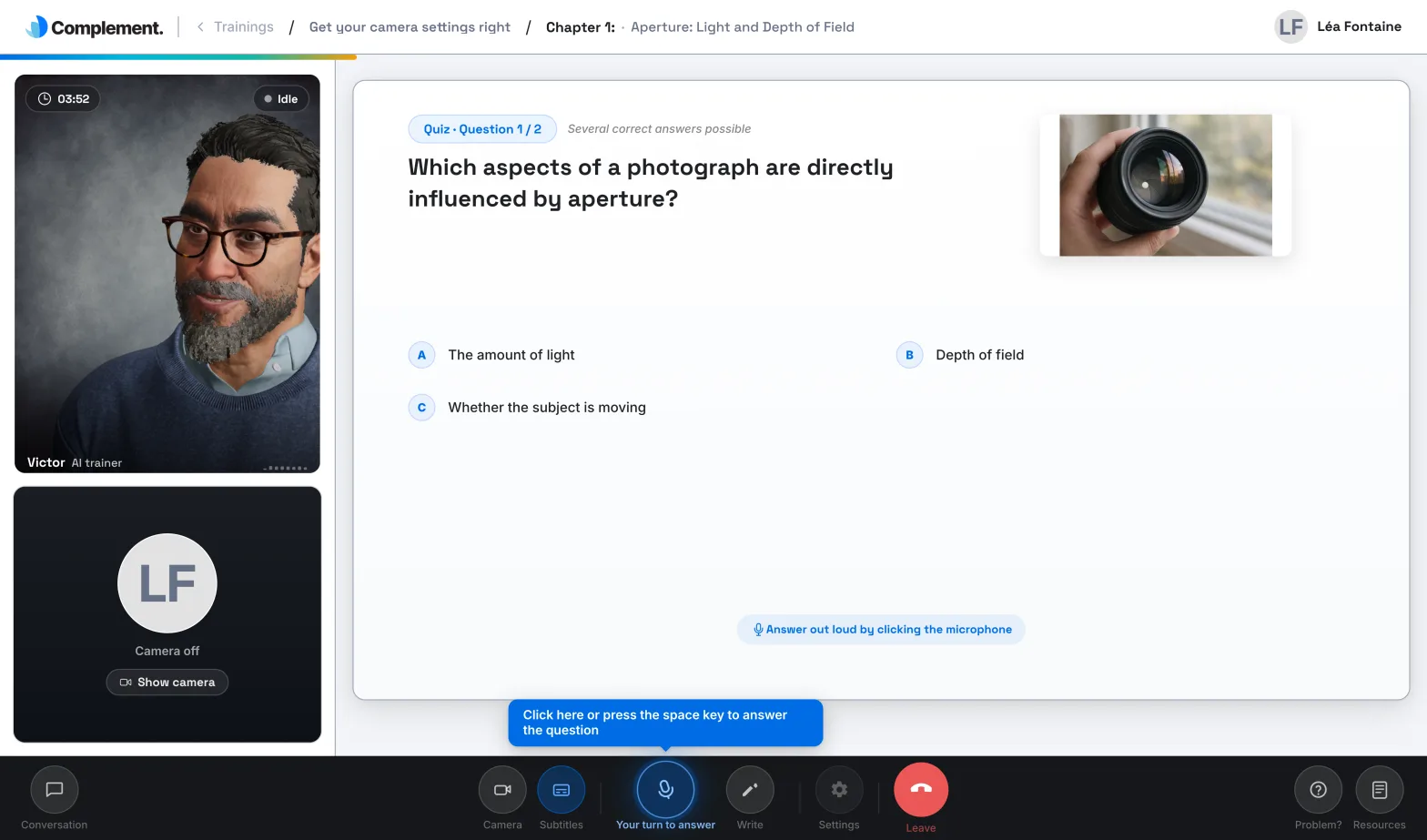
After you answer, the avatar tells you clearly whether it accepts your answer and explains why. The Explanations or Expected answer box appears under the question, and the correct options are highlighted. The next question then comes up automatically. You cannot go back to a previous question.
The quiz result#
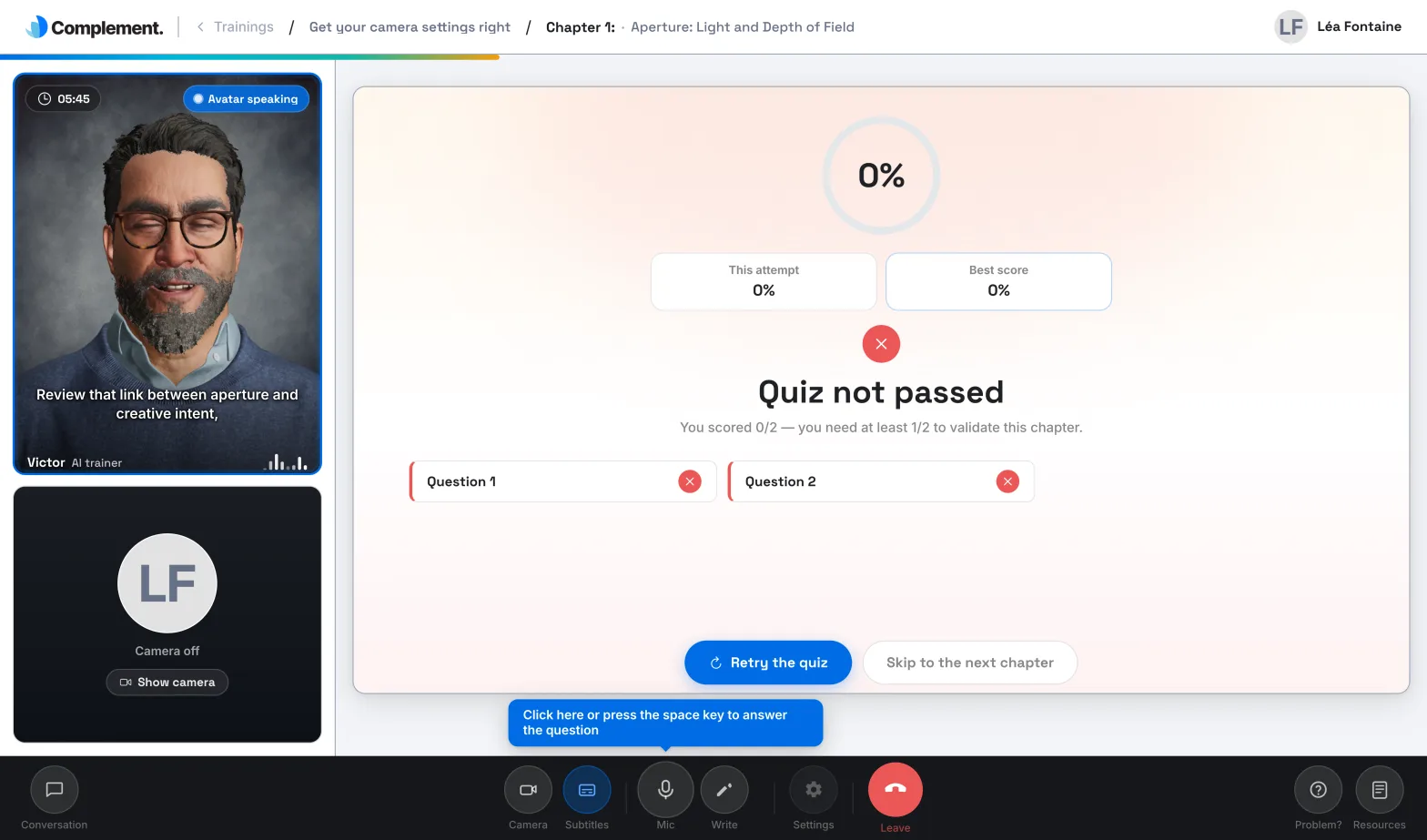
At the end of the quiz, a screen shows your score for This attempt, your Best score and the result for each question. The avatar comments on your result.
- If you pass the quiz, "Nice work, you passed the quiz!" appears. The next chapter starts automatically, or click Continue now.
- Otherwise, "Quiz not passed" appears with the number of correct answers you need. Click Retry the quiz to start again from the first question, or click Skip to the next chapter.
The percentage to reach is the Passing threshold shown in the table of contents. After the result of the last chapter's quiz, you move on to the end-of-course screen; if that quiz is not passed, the second button is called Finish training. See Finish and pass a course.
Retake a quiz later#
In the table of contents, click Retry next to the chapter. The percentage shown is your best score. Only this best score counts: a less successful new attempt does not make you lose a quiz you have passed.
Was this article helpful?
Thank you for your feedback!
Thank you. Tell us what is missing through Help and support in the app, and we will complete the article.