

Take a session with the avatar
The course player: control bar, moving between slides, pausing, inactivity, resources, leaving and picking up where you left off.
In Take a course
A session is like a video call with your AI trainer. The avatar presents each slide out loud. You can interrupt it to ask a question, then it picks up its explanation again.
Before you start#
- When your browser asks, allow access to the microphone: you use it to talk to the avatar. If you have a problem, see Microphone or sound.
- To start a session, open a course's table of contents and click Start or Continue.
When the session starts, the "The avatar is getting ready..." window appears while the avatar and the chapter are prepared. If the avatar needs to be downloaded first, a progress bar shows it. The session then starts on its own.
The player screen#
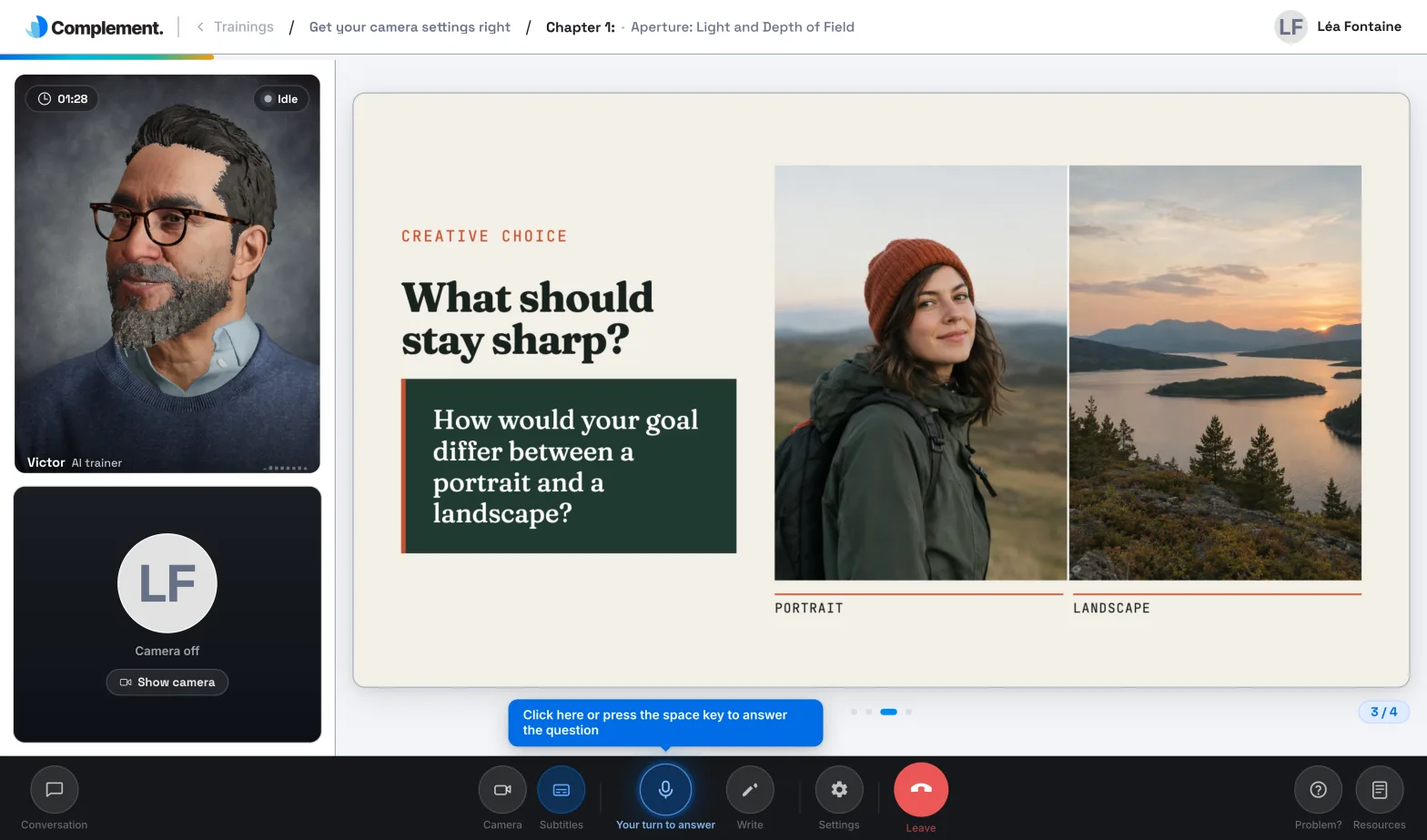
- At the top, the breadcrumb trail: Trainings, the course title, then the chapter number and title. Click Trainings to go back to your courses, or click the title to go back to the table of contents.
- Just below, a progress bar. Hover over it to see the current slide, the share remaining and the estimated time remaining.
- In the centre, the slide and its counter, for example 3 / 8.
- Next to it, the avatar with its first name, the label AI trainer and its state: Avatar speaking, Listening, Thinking or Idle. You also see the space for your camera.
- At the bottom, the control bar.
The control bar#
| Button | What it is for |
|---|---|
| Conversation | Shows the written history of your exchanges with the avatar. |
| Camera | Turns your camera on or off. |
| Subtitles | Shows or hides the text of what the avatar says. |
| Mic | Asks a question out loud or answers a question. |
| Write | Asks a question or answers in writing. |
| Settings | Sets the avatar, its voice and your languages. Unavailable during a quiz. |
| Leave | Closes the session and goes back to the table of contents. |
| Problem? | Opens the Help and support form. See Get help. |
| Resources | Opens the documents and links shared by the creators of the course. |
On a small screen, some of these controls are grouped under More. The mic, writing and subtitles are explained in detail in Talk with the avatar.
Move from one slide to the next#
When the avatar has finished presenting a slide, the next one comes up automatically. You can also move around yourself:
- click the arrows on either side of the slide;
- or click one of the dots under the slide. Hover over a dot to see a preview of that slide.
During a survey, answer before moving on to the next slide. On a video slide, the video takes over after the avatar's introduction, if there is one. If the video starts on its own, the next slide comes up when the video ends. After the last slide of the chapter, the quiz begins: see Answer questions and quizzes.
Pause#
Click the avatar while it is speaking to pause it. Click again to resume. If you switch tabs while it is speaking, it pauses on its own.
If you are inactive#
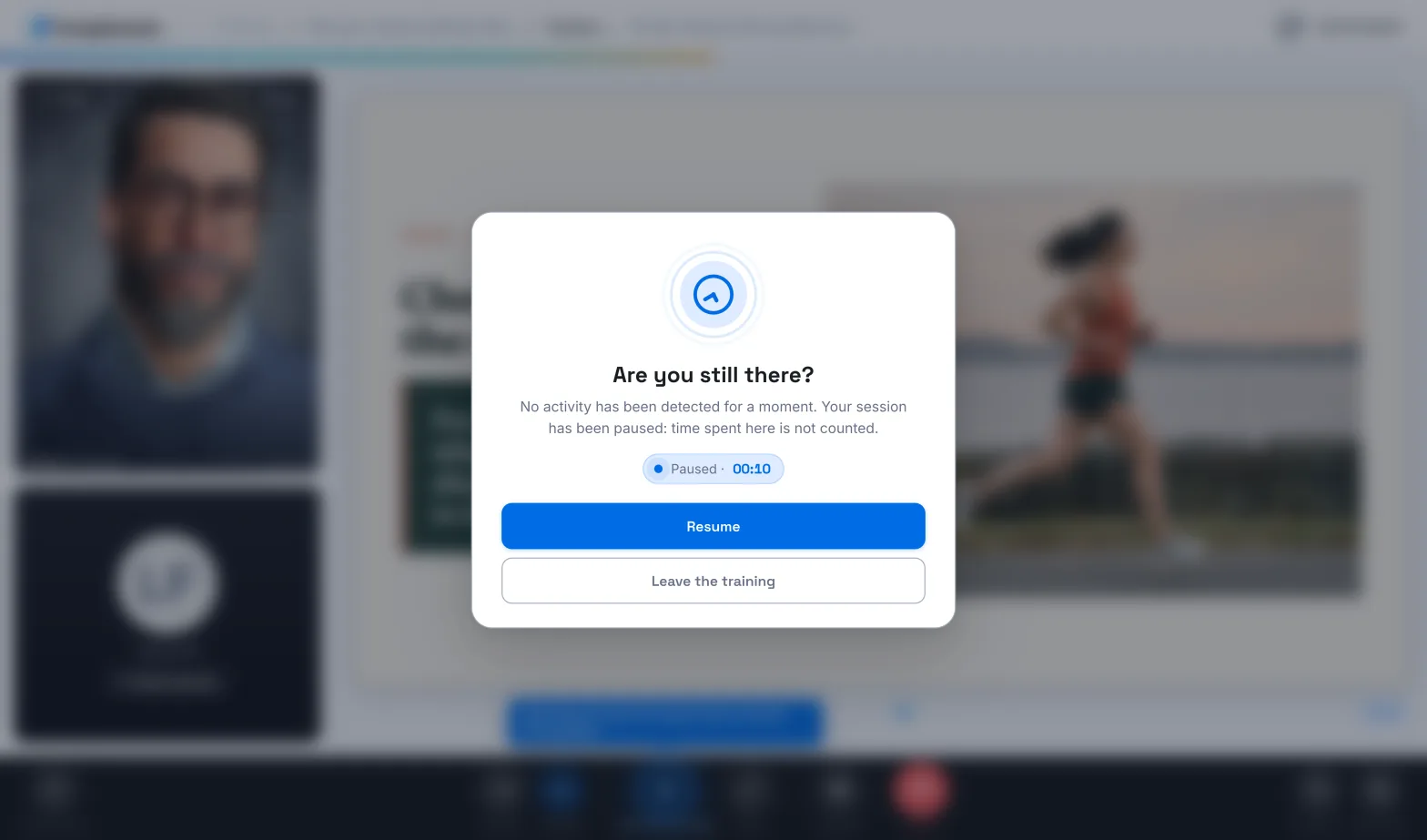
If nothing happens for a while, the session pauses and the "Are you still there?" window appears. The time that passes during this pause does not count in your course tracking.
- Click Resume to carry on.
- Click Leave the training to go back to your courses.
Leave, then resume#
Your progress is saved as the session goes on: the slide you are on, the slides you have seen, your quiz answers and your time spent.
- Click Leave: you go back to the course's table of contents.
- Click Continue in the table of contents to resume. You return to the slide where you left off.
If the course has been changed#
Course creators can publish a new version of a course you have already started. The next time you open it from My trainings, the Modified training message warns you that this may affect your progress and your results. Click Got it! to continue.
Was this article helpful?
Thank you for your feedback!
Thank you. Tell us what is missing through Help and support in the app, and we will complete the article.