

Take a course from your LMS
Launch a Complement course from your organisation's learning platform: account created automatically and grade sent back to the LMS.
In Take a course
Your organisation can offer you Complement courses directly in the learning platform it usually uses, called an LMS. You launch them from the LMS, with no Complement login or password.
Launch the course#
- In your LMS, open the course that contains the Complement activity.
- Click the activity. Complement opens and signs you in automatically: the LMS identifies you.
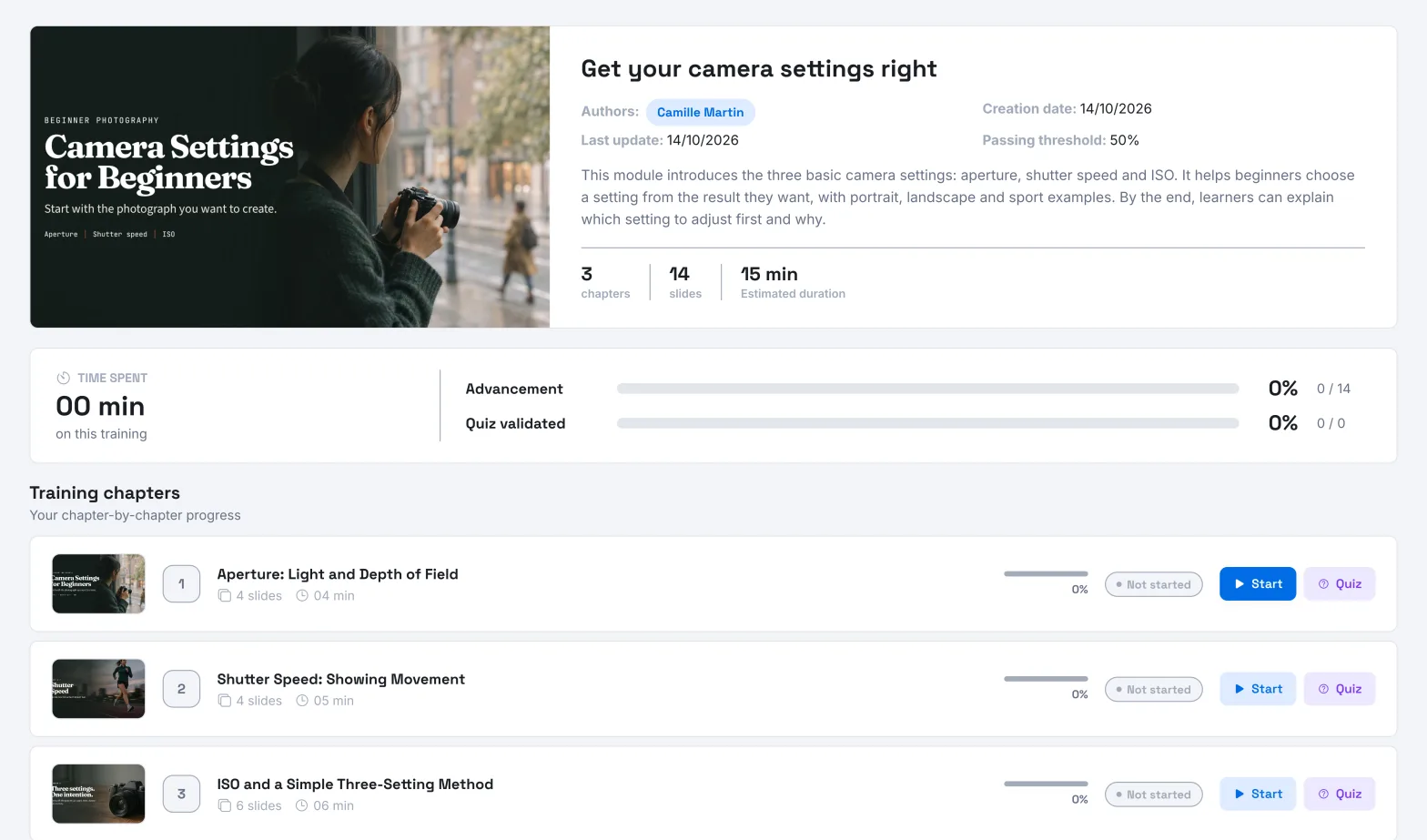
- Click Start in the course's table of contents that appears, or Continue if you have already started it.
If the course has been changed since your last visit, the Modified training message appears first. Click Got it! to continue.
The rest works as for any Complement course: see Take a session with the avatar.
Your Complement account#
You have nothing to create. The first time you launch a course, Complement creates your account with the information the LMS sends, such as your name and email address.
If you already had a learner account in your organisation with the same email address, that account is used: you get your progress back.
The courses you can access depend on the groups you belong to in the LMS. To change the interface language or the avatar's language, see Your profile and languages.
Your progress and your grade#
Your progress is saved in Complement. The next time you launch the activity, you will pick up where you left off.
When you pass the course, that is, all its chapter quizzes, Complement sends your grade to the LMS, if the LMS is set up to receive it. This grade is your Average score: your percentage of correct answers in the quizzes, shown on the end-of-course screen. If you improve this score later, the grade is updated.
On the end screen of a passed course, Back to program takes you back to the LMS page you came from, if the LMS provided it. See Finish and pass a course.
If access is denied#
The message "You do not have access to this course" appears when the course is not assigned to your groups, or is not published yet. Contact your administrator.

Was this article helpful?
Thank you for your feedback!
Thank you. Tell us what is missing through Help and support in the app, and we will complete the article.